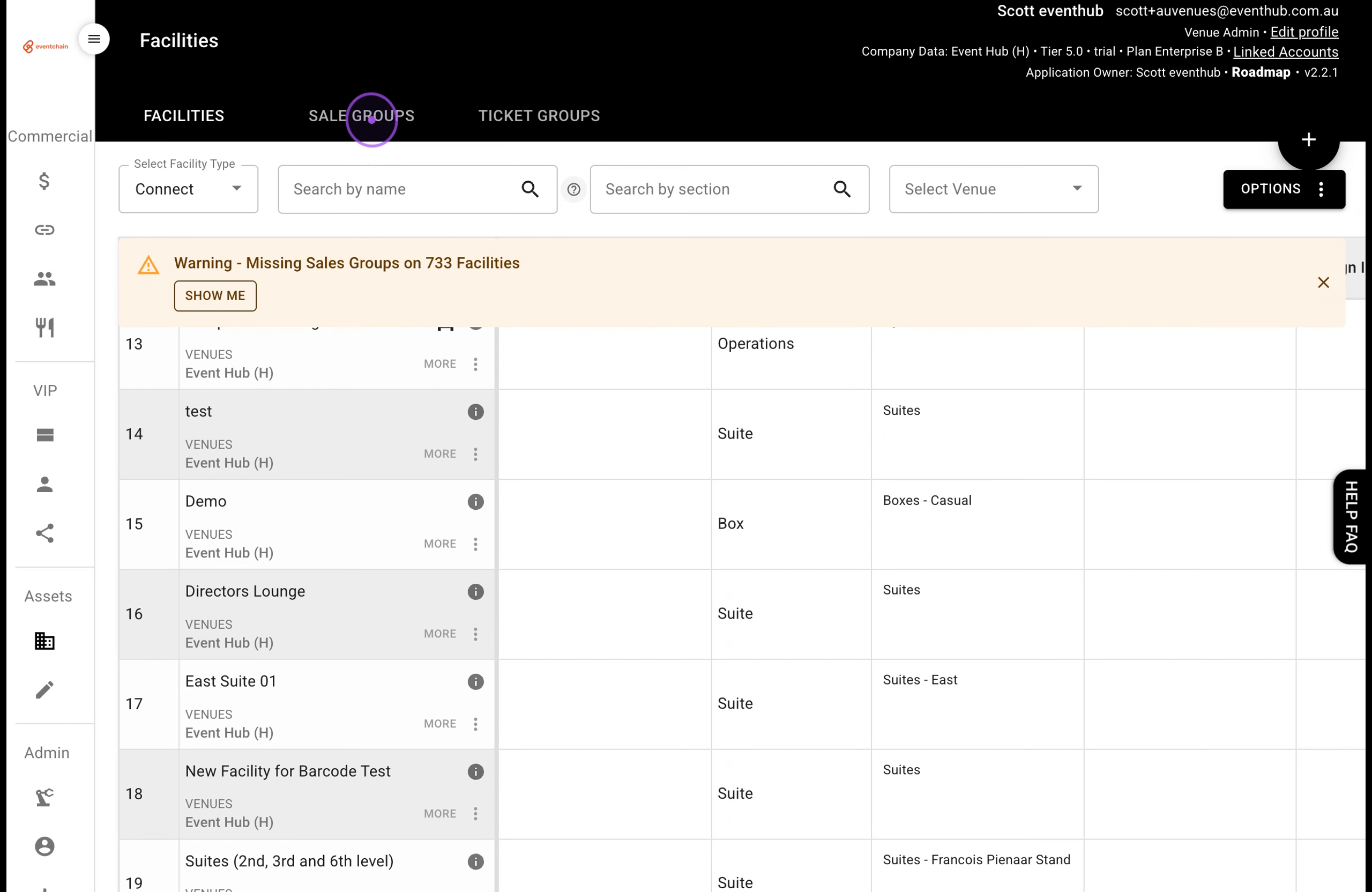
From the Assets/Facilities section of the left-hand menu, select the Sale Groups tab. This lists every sale group along with its current image status in the Image column.
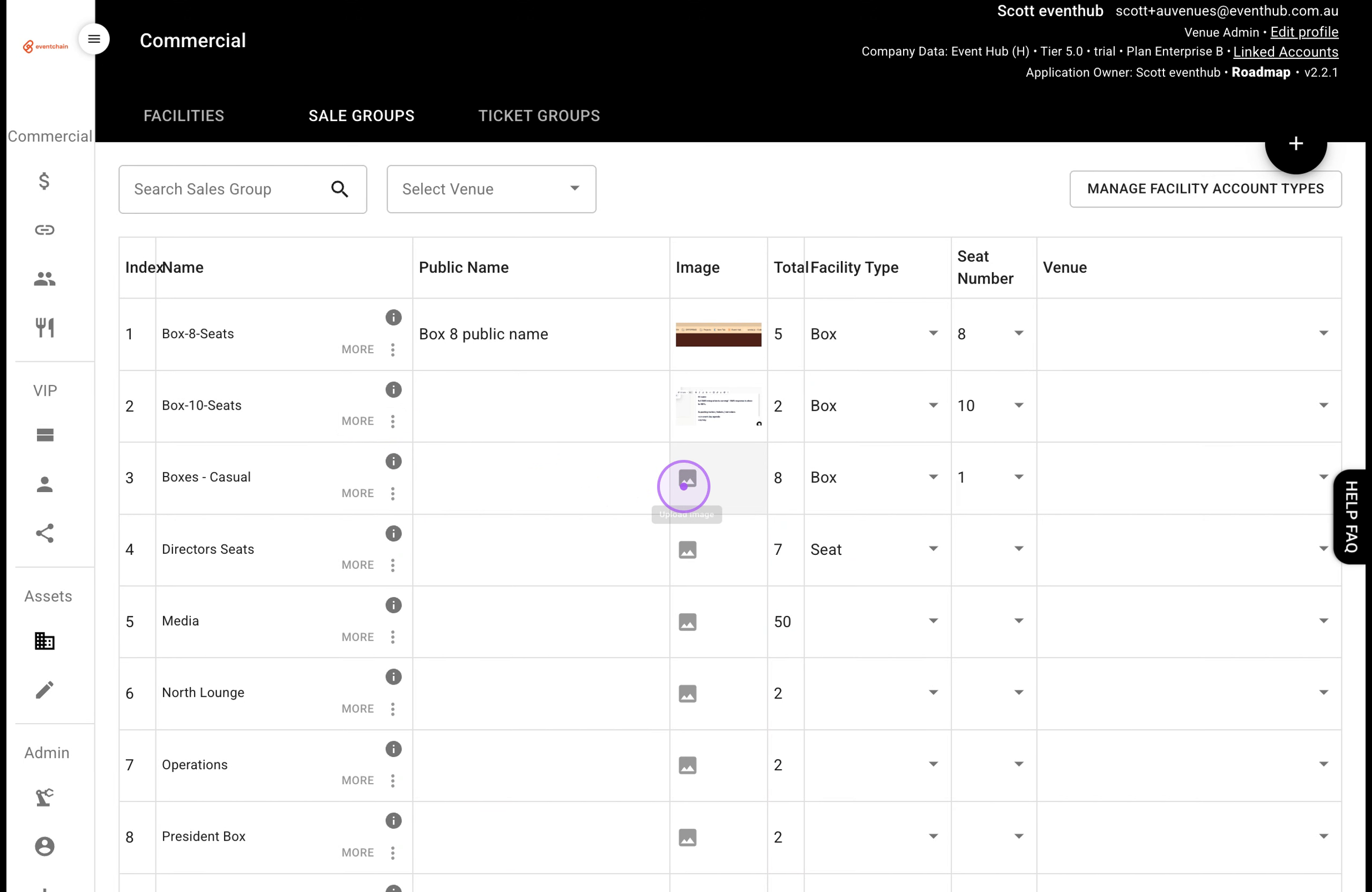
In the Image column, click the image icon for the sale group you want to update (for example, Boxes - Casual). The Images for <sale group> dialog opens with Apple Wallet and Google Wallet tabs.
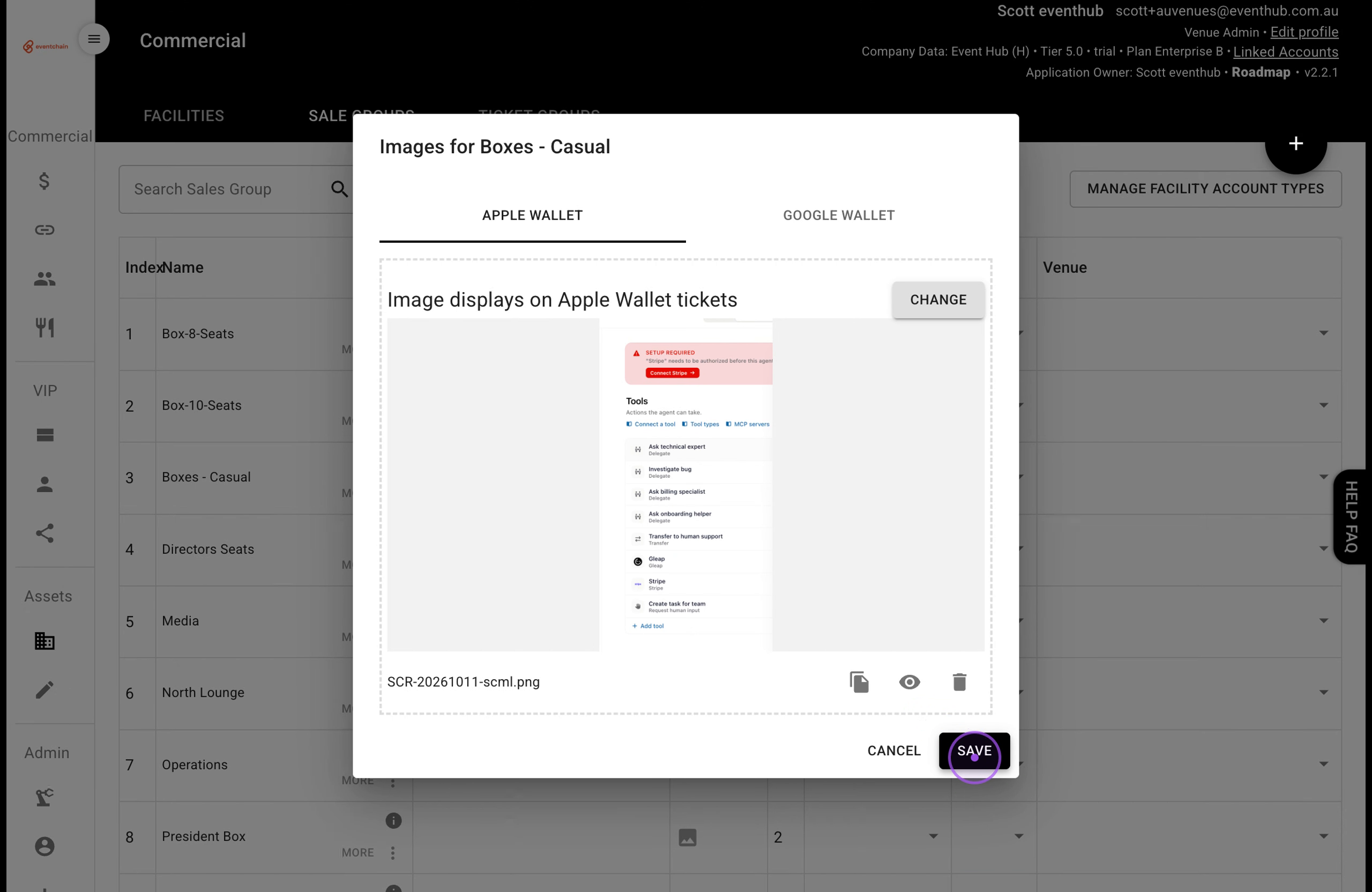
Click Browse (or drag and drop) to select your image file — it must be a .png between 1125px and 294px and under 1MB. Once the file is loaded, click SAVE to store it against the sale group.
Use the left-hand menu to navigate back to Inventory, then select the Workflow Planning tab to reopen the event planning grid.
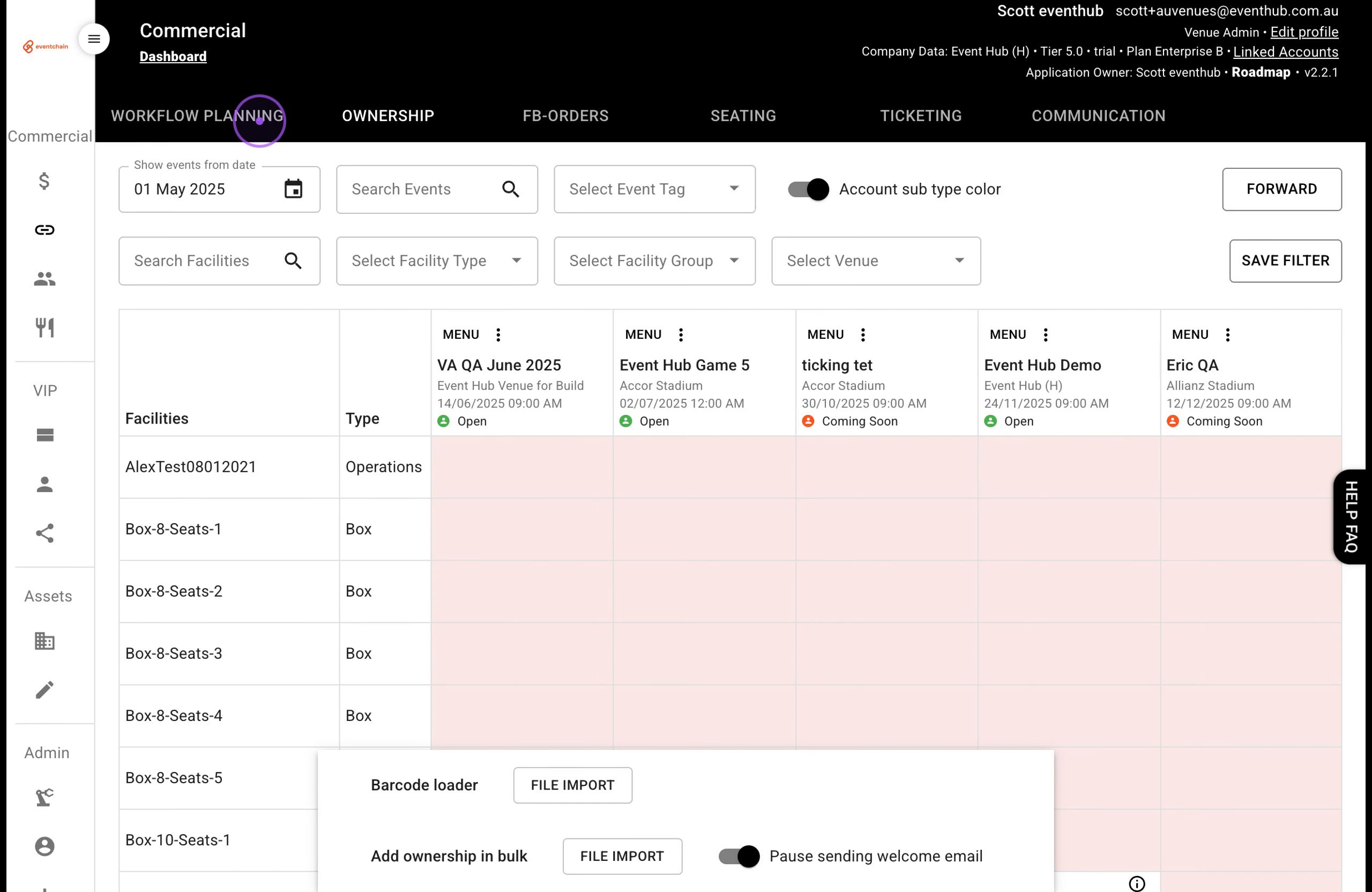
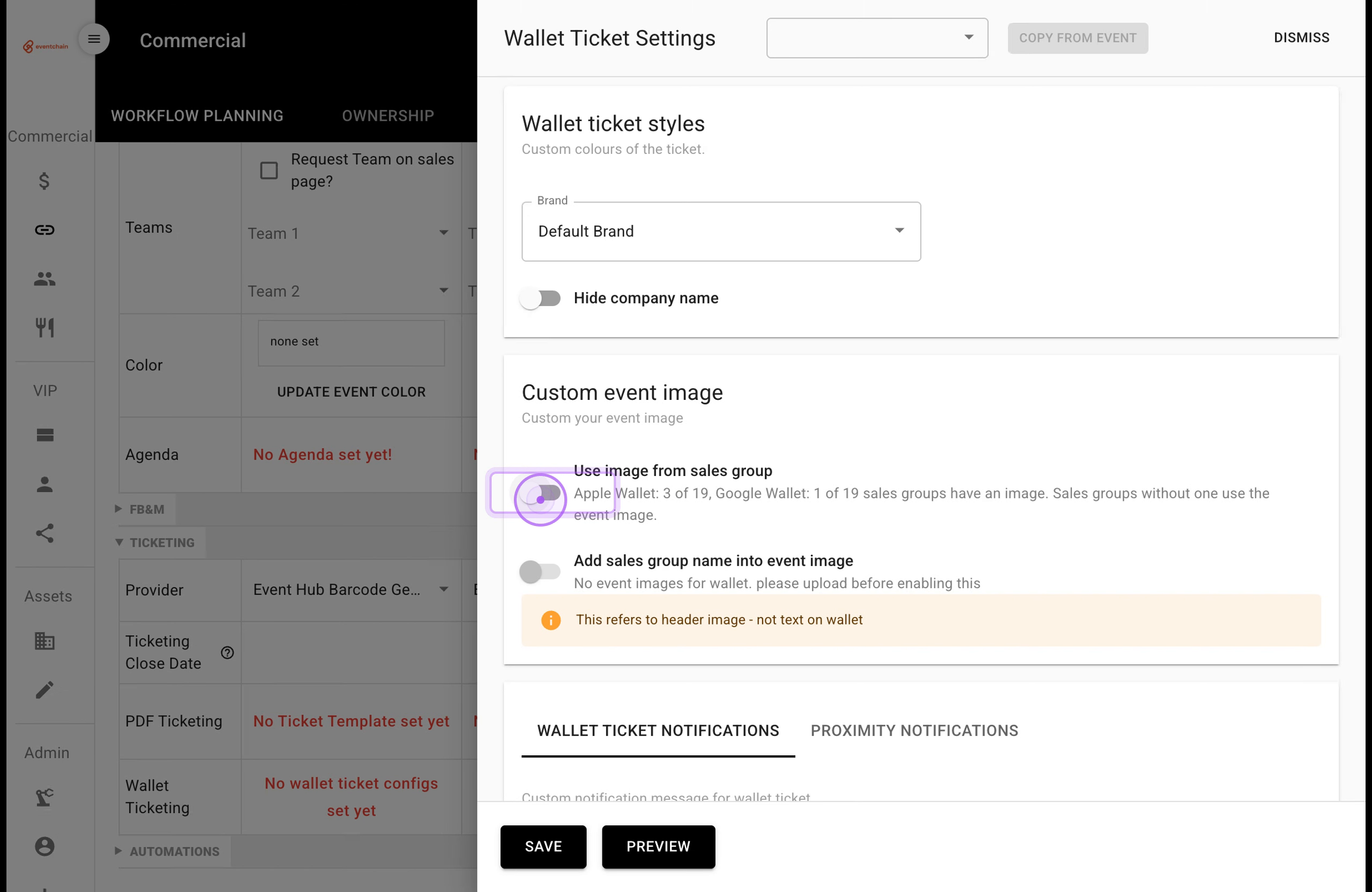
Expand the TICKETING section, then click the Wallet Ticketing cell for your event — it reads "No wallet ticket configs set yet" if nothing has been configured. The Wallet Ticket Settings panel opens.
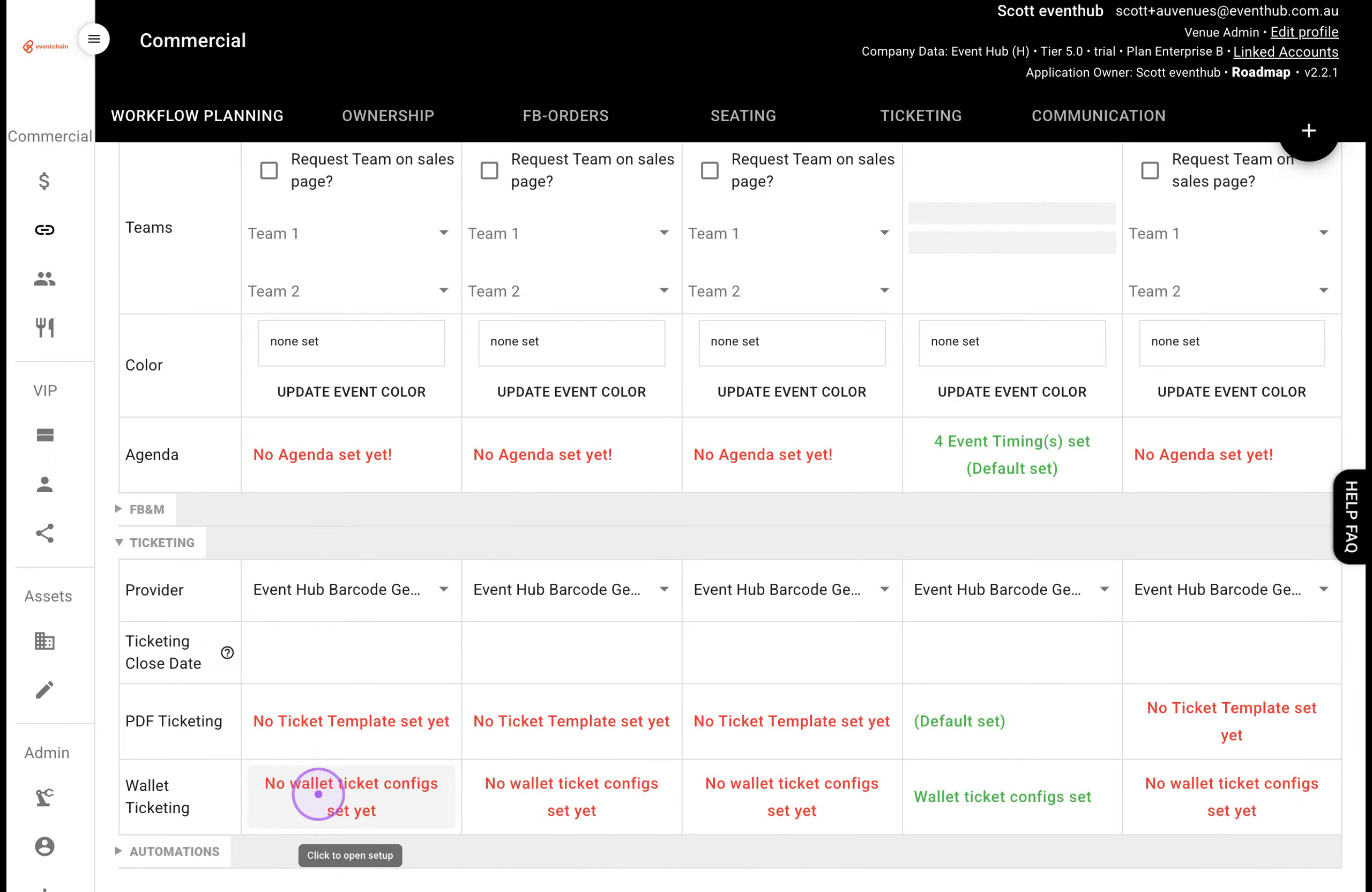
In the Custom event image section of the Wallet Ticket Settings panel, switch the Use image from sales group toggle on. Sale groups with an uploaded image will use it on their tickets; sale groups without one fall back to the event image.
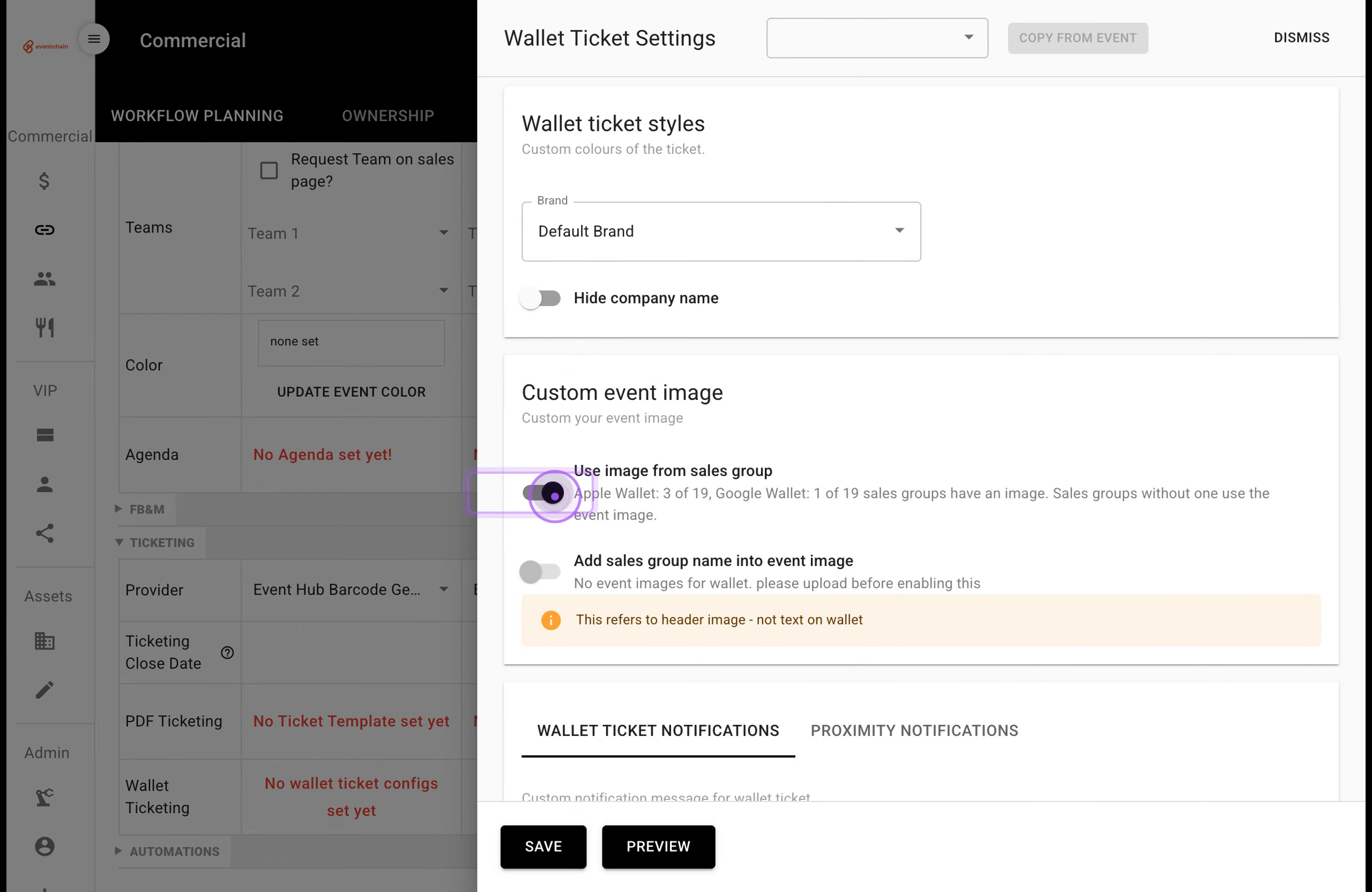
Click PREVIEW at the bottom of the panel to launch the Wallet Ticket Preview. You can switch between the APPLE WALLET and GOOGLE WALLET tabs to check each format.
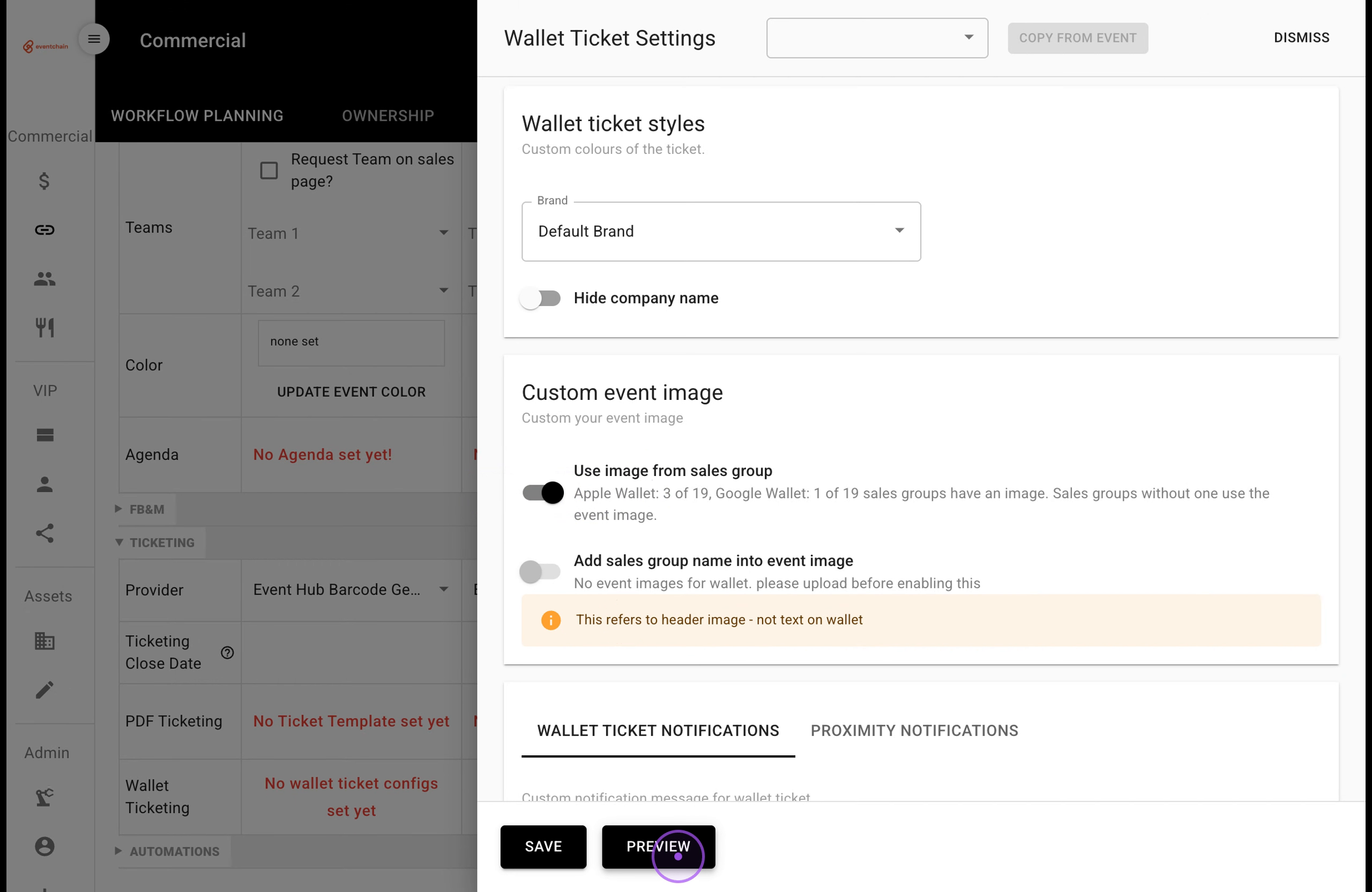
Use the PREV and NEXT controls at the top of the preview to cycle through every sale group's ticket (for example, 1/3, 2/3, 3/3) and confirm the correct header image and seat details appear on each one.
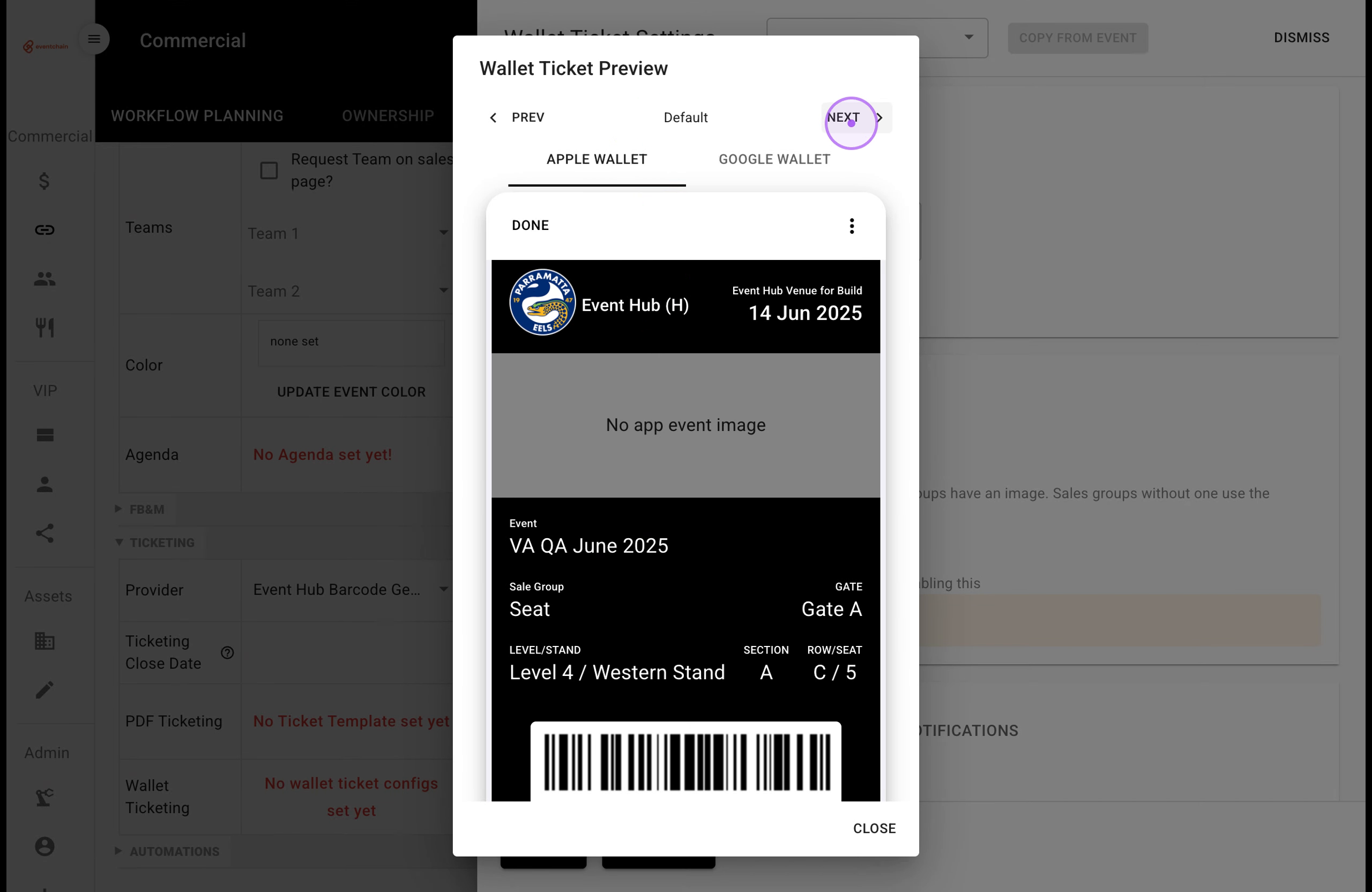
Click CLOSE to exit the Wallet Ticket Preview and return to the Wallet Ticket Settings panel.
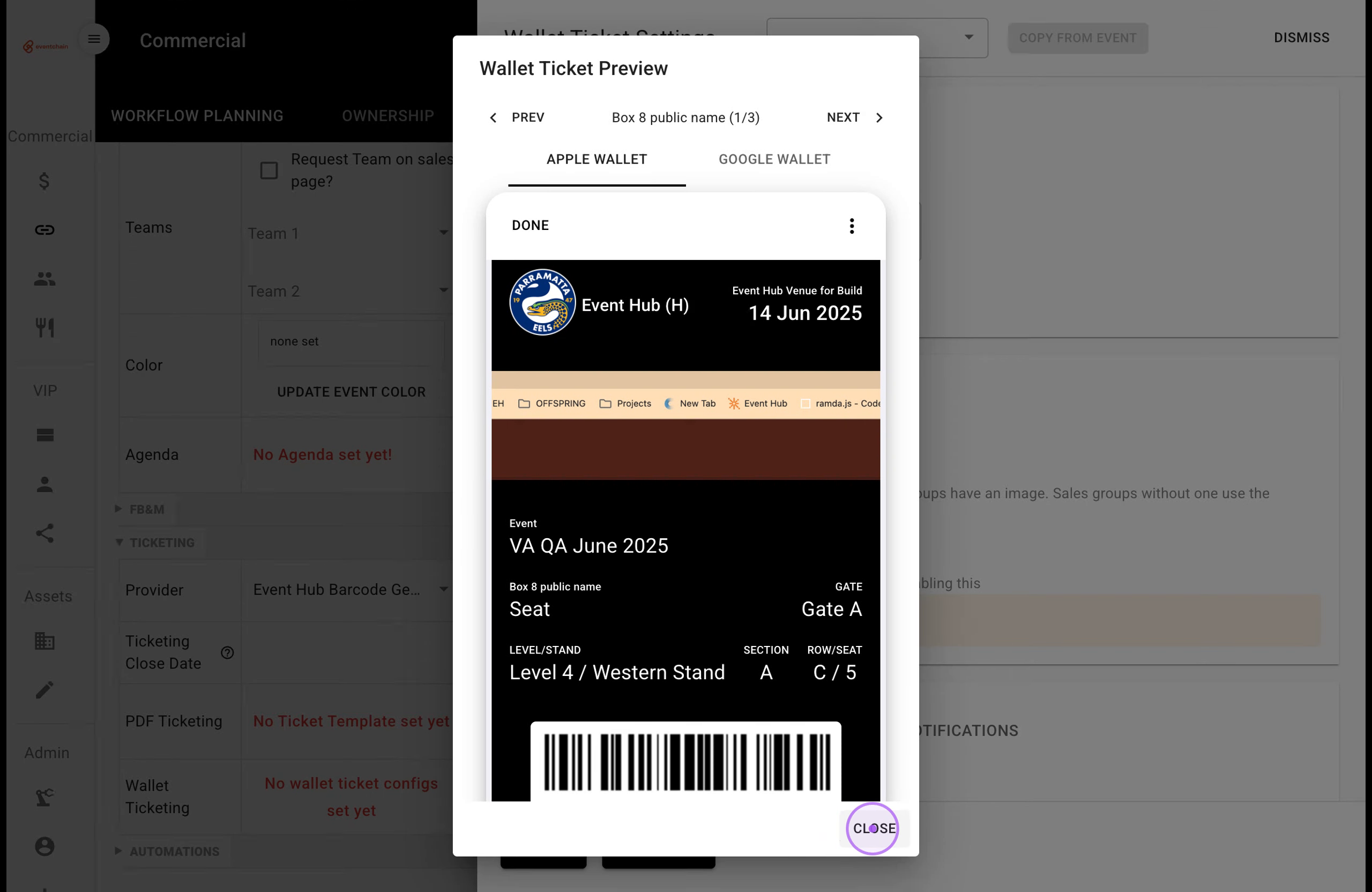
If you prefer to use the event-level image instead, switch the Use image from sales group toggle back off. Click SAVE to store your wallet ticket configuration, or DISMISS to exit without changes.