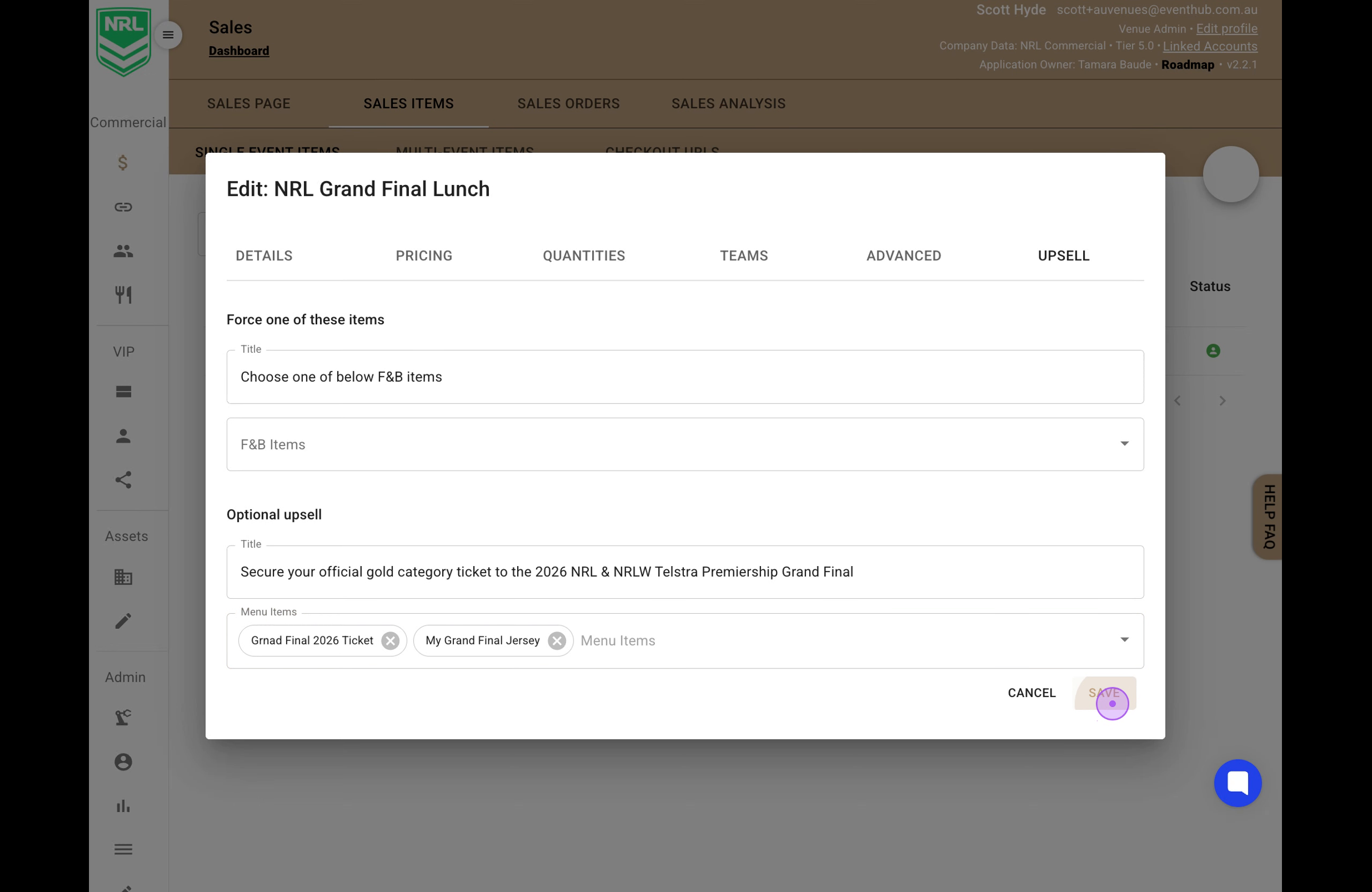
This guide walks you through creating a new menu item marked as an upsell, and then adding it to an existing sales item to offer customers additional purchase options.
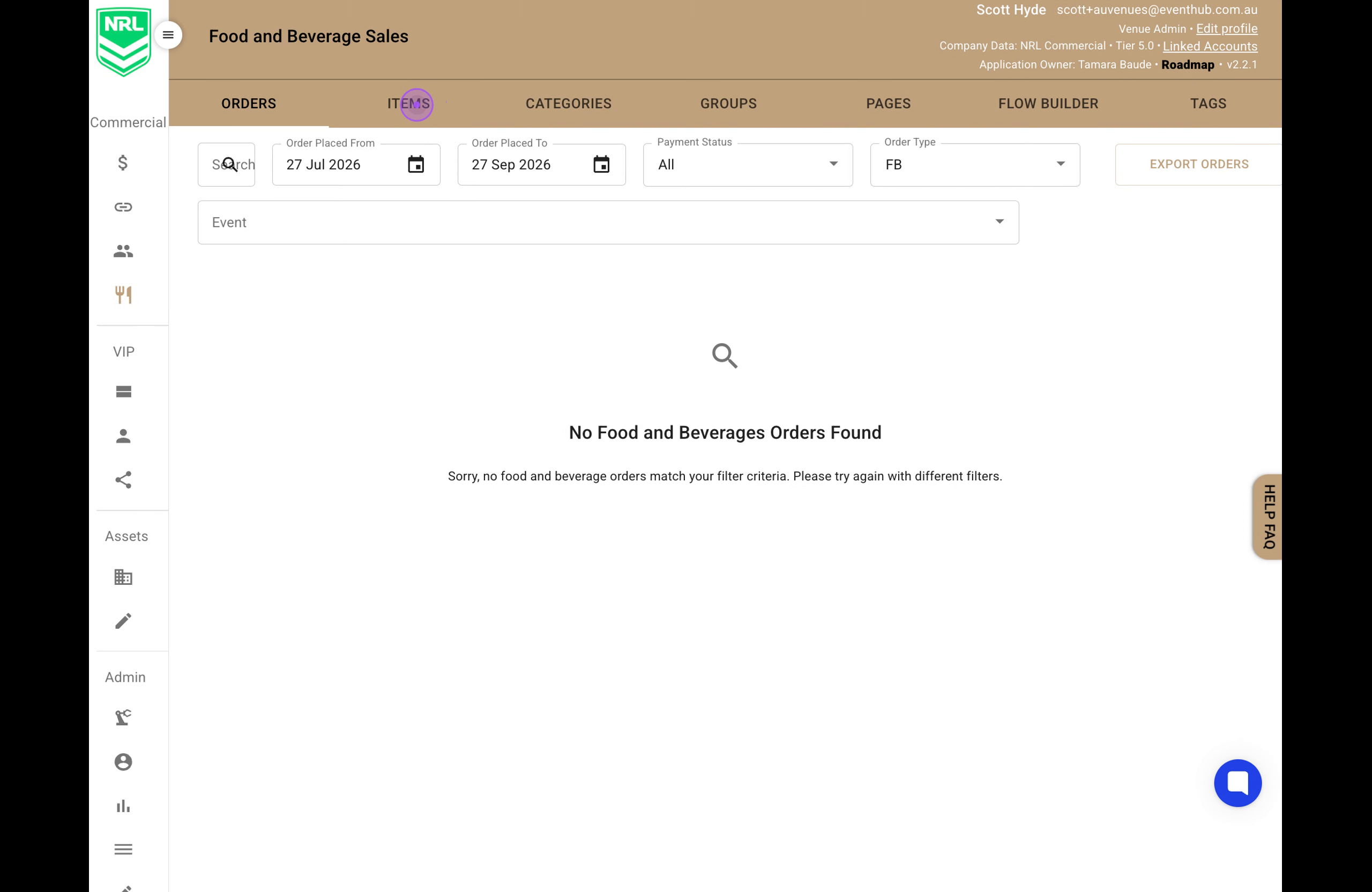
Click on Inventory in the left sidebar, then select FB&M. Click on the ITEMS tab to access the menu items list.
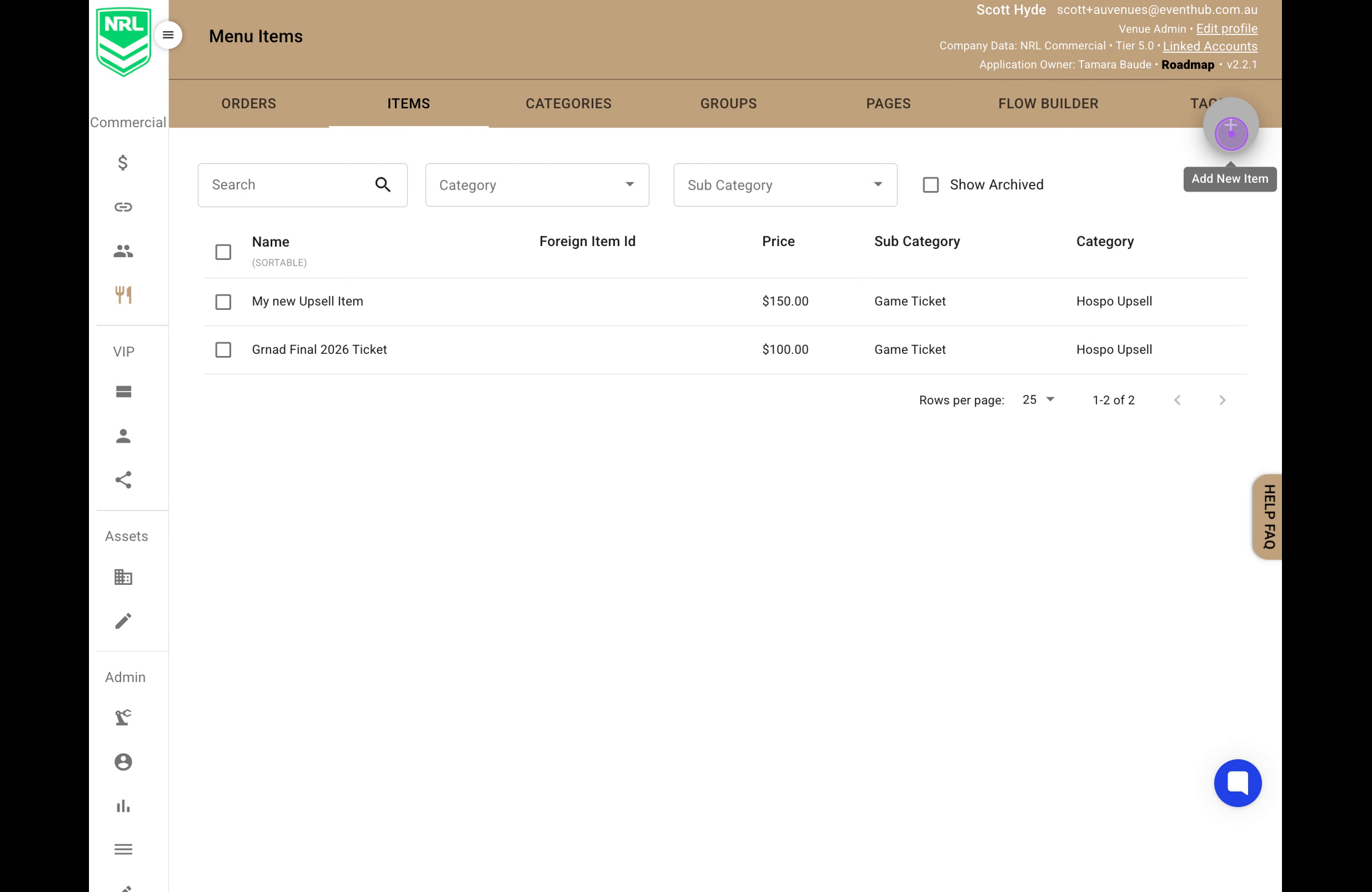
Click the Add New Item button (plus icon) in the top right corner to open the item creation modal.
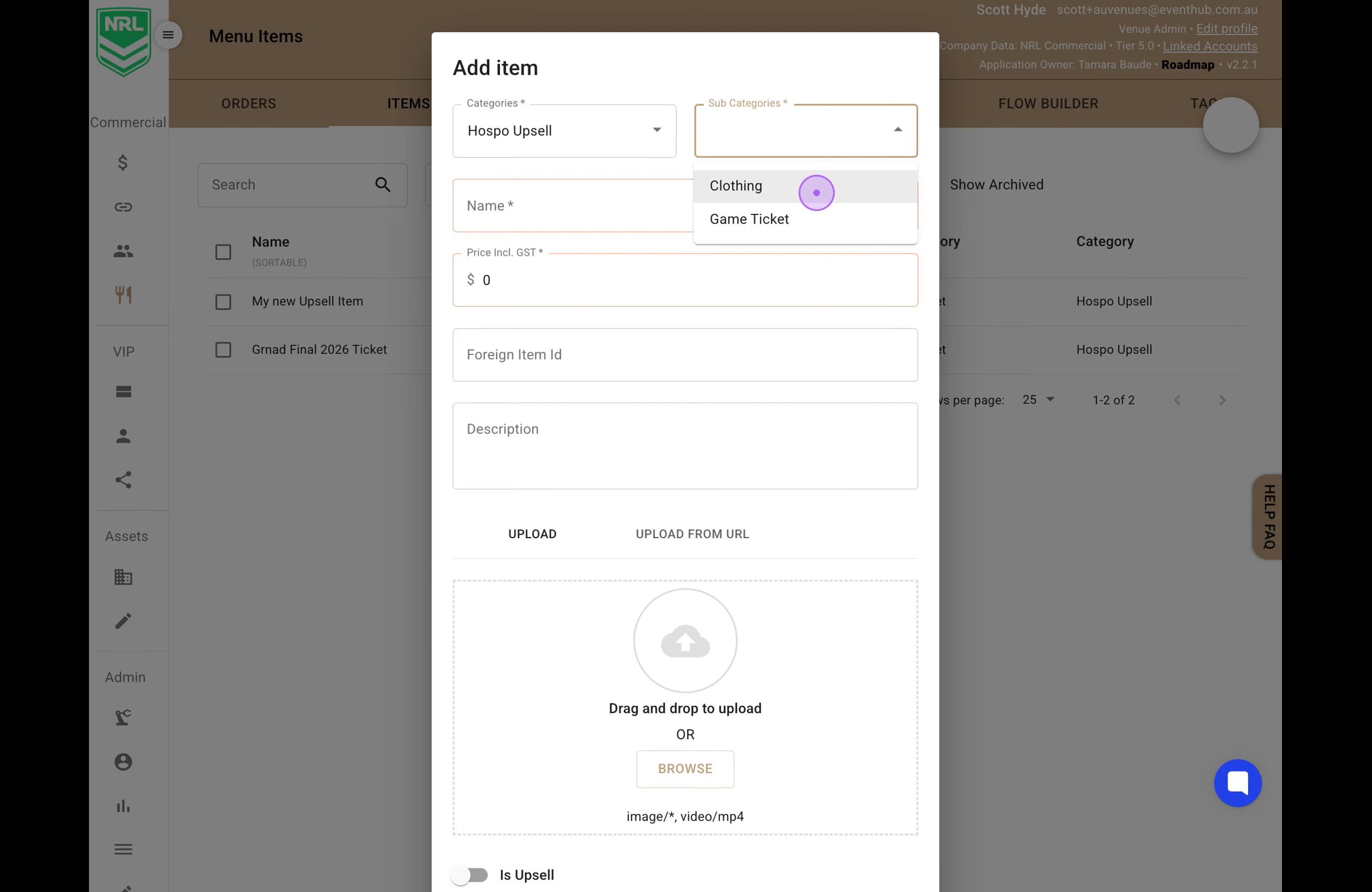
Select Hospo Upsell from the Categories dropdown and Clothing (or any Category) from the Sub Categories dropdown.

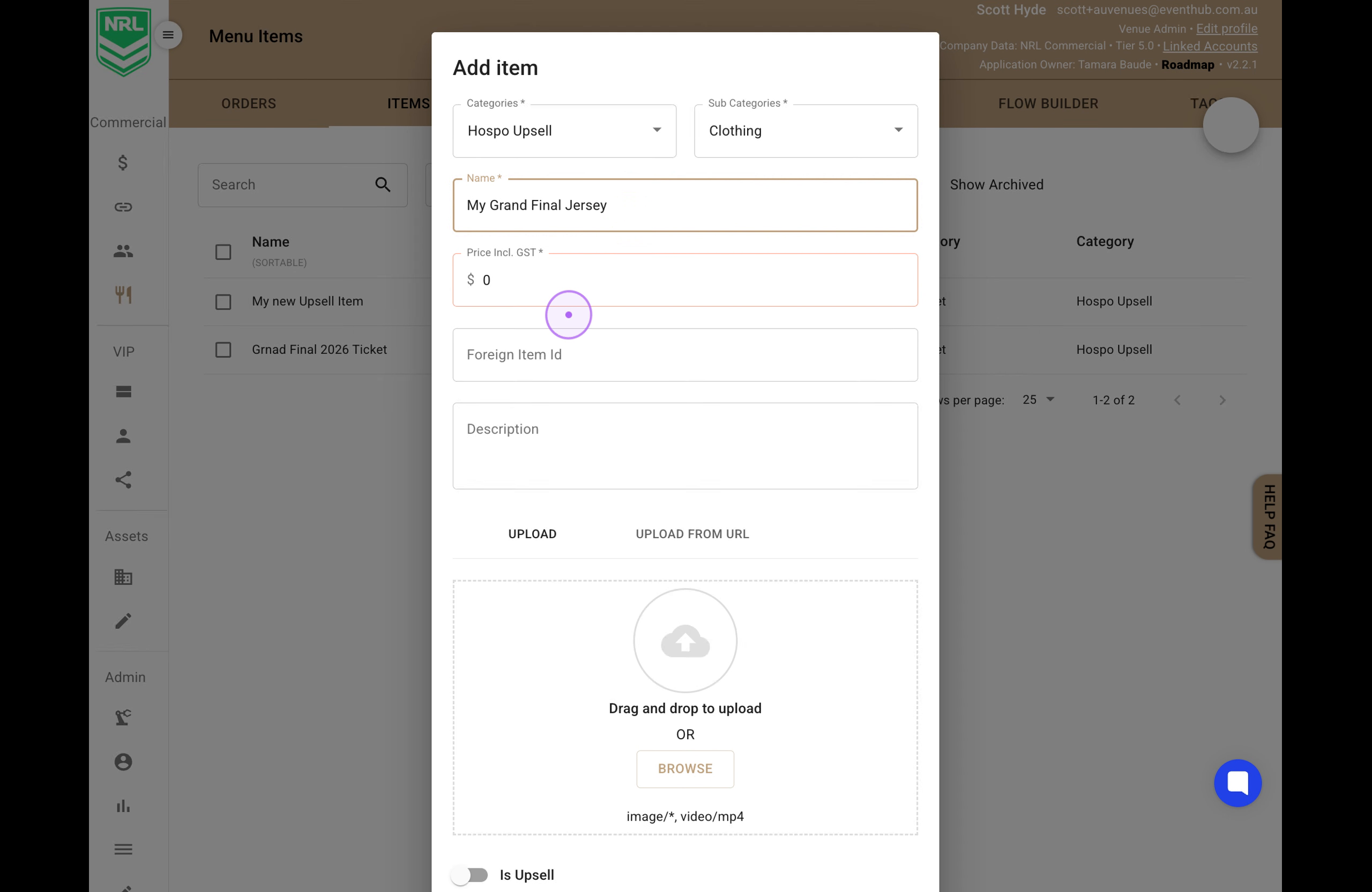
Enter the item name in the Name field and set the price including GST.
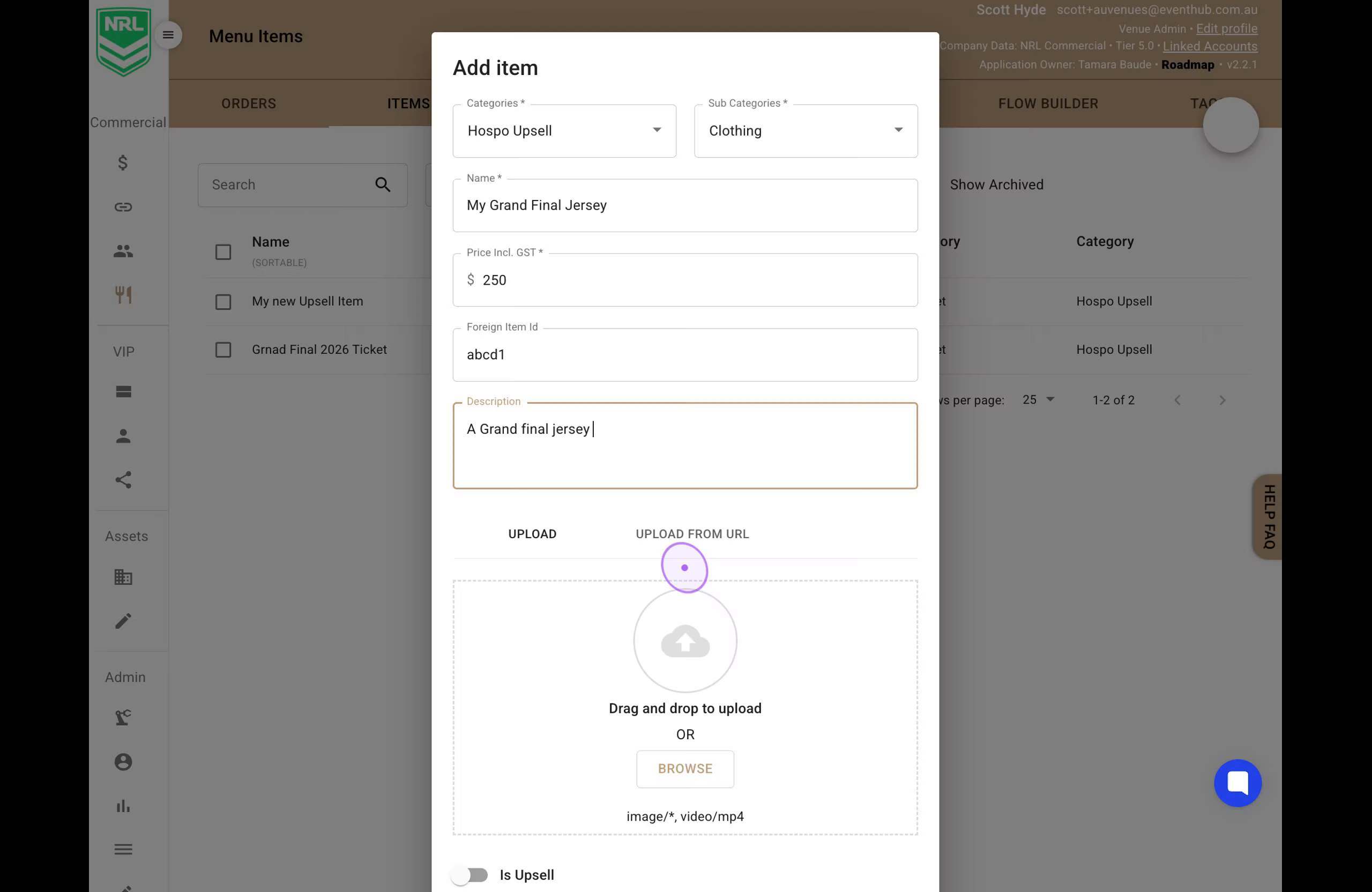
Enter a unique Foreign Item ID and add a description for the item in the Description field.

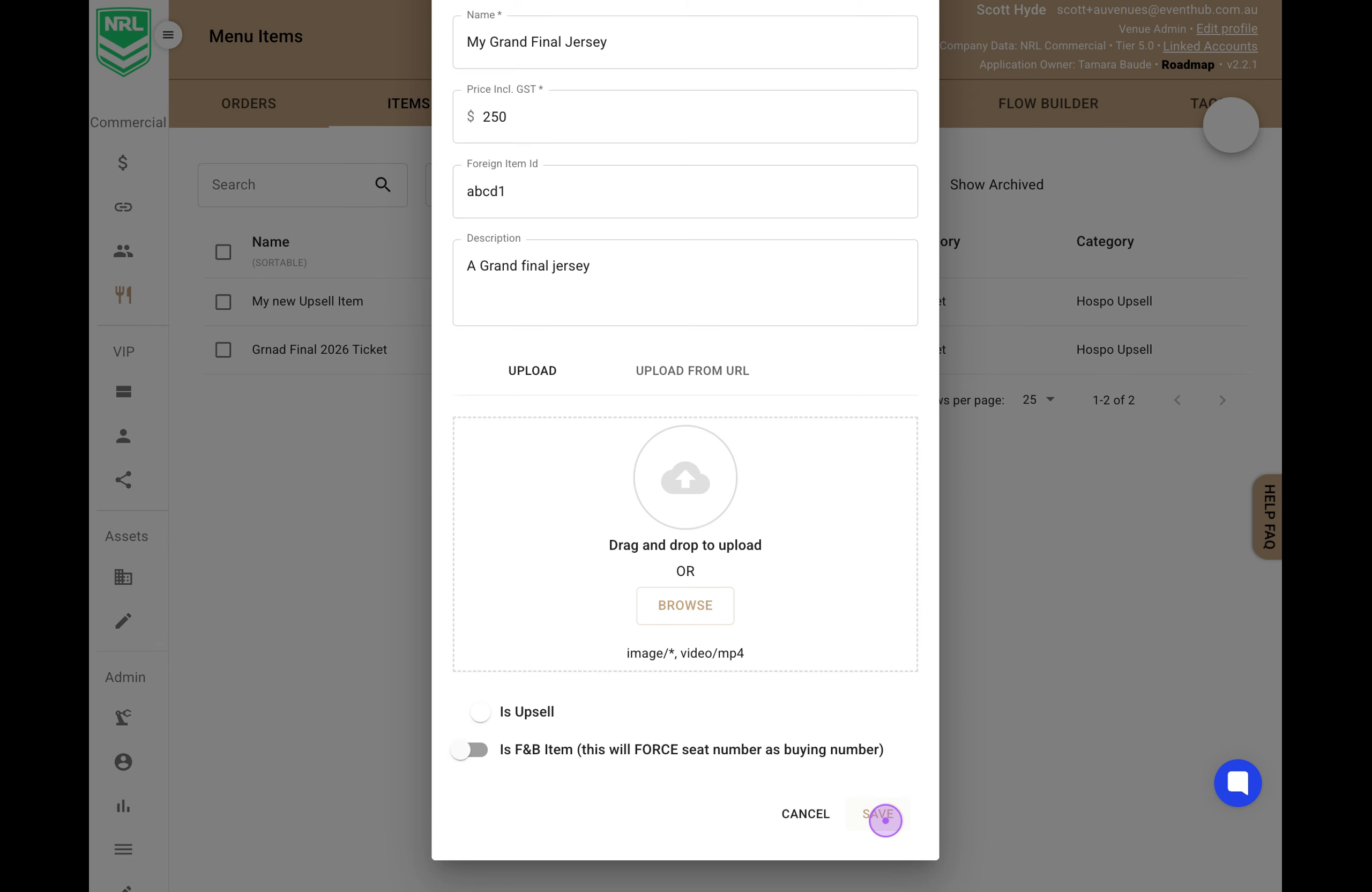
Scroll down and toggle on the “Is Upsell” option, then click the SAVE button to create the menu item.
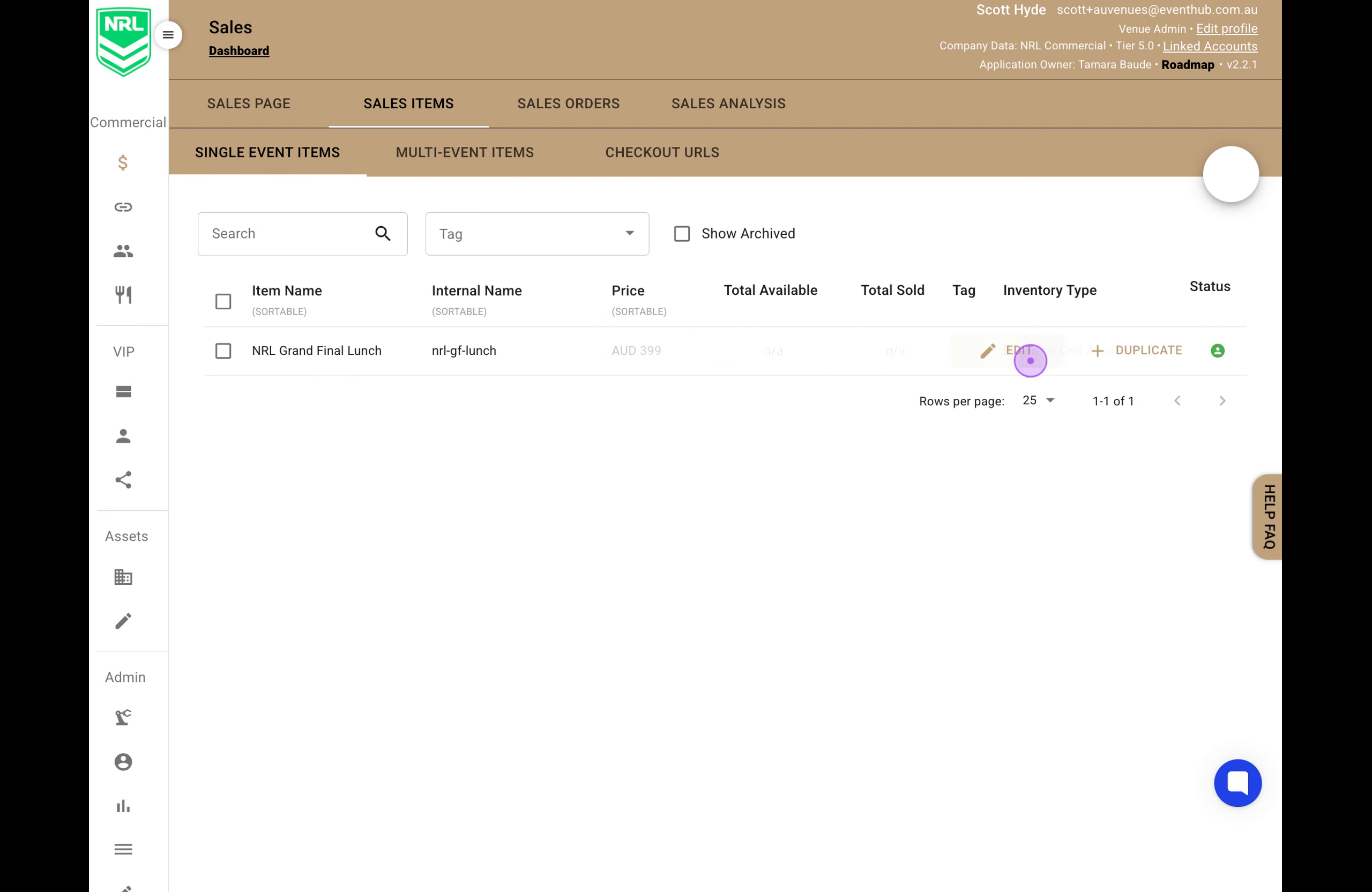
Go to Sales in the sidebar, click on the SALES ITEMS tab, and click Edit on the sales item you want to modify.
Click the Upsell tab, select your newly created item from the Menu Items dropdown under "Optional upsell", and click SAVE.