This guide walks you through the process of editing existing orders and viewing their version history in Eventchain.
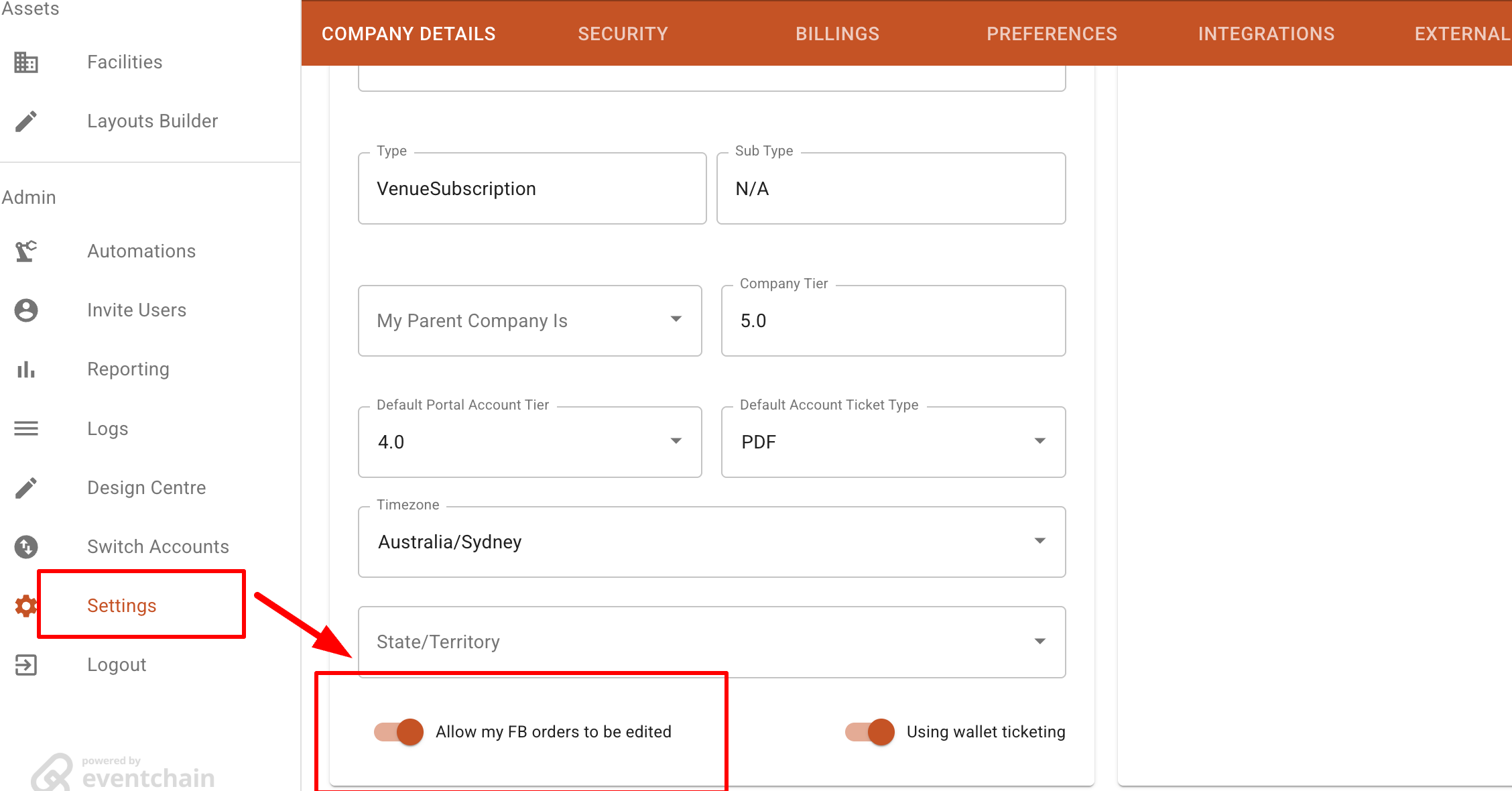
Before you can modify any orders, you must ensure the editing feature is active. Navigate to Settings and toggle on "Allow my F&B orders to be edited" to enable the order editing feature for your account.
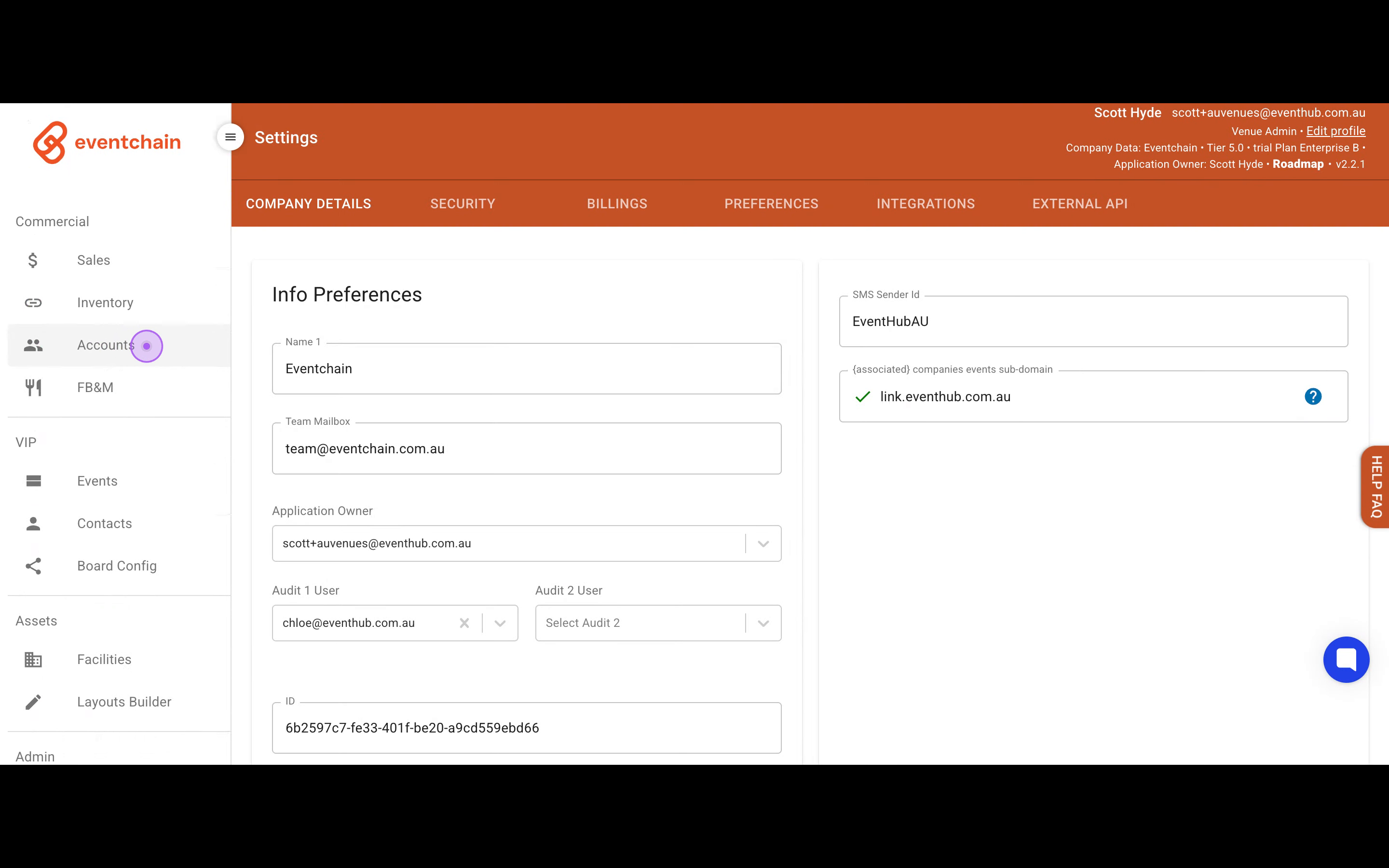
Once the feature is enabled, click on the Accounts menu item in the left sidebar to access the accounts management page.
In this example we will edit orders on behalf of a client, it is identical process for any client directly.
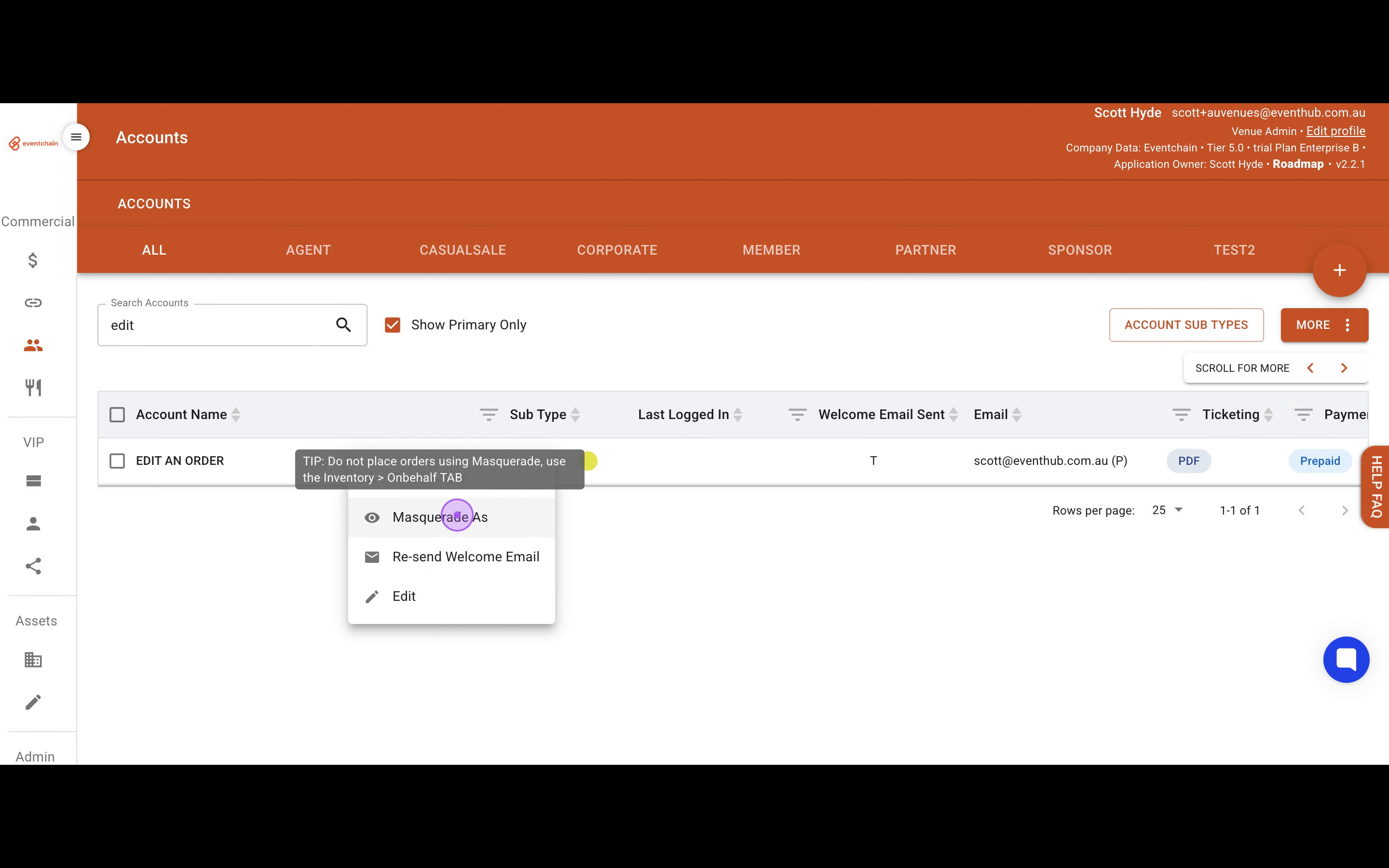
Search for the specific client account using the search bar. Click the menu icon (three dots) next to the account name and select Masquerade As to access the client's view.
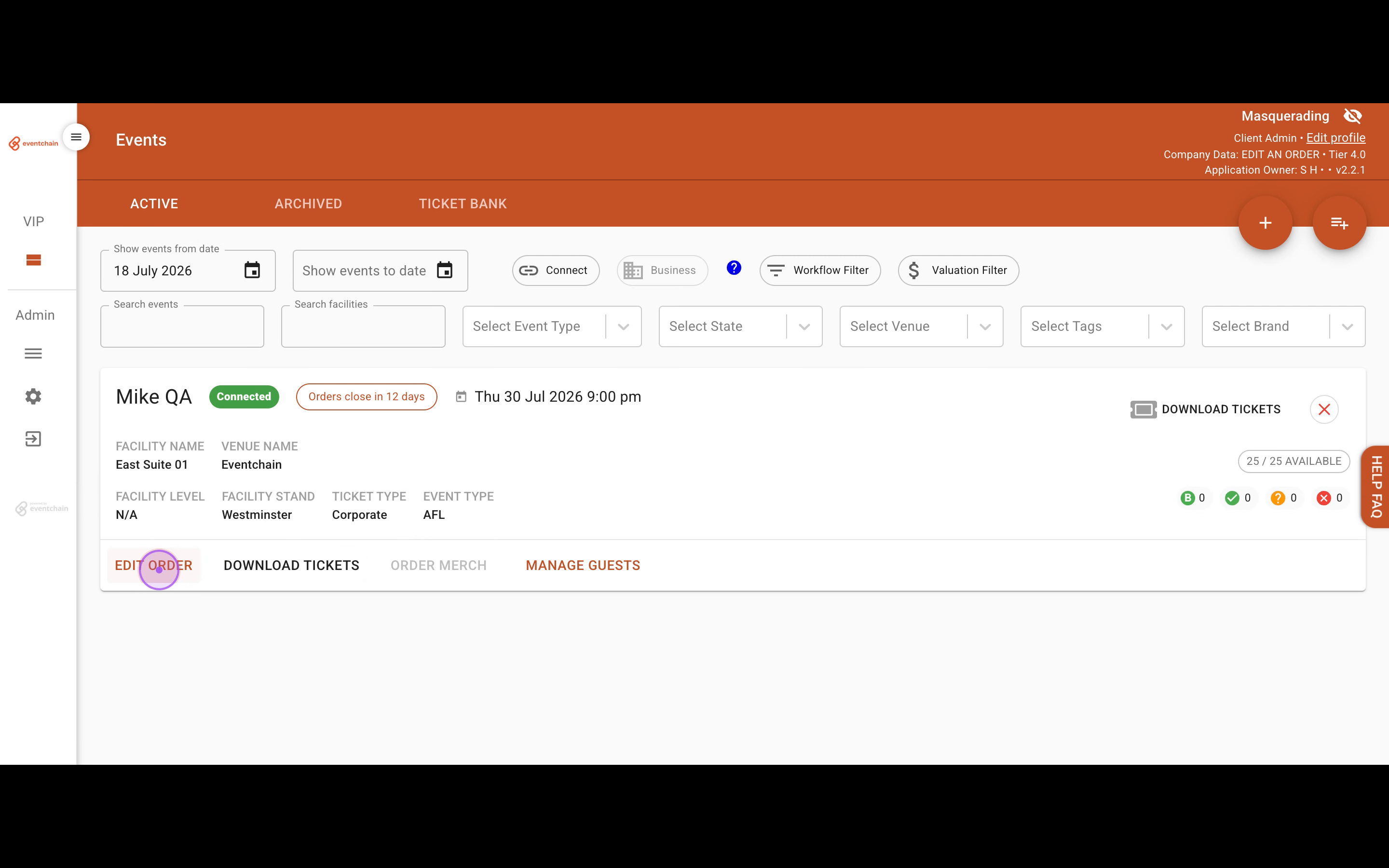
Once you are in the client's view, locate the relevant event in their list and click the EDIT ORDER button to open the order editing interface.

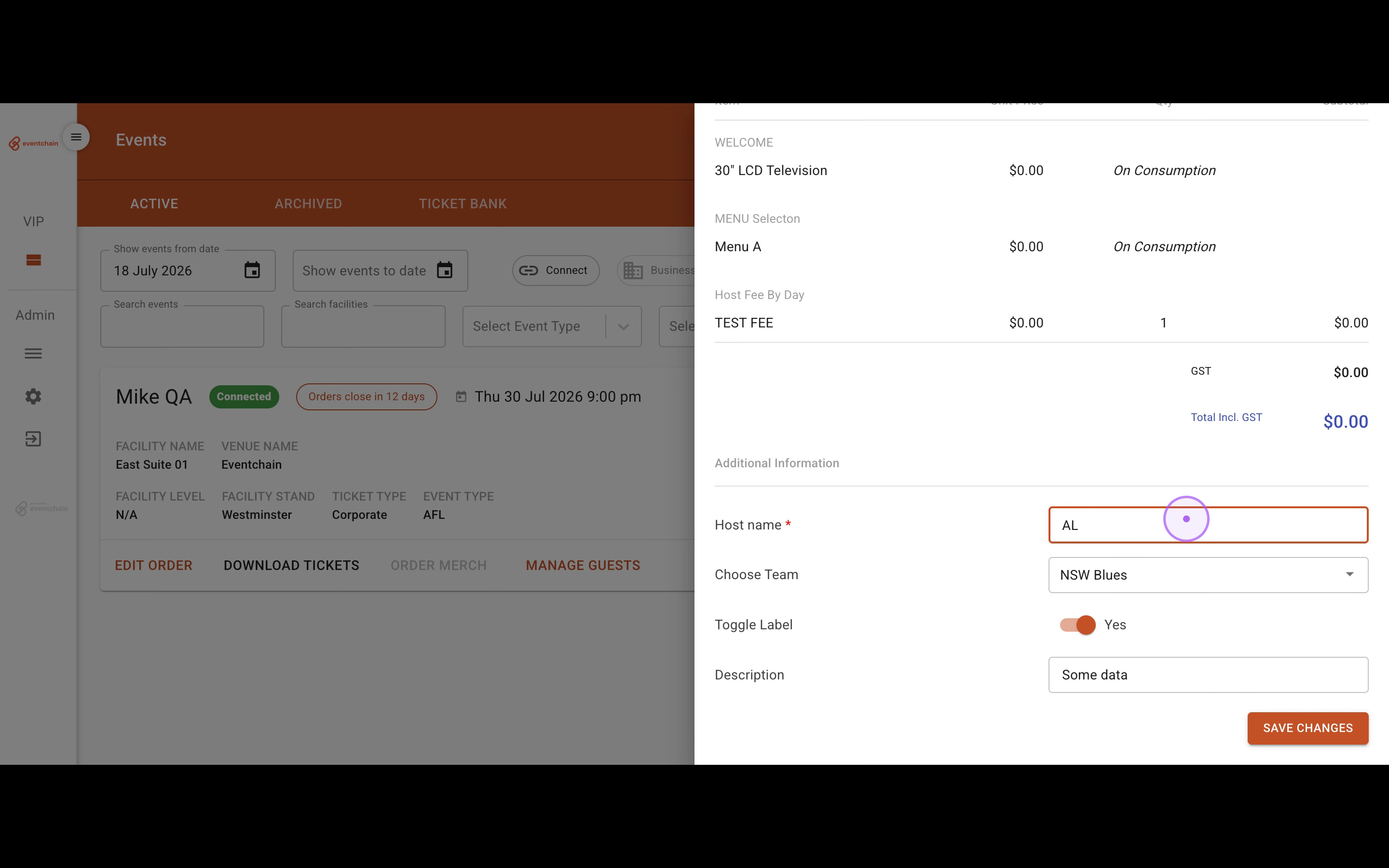
Make the necessary updates to the order. You can modify fields such as the Host name, the any data dropdown selection, diet data and the Description field with the new information.
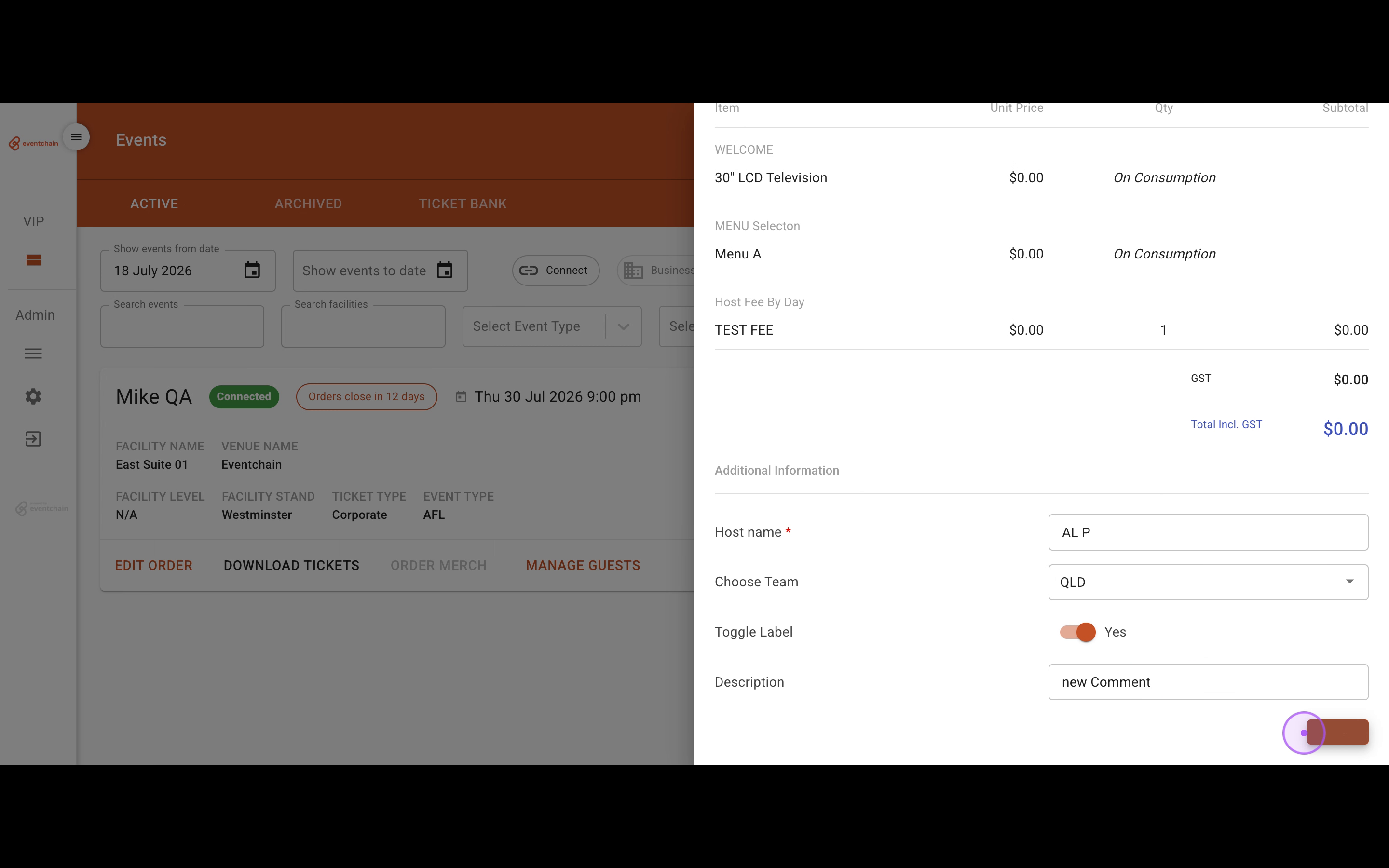
After updating the details, click the Save Changes button to commit your modifications to the order.
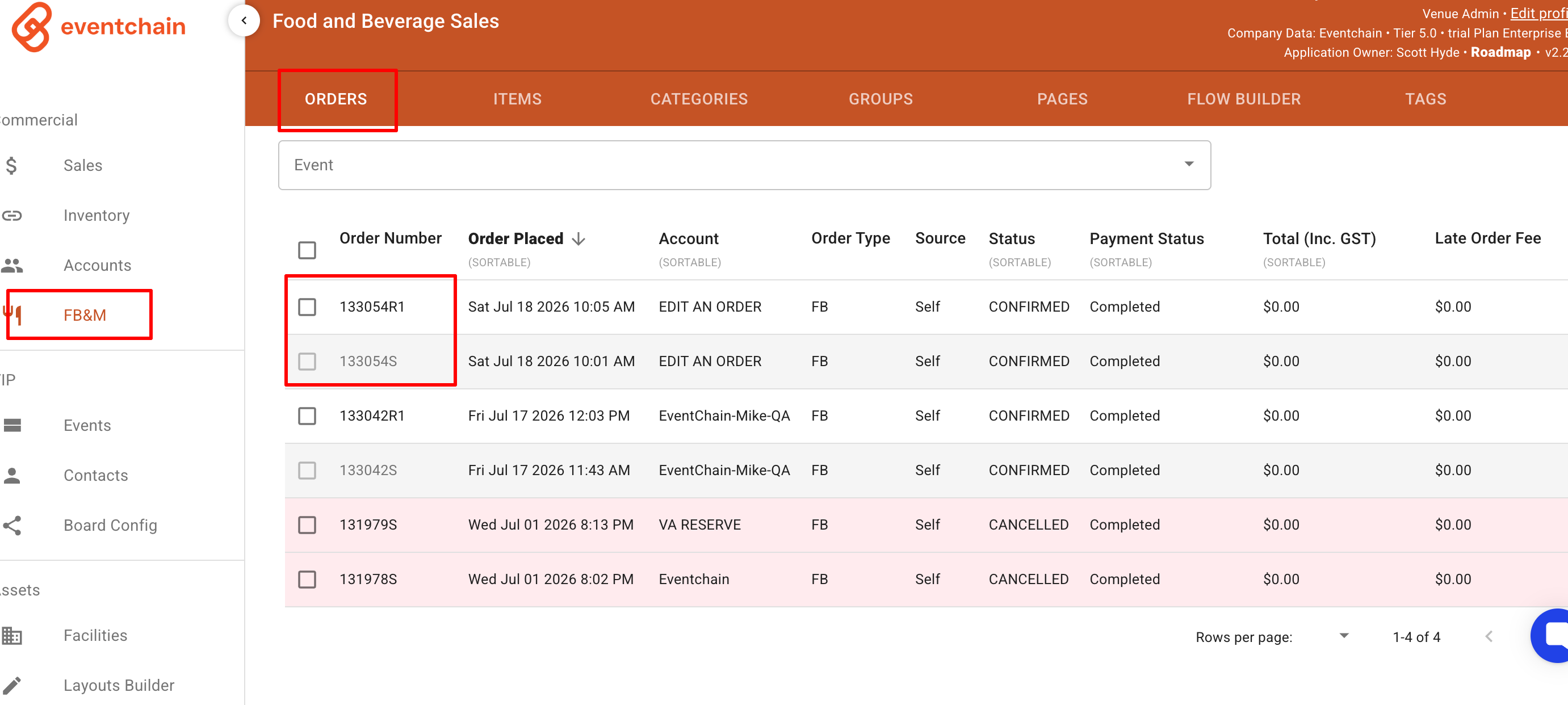
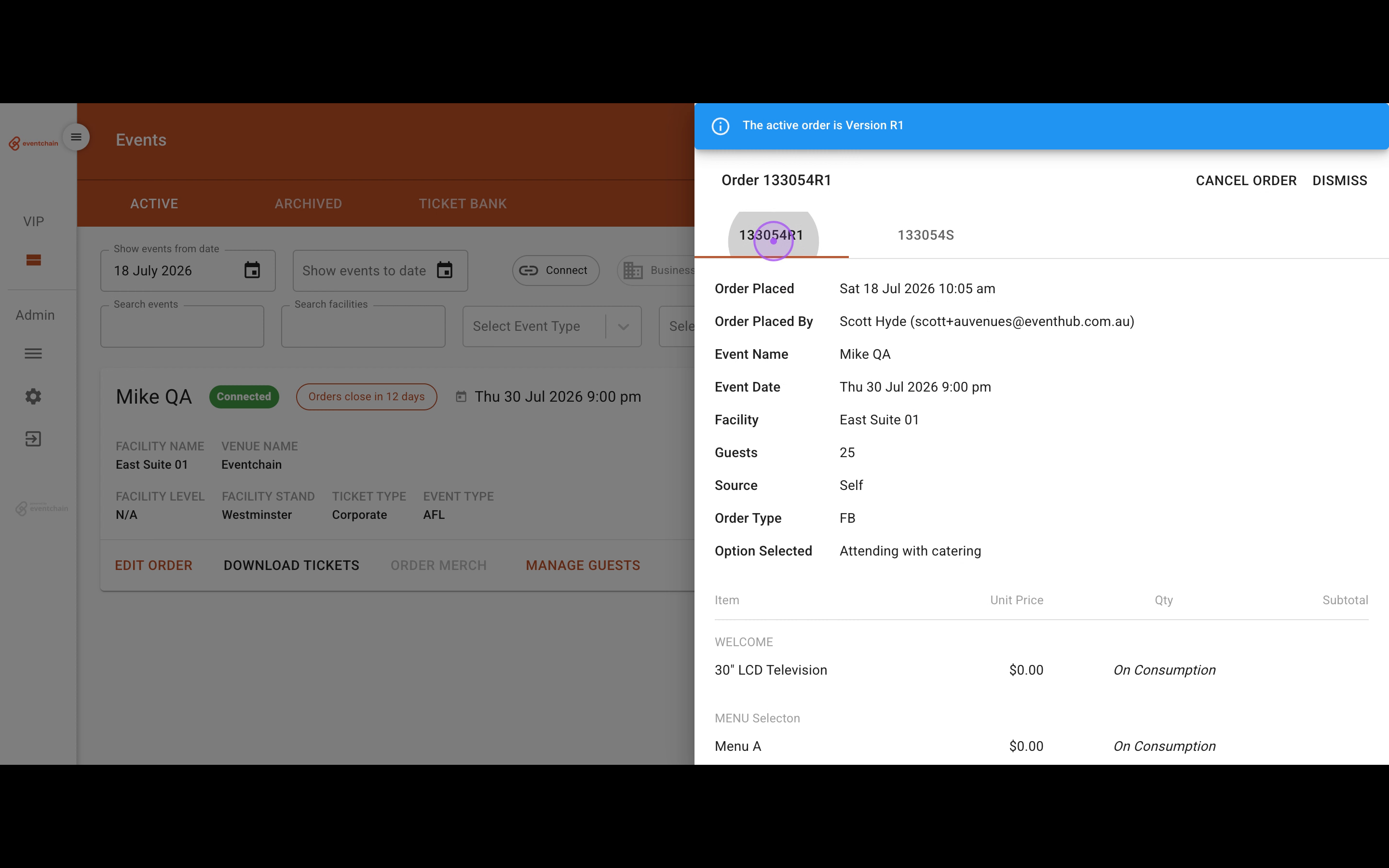
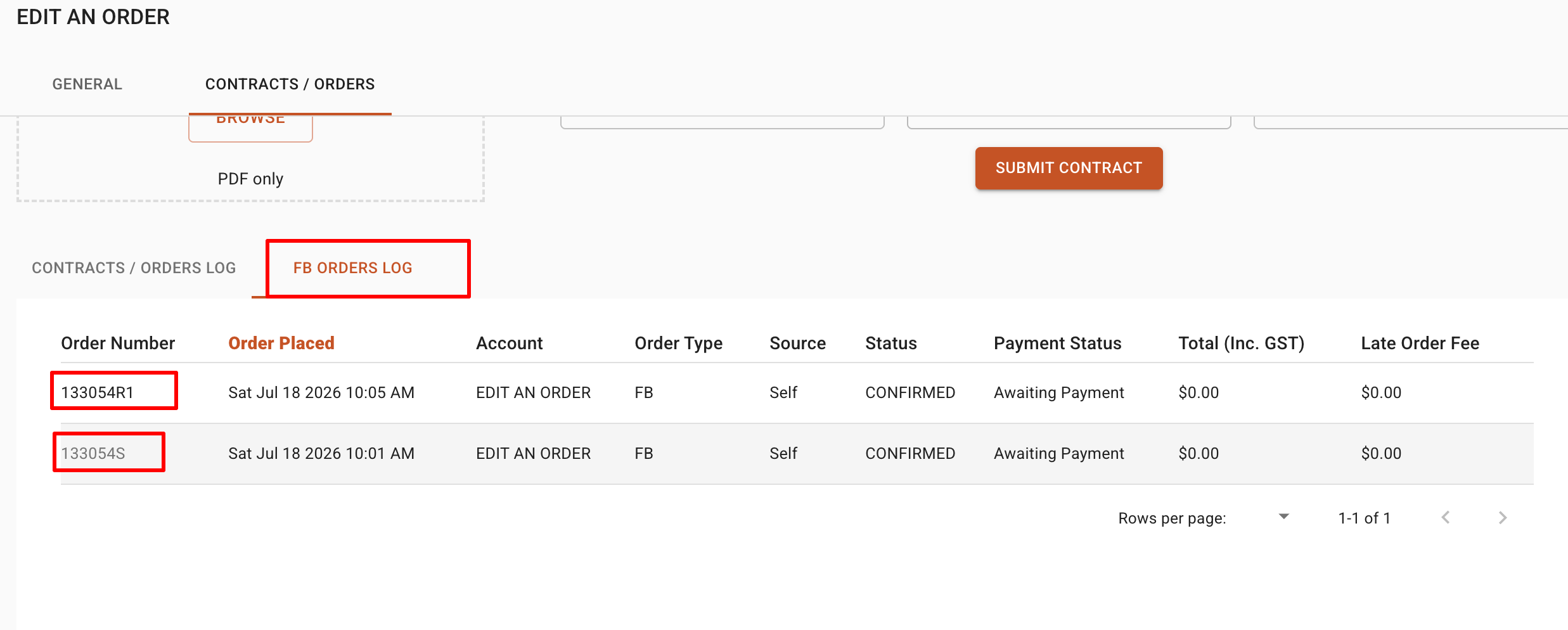
After saving, you can track the changes made. View the different order versions (e.g., 133054R1 and 133054S) by clicking on the version tabs to compare the original and revised orders.
To review a comprehensive list of all food and beverage orders, navigate to the account's Contracts / Orders section and click on the FB Orders Log tab.
Finally, you can access complete order details from the standard log by clicking the VIEW button next to any order. This allows you to review the full order history and details before clicking DISMISS to return to the log.