Event Hub allows you to customise the default emails. Follow these steps to modify the Ticket Assignment Notification template in the Design Centre.
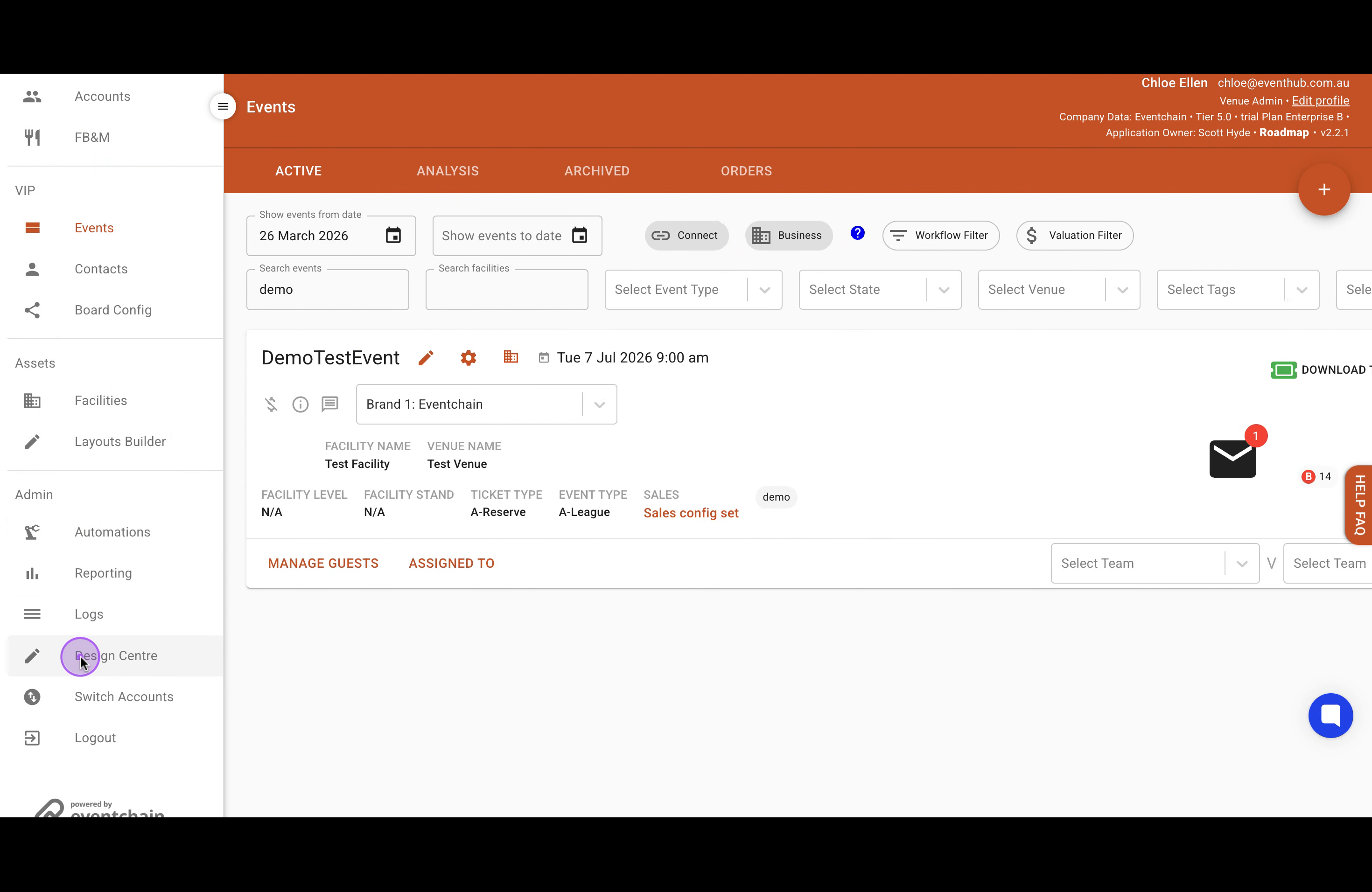
From the main Events page, click on Design Centre in the left sidebar navigation menu under the Admin section.
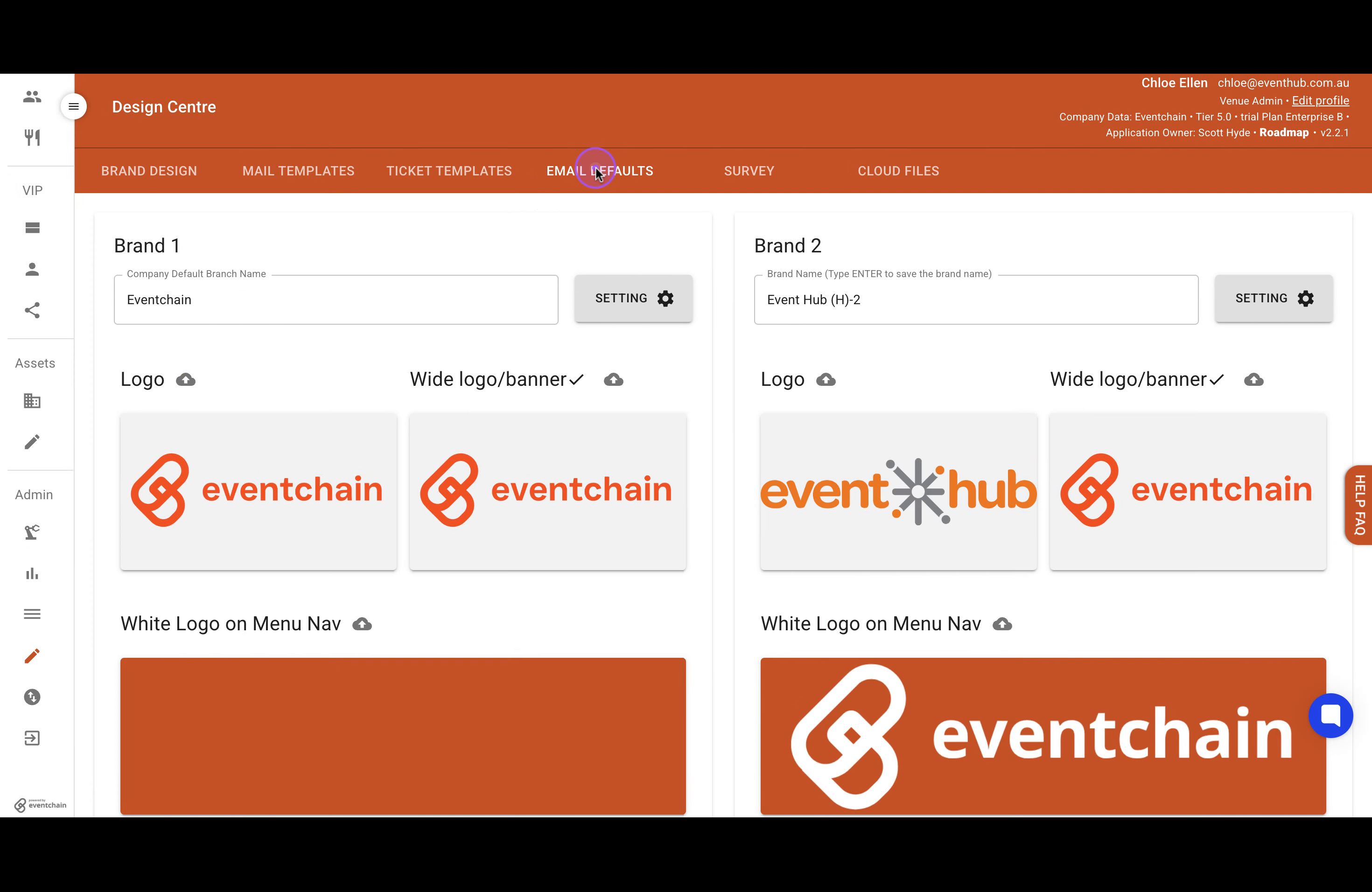
Once in the Design Centre, click on the EMAIL DEFAULTS tab located in the top navigation bar.
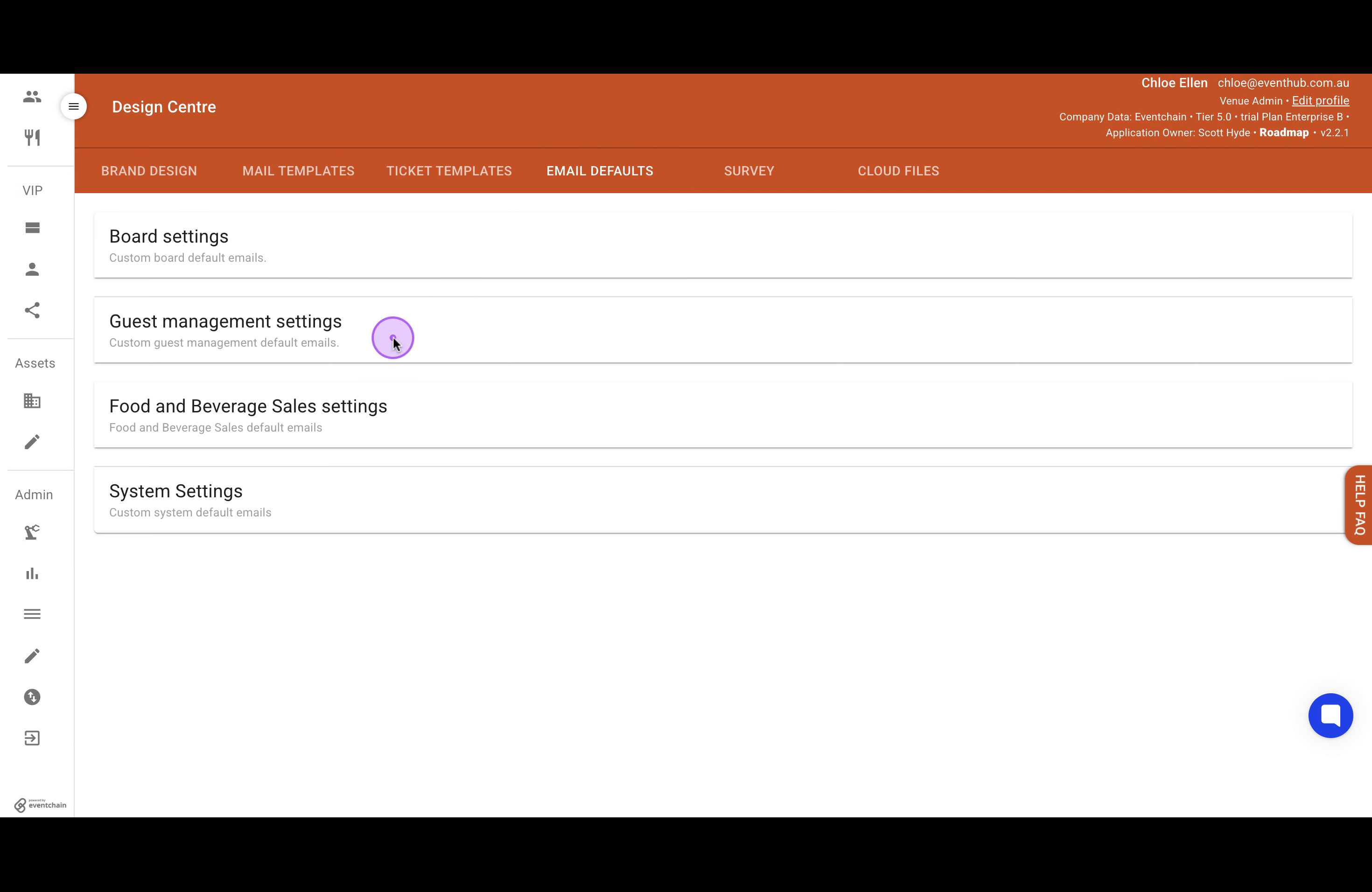
Here, I am using guest management. Click on Guest management settings to expand the section and reveal the Ticket Assignment Notification template editor.
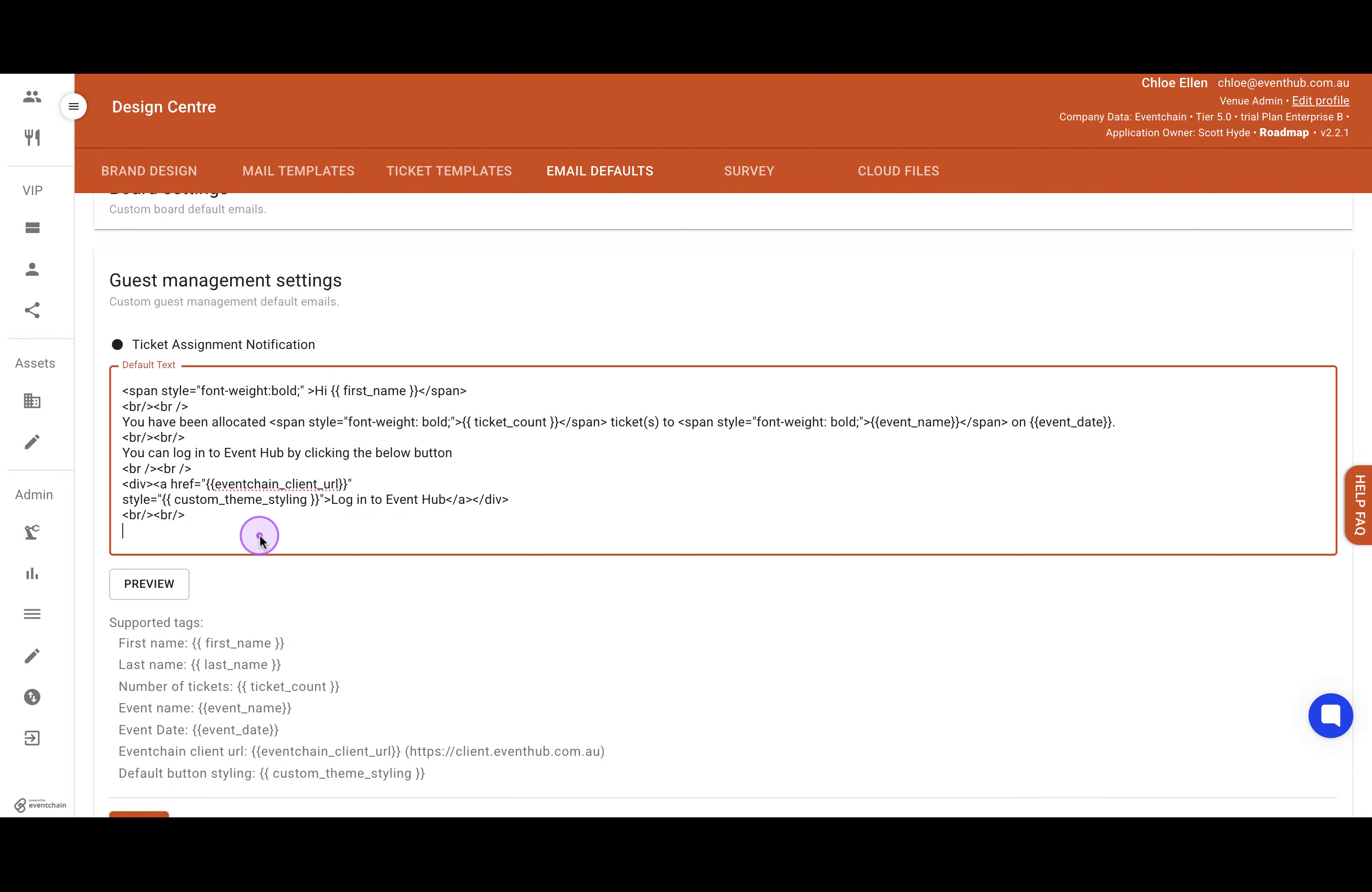
Click inside the text area to position your cursor. You can now modify the HTML content and add custom text. Links are supported. Use the supported tags listed below the editor to dynamically insert event/guest data.
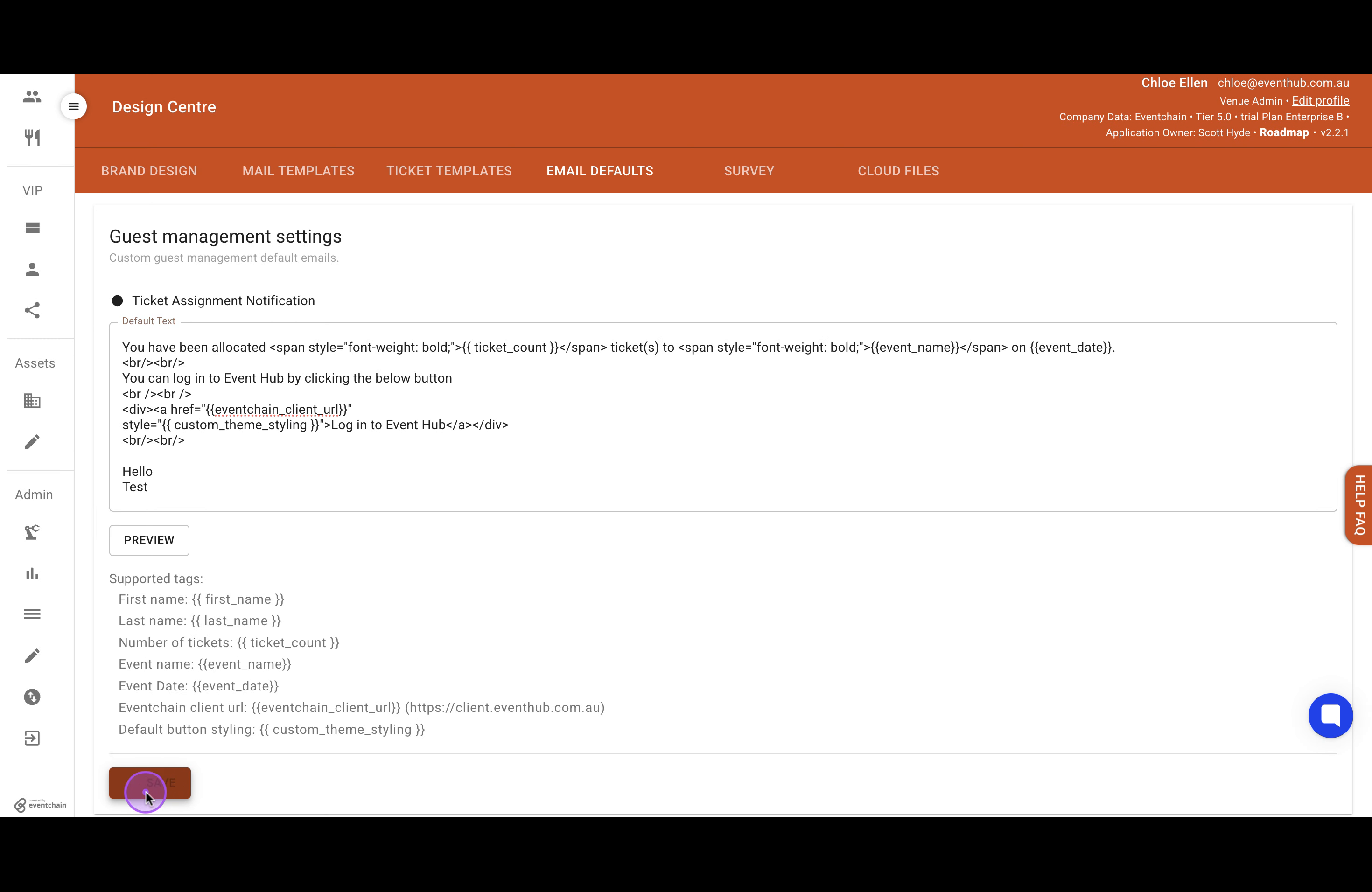
After making your desired edits, click the Save button at the bottom of the page to store your modifications.
Click the Preview button to see a rendered version of how the email will appear to guests, verifying your changes look correct.
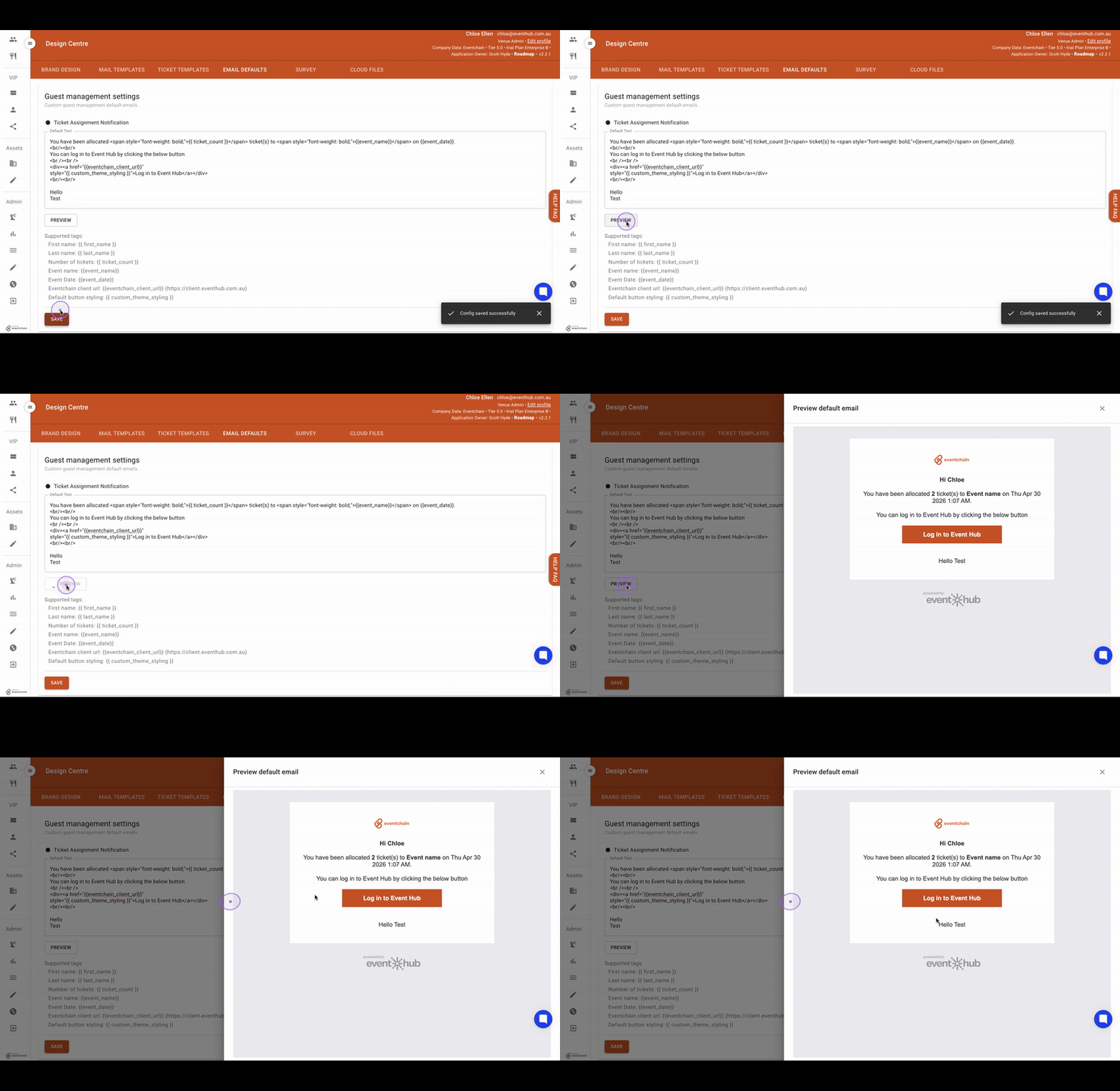
Tip: Preview the email at any time during editing to check your progress. The preview uses sample data to demonstrate how the dynamic tags will render for actual guests.