This guide walks you through creating a custom shared URL for a single product and configuring it with specific event packages and checkout-only functionality.
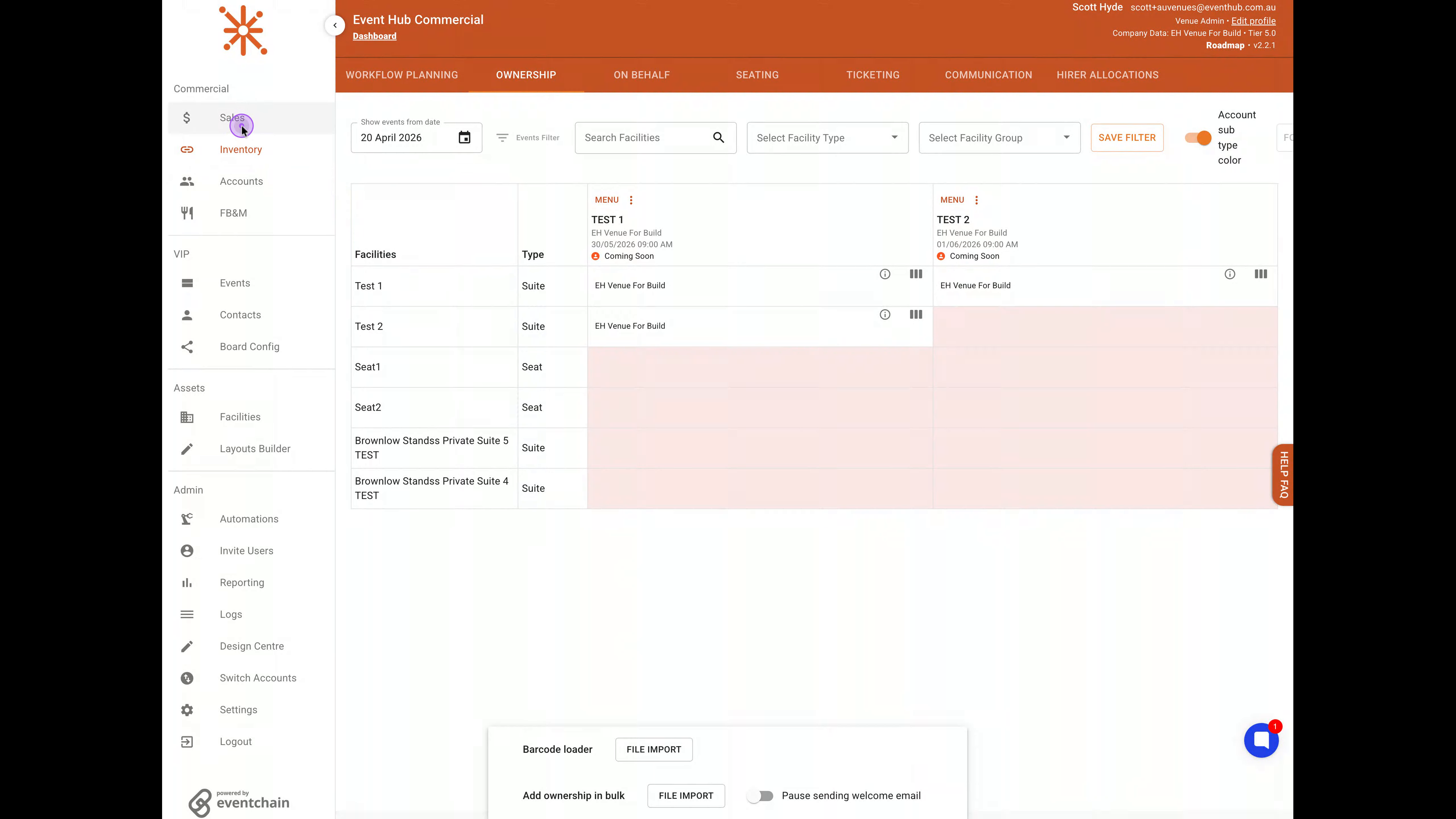
From the left sidebar navigation menu, click on the Sales option under the Commercial section to access sales management features.
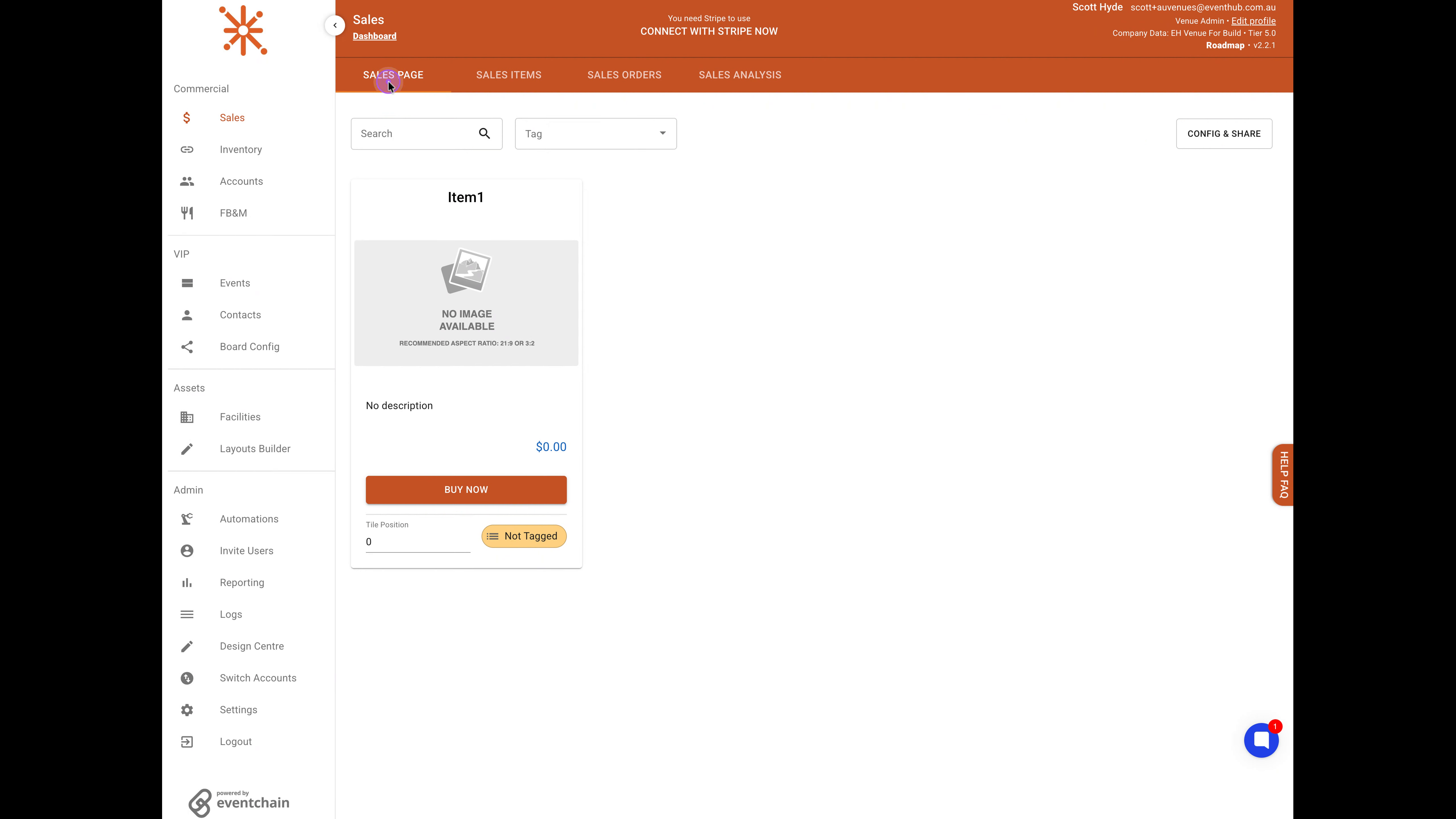
Once you're in the Sales section, click on the SALES PAGE tab at the top of the interface to view your sales items and sharing options.
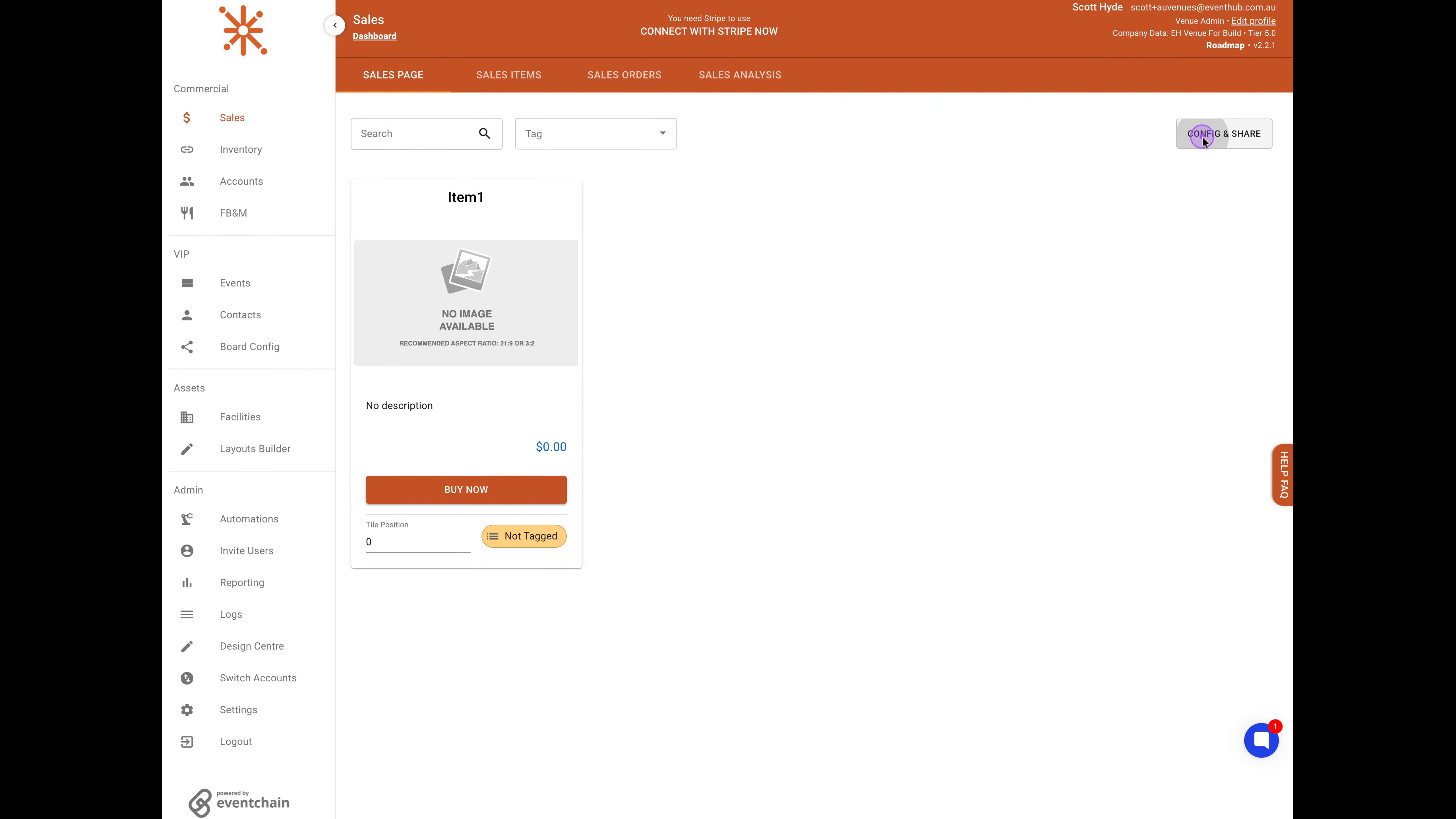
To begin creating your custom URL, click the Config & Share button located in the top-right corner of the page to open the sharing configuration modal.
With the configuration modal open, select the Share single product radio button in the Create New Shared URL section to configure a URL for one specific item.
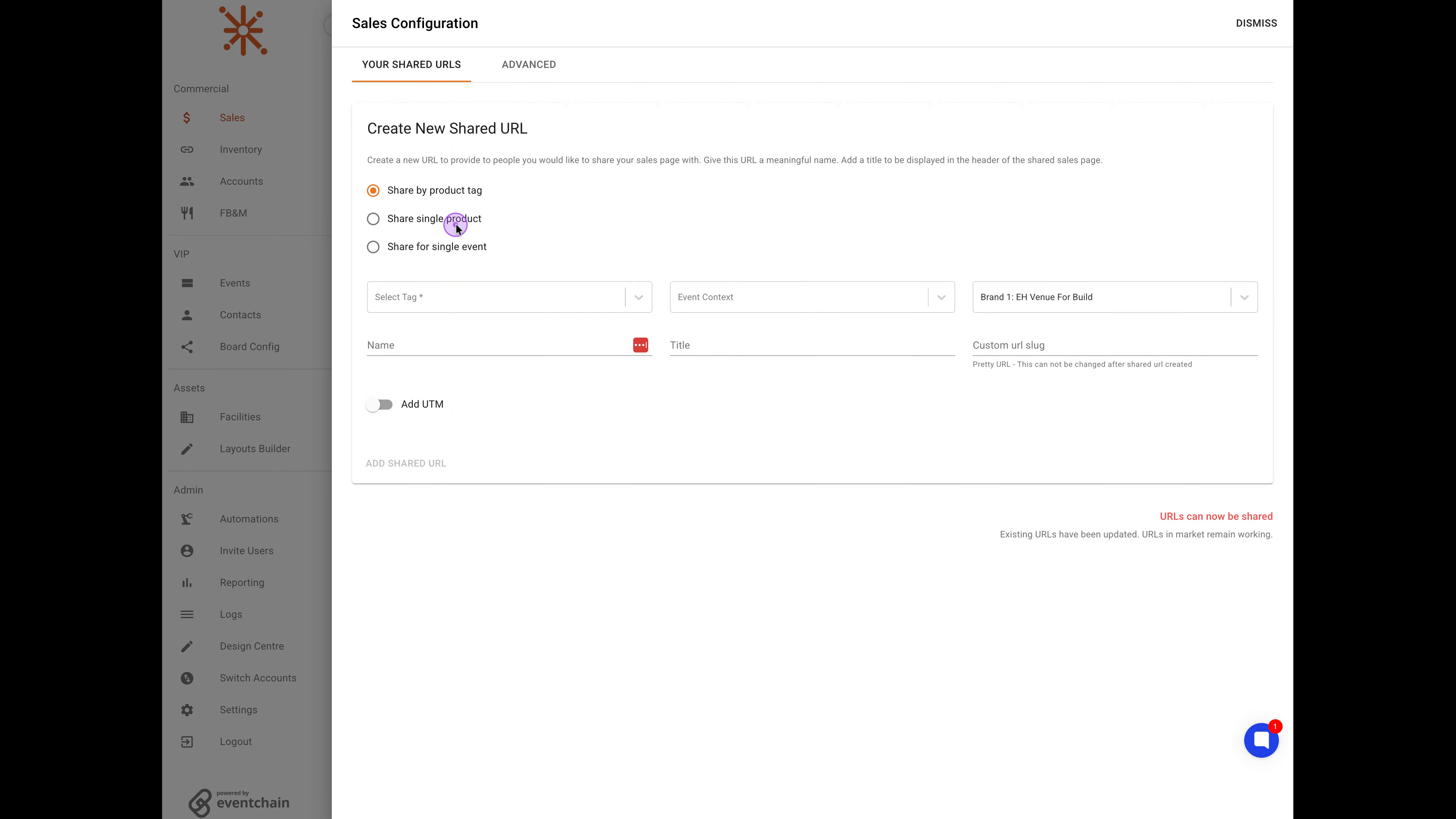
Next, click the Select Sales Item dropdown and choose Item1 from the available options.
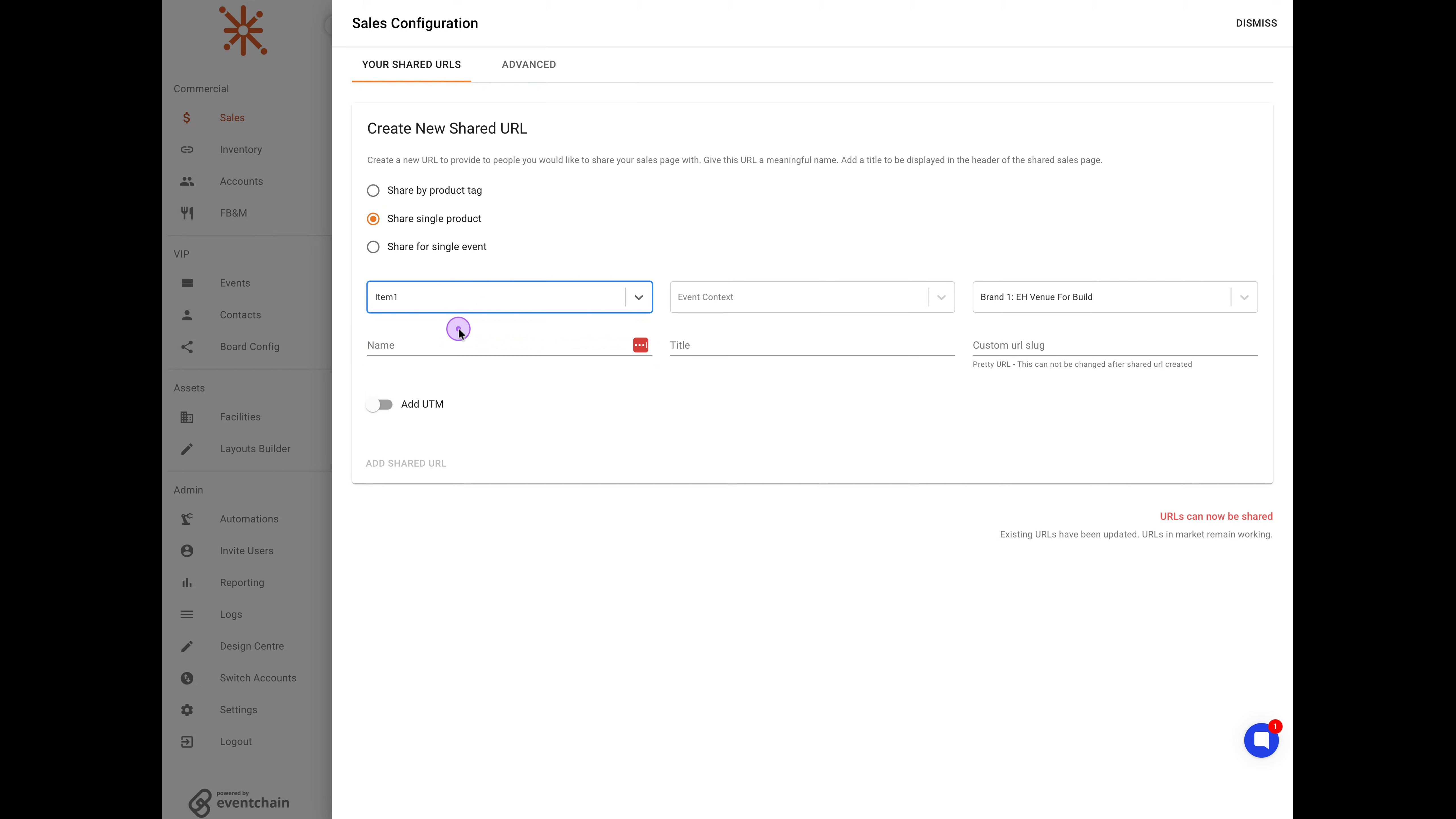
Now, click the Event Context dropdown and select All events forward to make the link available for all future events.
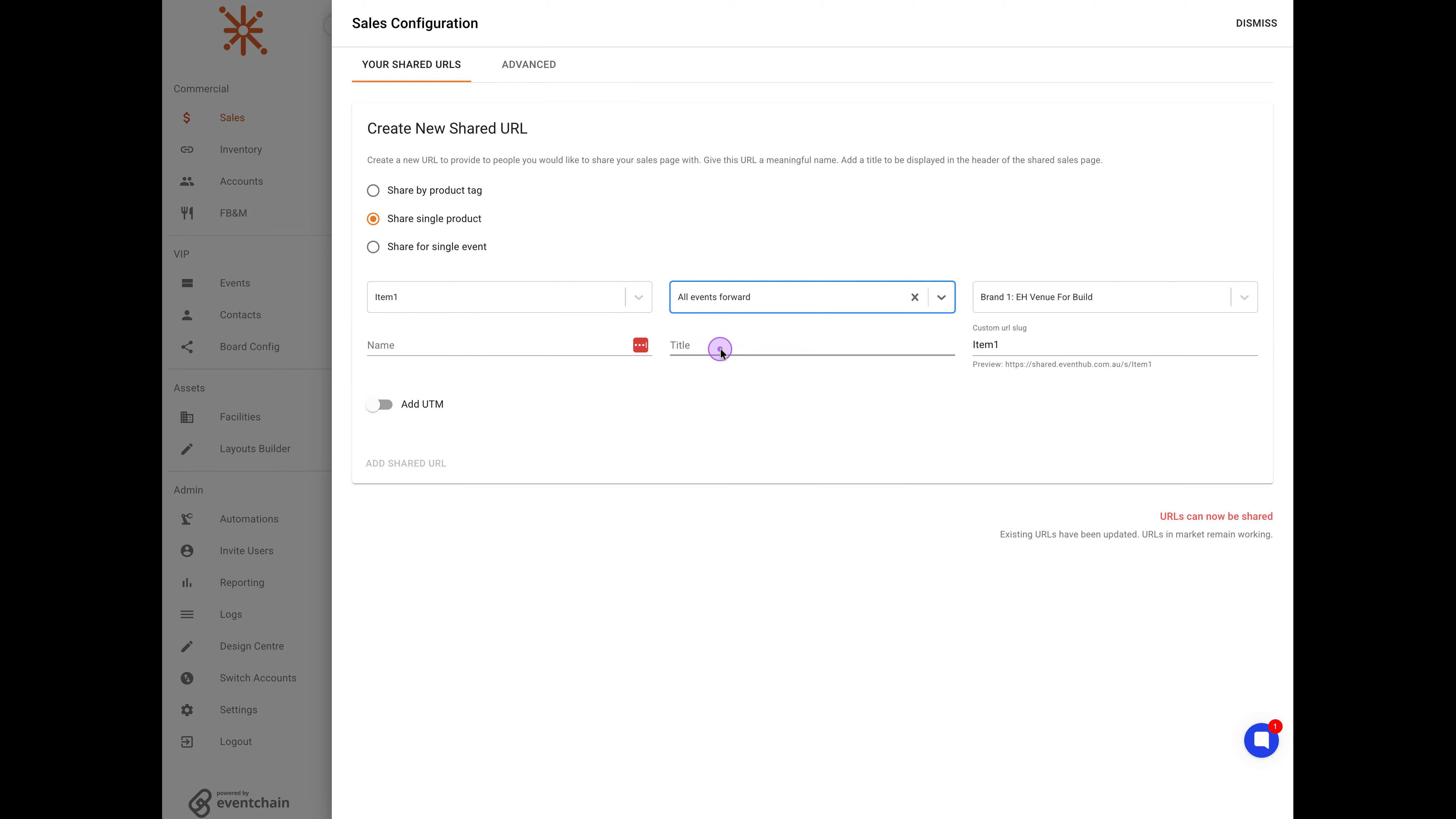
Enter Package2 in the Name field, Package2 in the Title field, and package2 in the Custom url slug field to create a memorable URL.
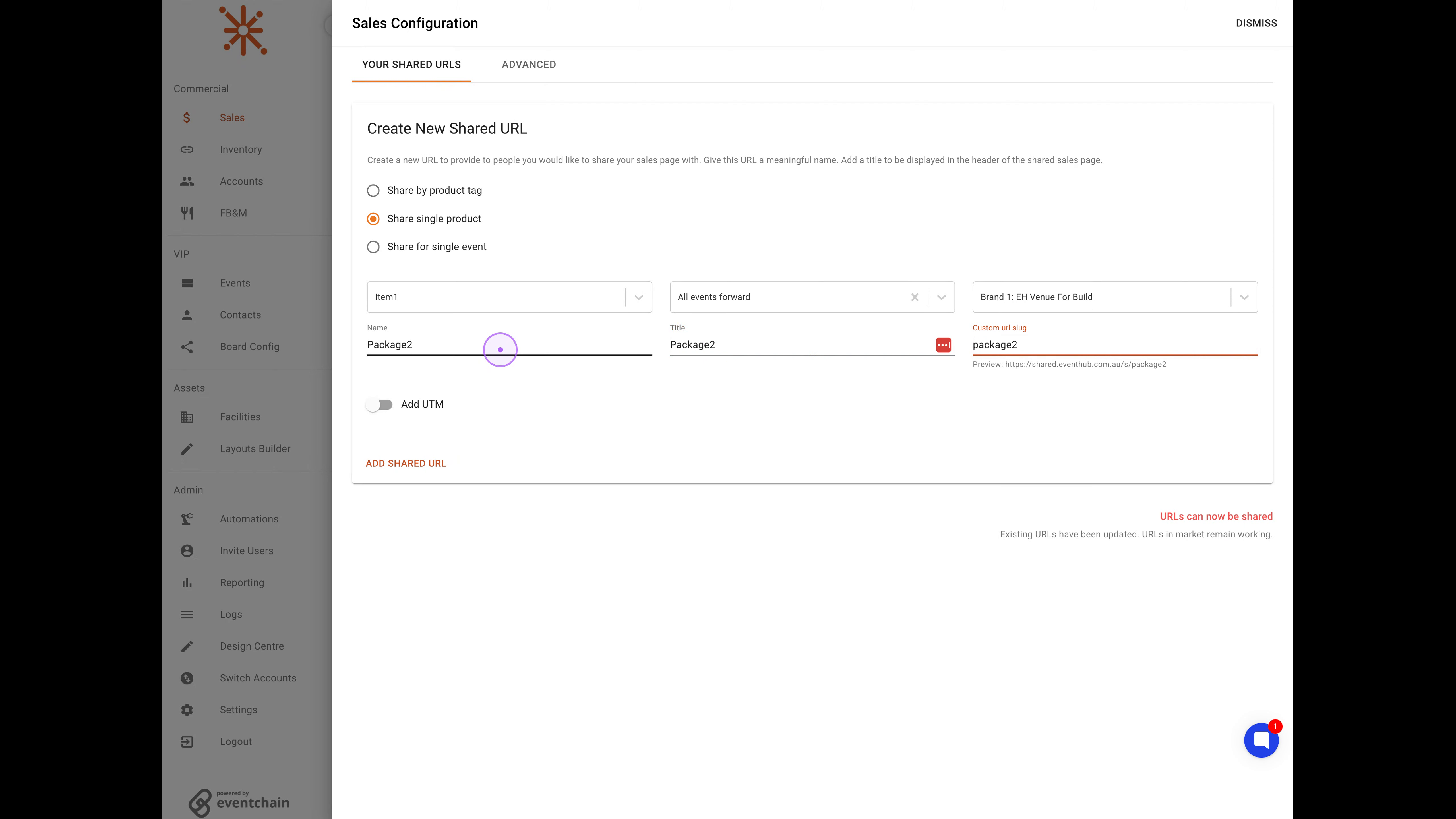
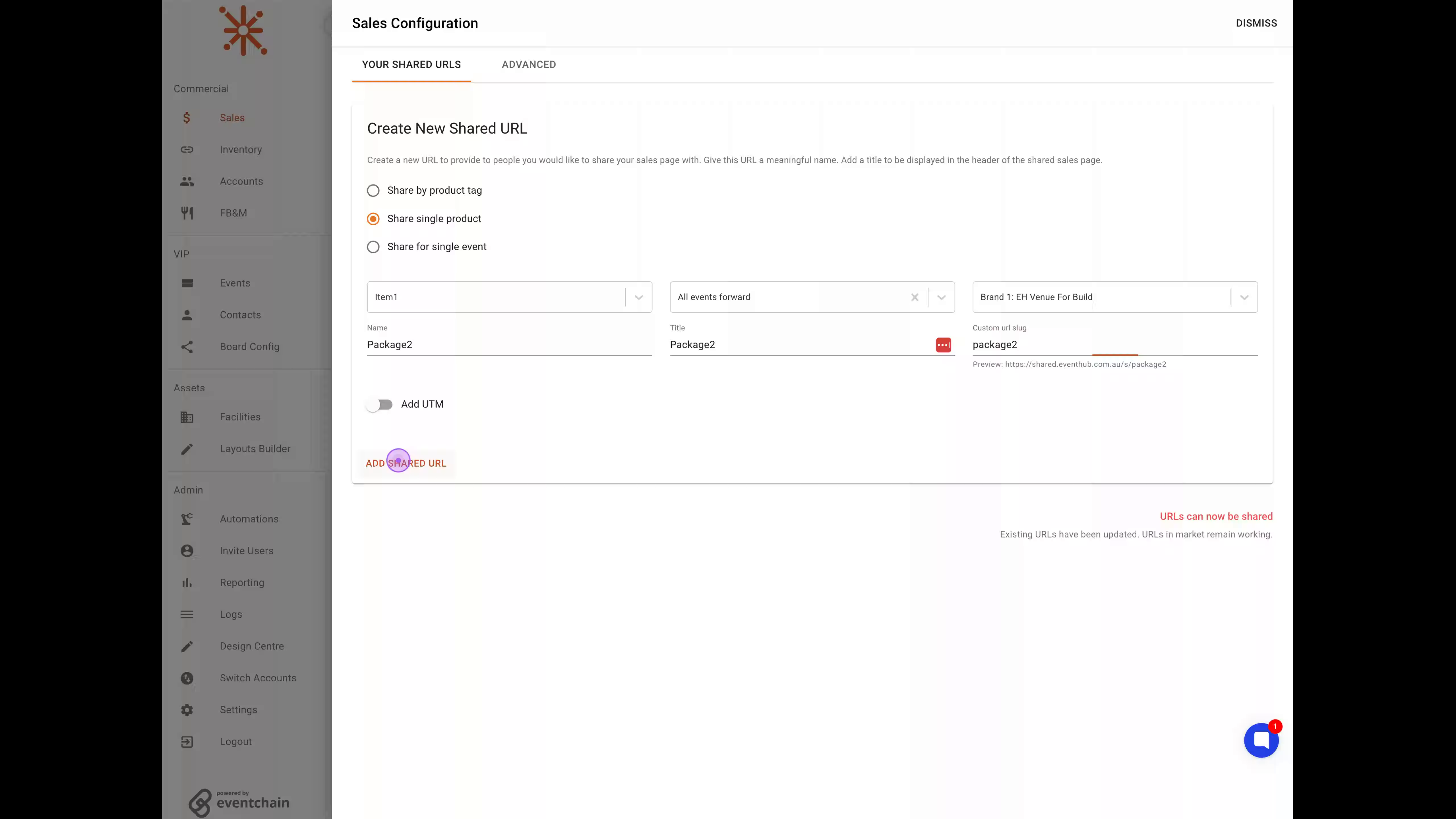
With all details filled in, click the ADD SHARED URL button to generate the new shared URL with your configured settings.
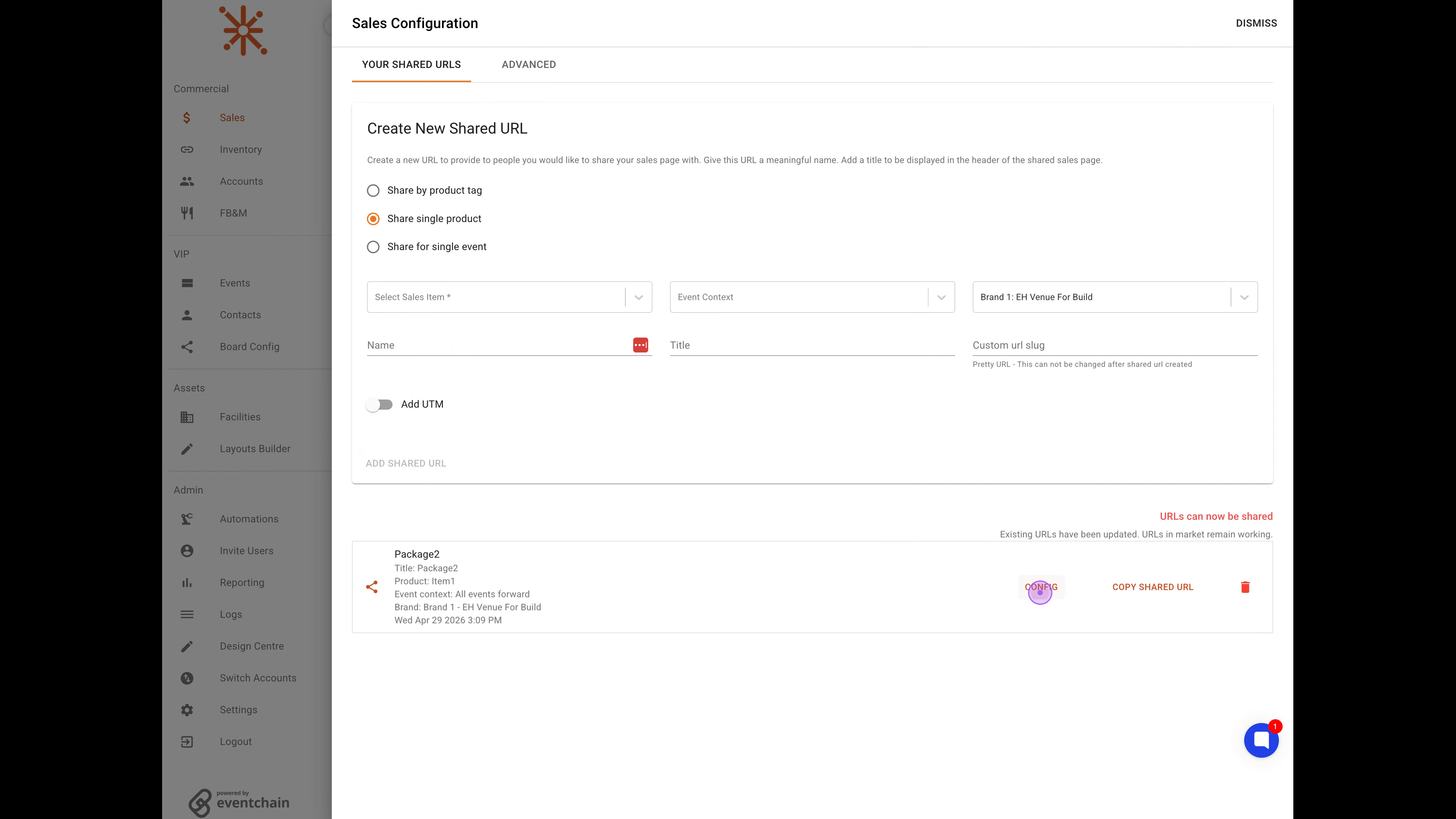
After creating the URL, find your newly created Package2 entry in the list below and click the CONFIG button to access advanced settings.
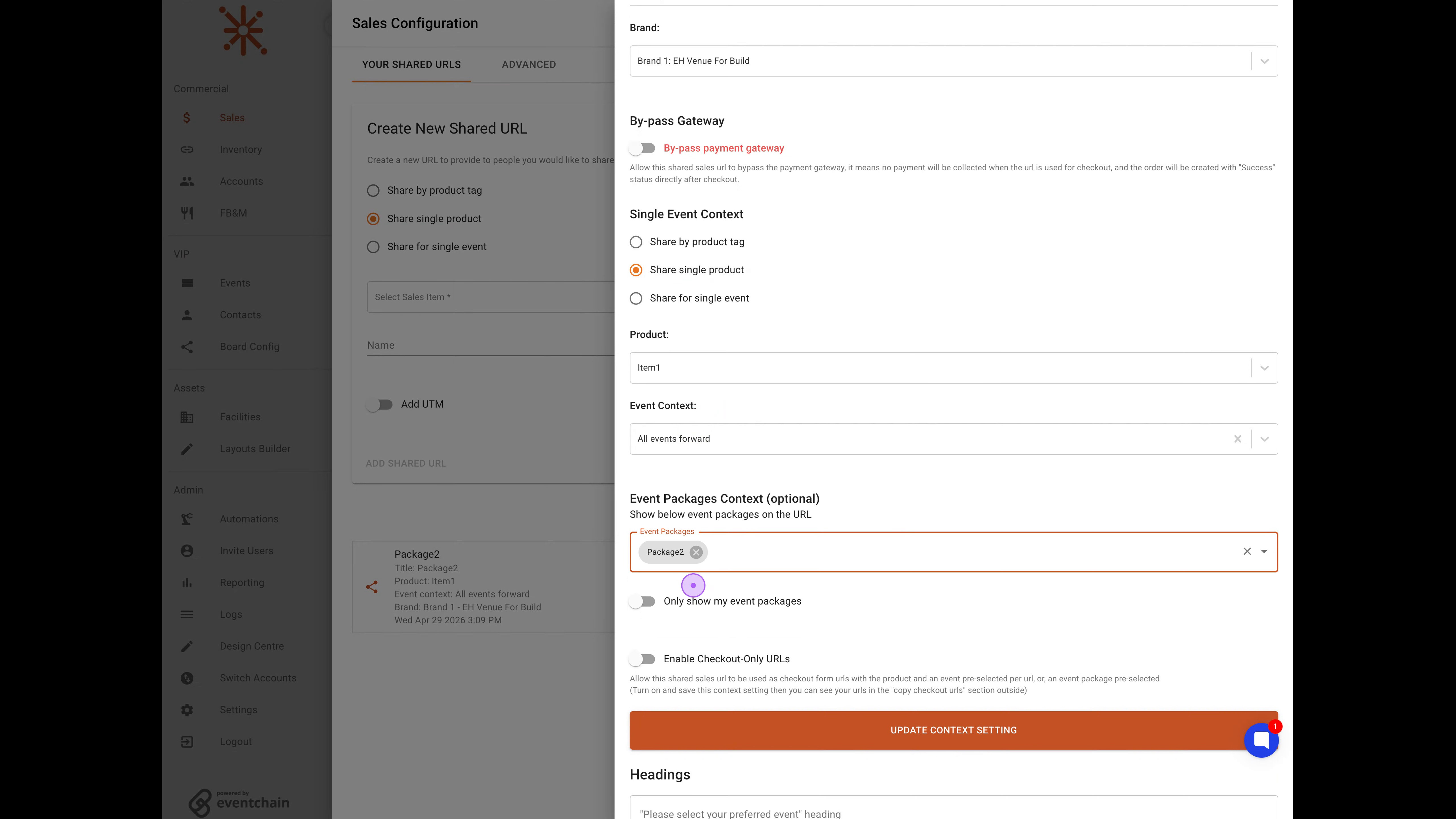
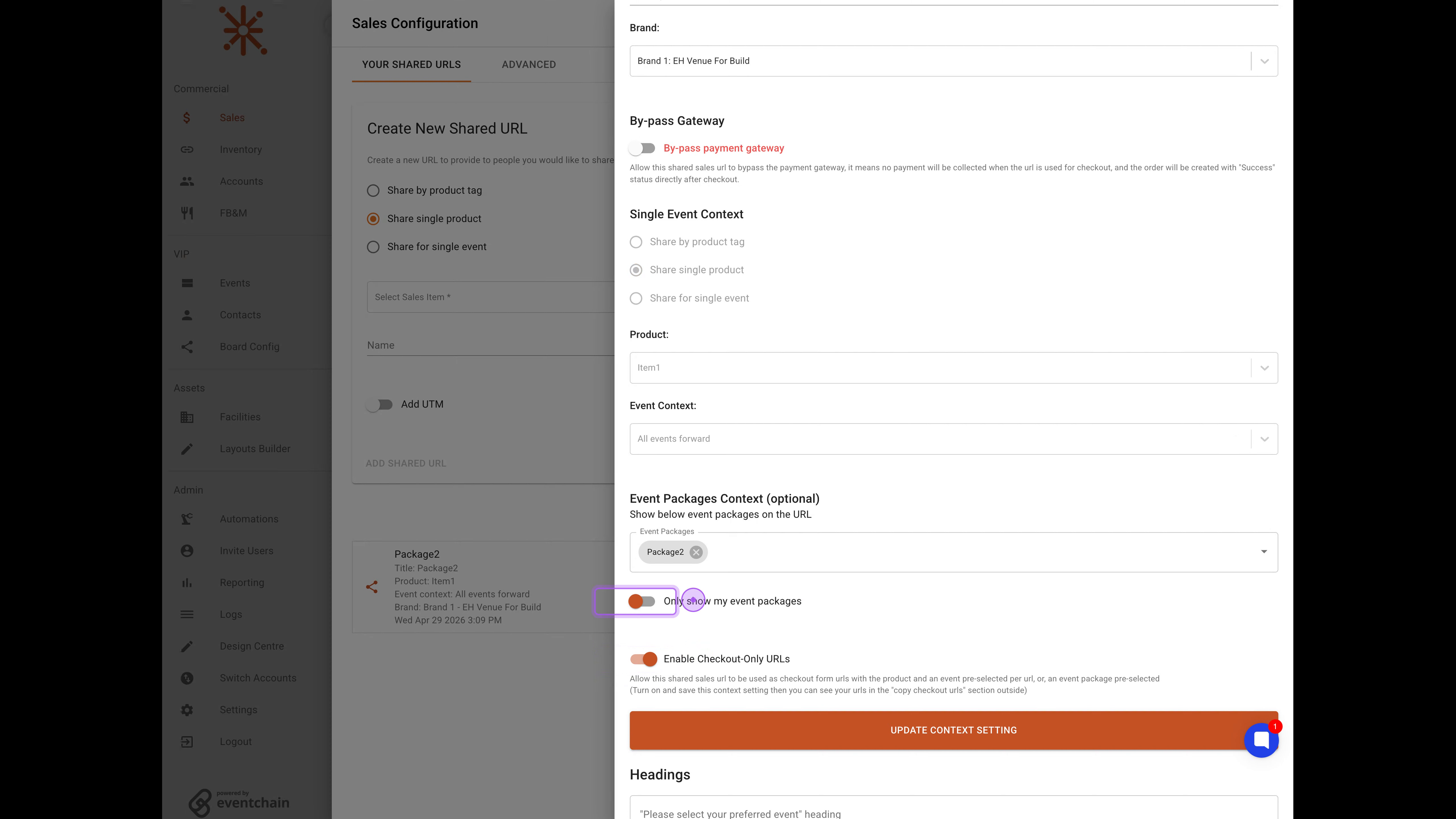
Inside the configuration panel, scroll down to the Event Packages Context section, click the dropdown, and select Package2 to associate it with this shared URL.
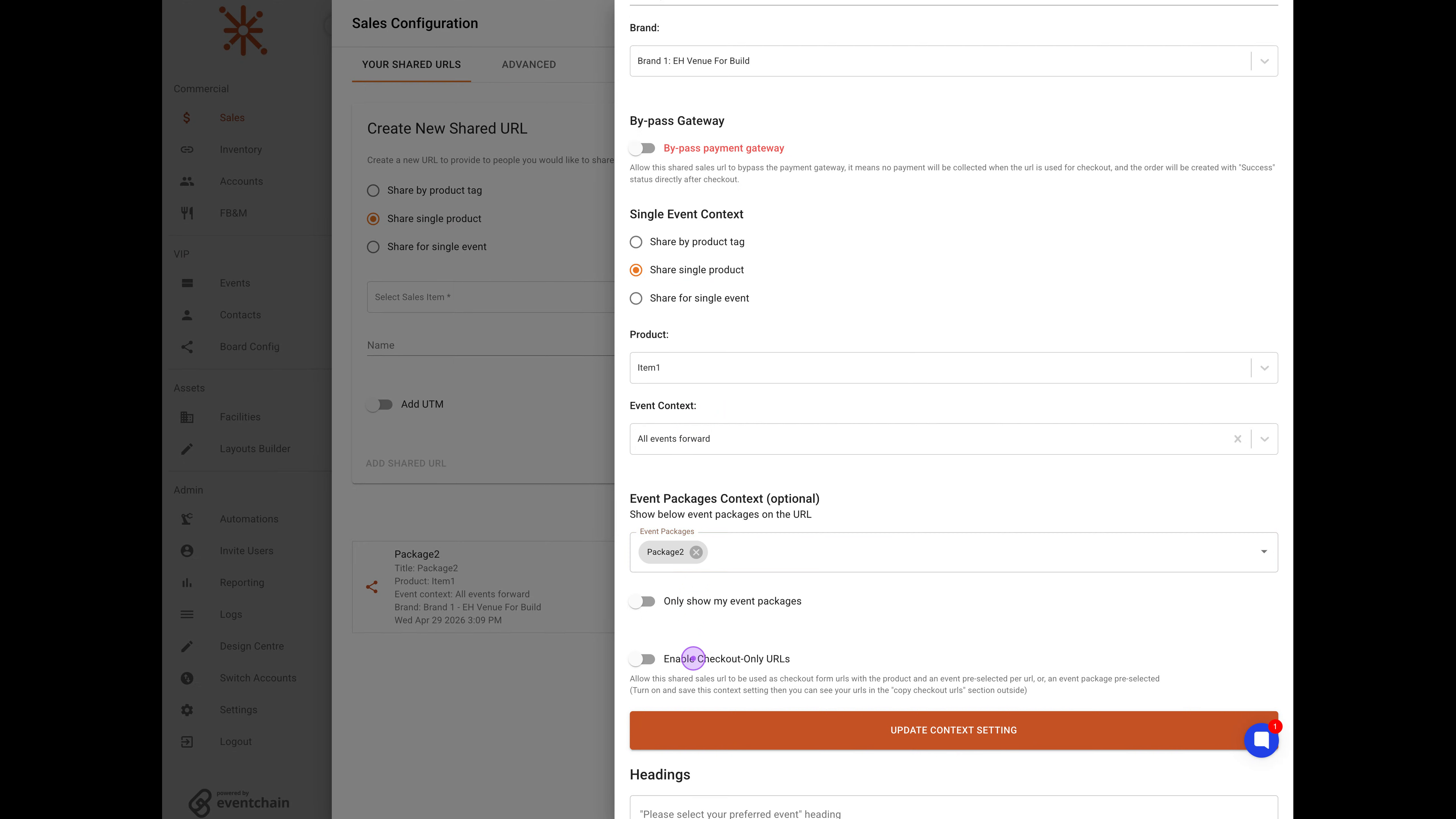
To streamline the purchasing process, toggle on the Enable Checkout-Only URLs option to allow this URL to be used as a direct checkout form.
For better package organization, toggle on the Only show my event packages option to filter the displayed packages to only those associated with your events.
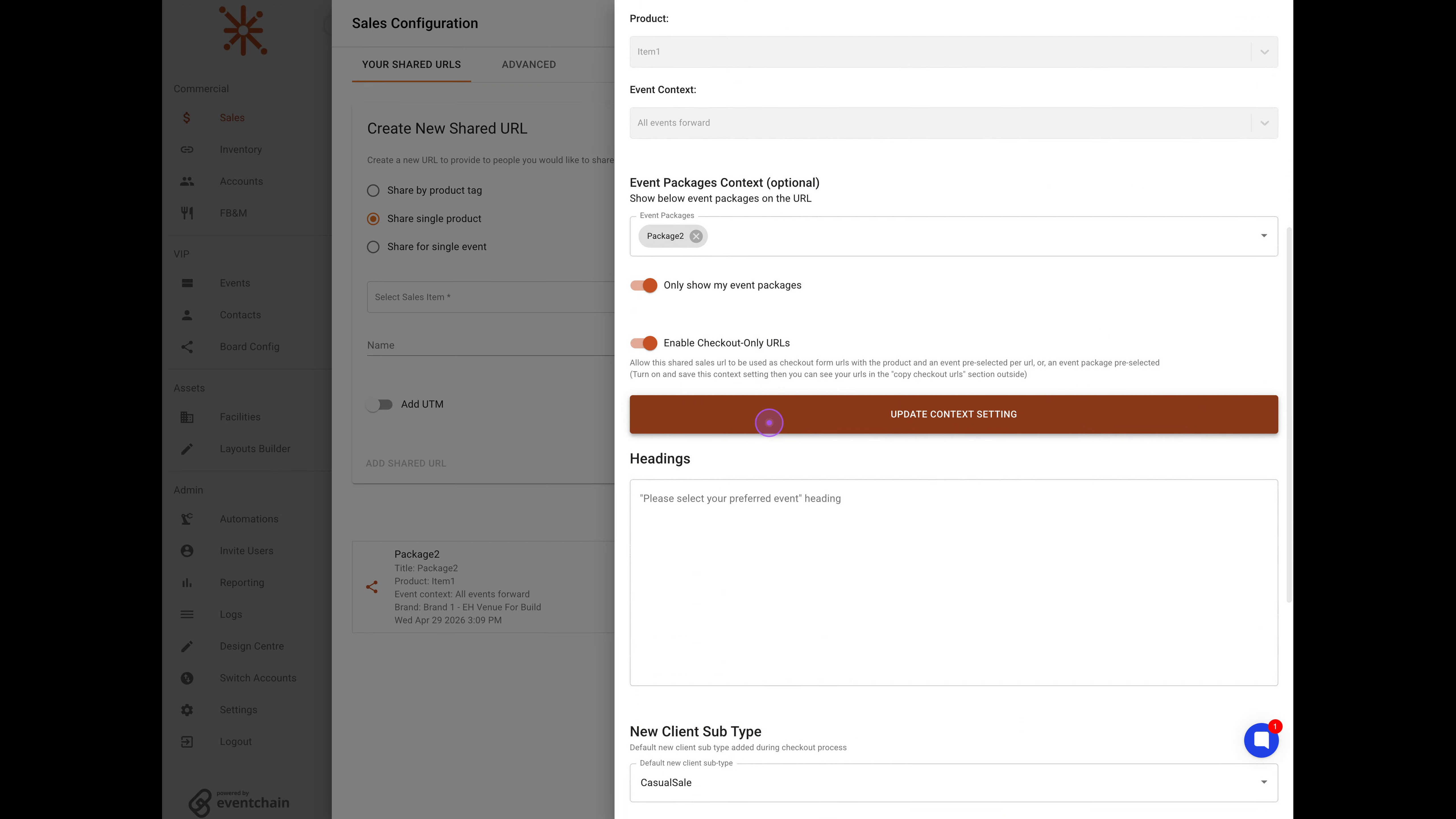
Once you've configured all settings, click the UPDATE CONTEXT SETTING button to save all your configuration changes to the shared URL.
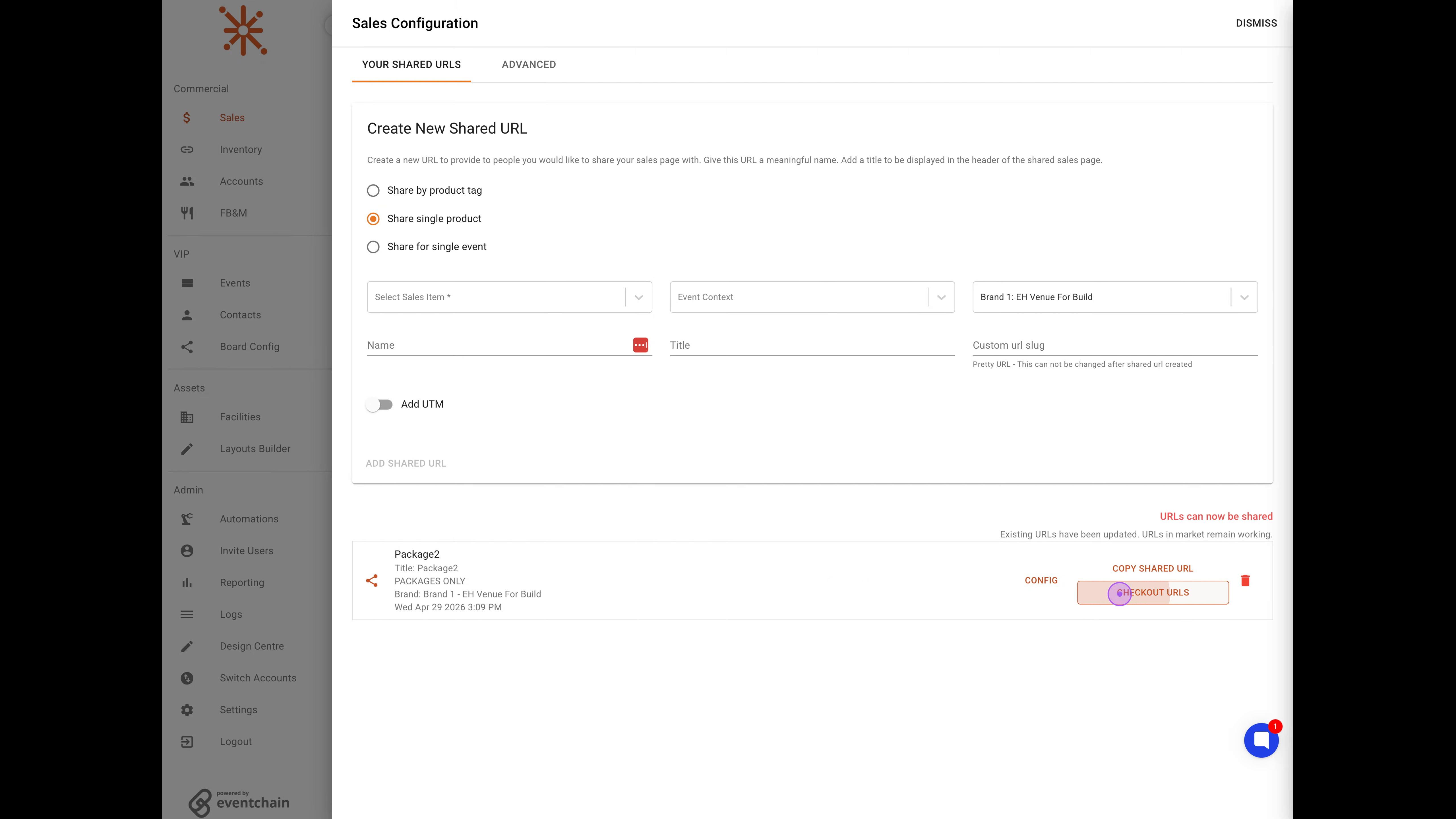
To retrieve the final link, click the CHECKOUT URLS button to view and copy the direct checkout links for your configured packages.
Finally, click the copy icon next to the Package2 URL to copy the direct checkout link to your clipboard for sharing with customers.
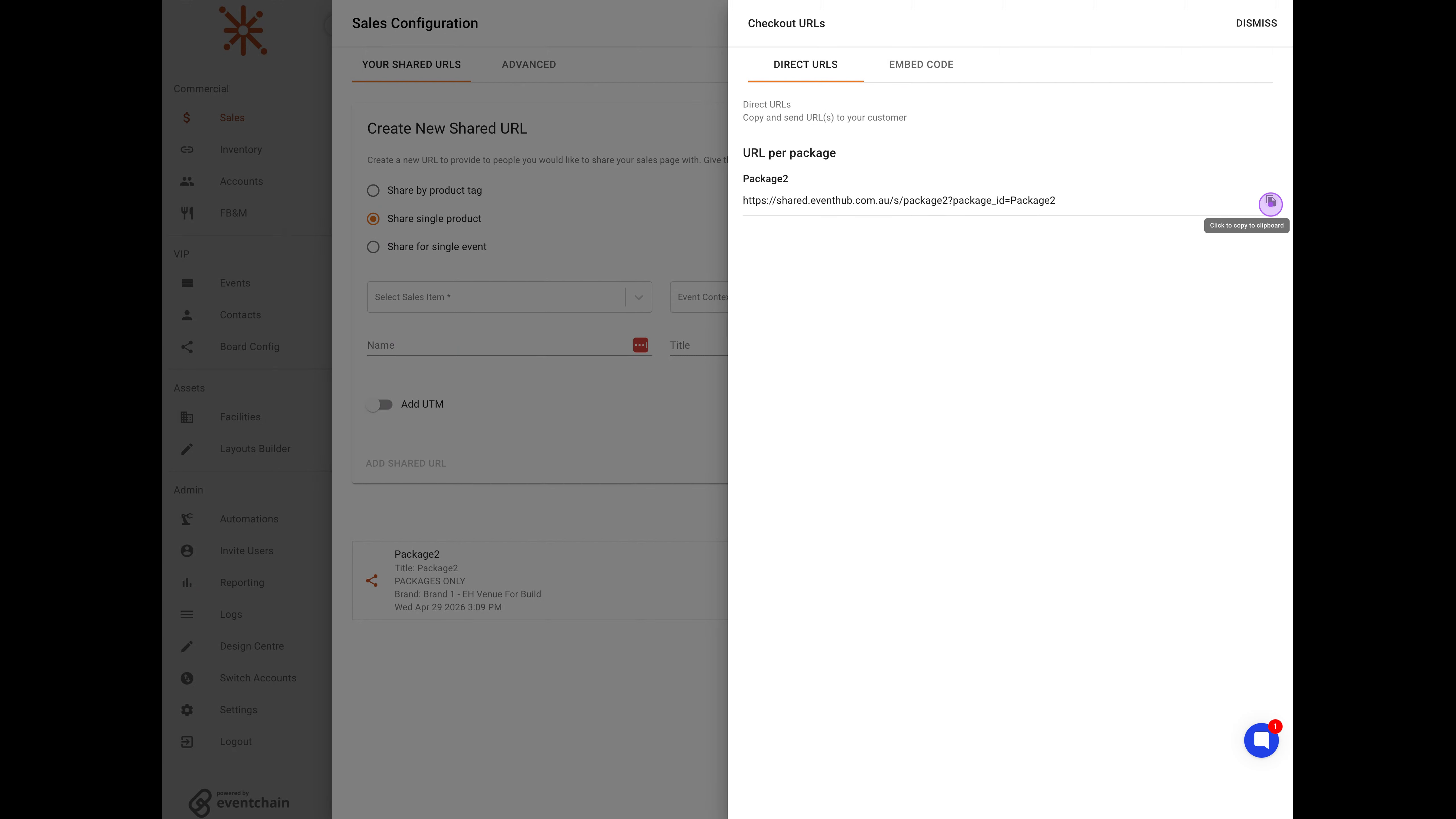
Your shared checkout URL is now ready to be distributed to customers for direct package purchases.