This guide walks you through locating a specific account and copying its unique identifier (UUID), which may be required for API integrations, troubleshooting, or external system configurations.

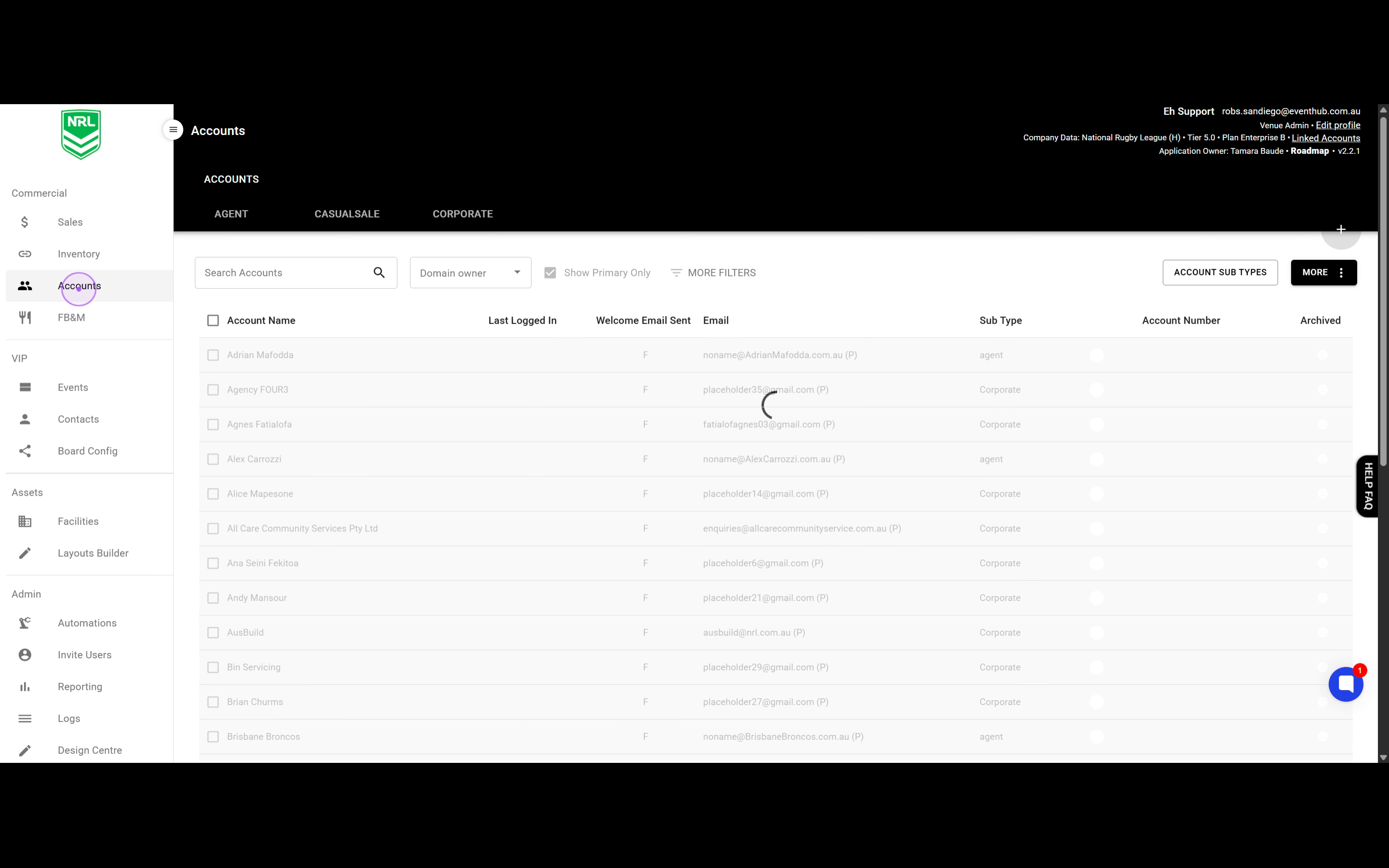
From the main navigation sidebar, click on the Accounts option under the Commercial section. The Accounts management page will load, displaying a list of all accounts in the system.
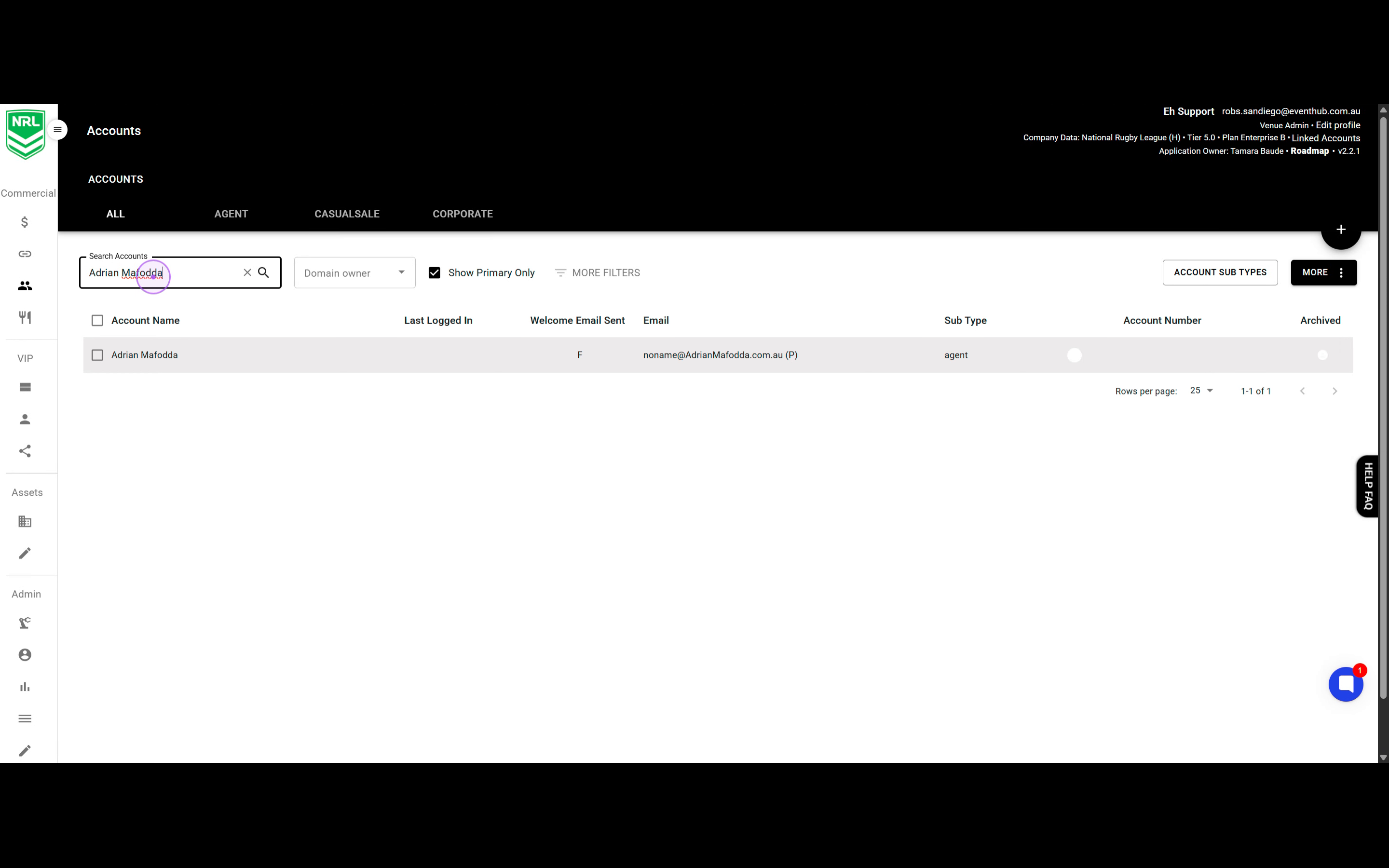
Click the Search Accounts input field and type the account name to filter the results. The results will update automatically to show matching accounts.
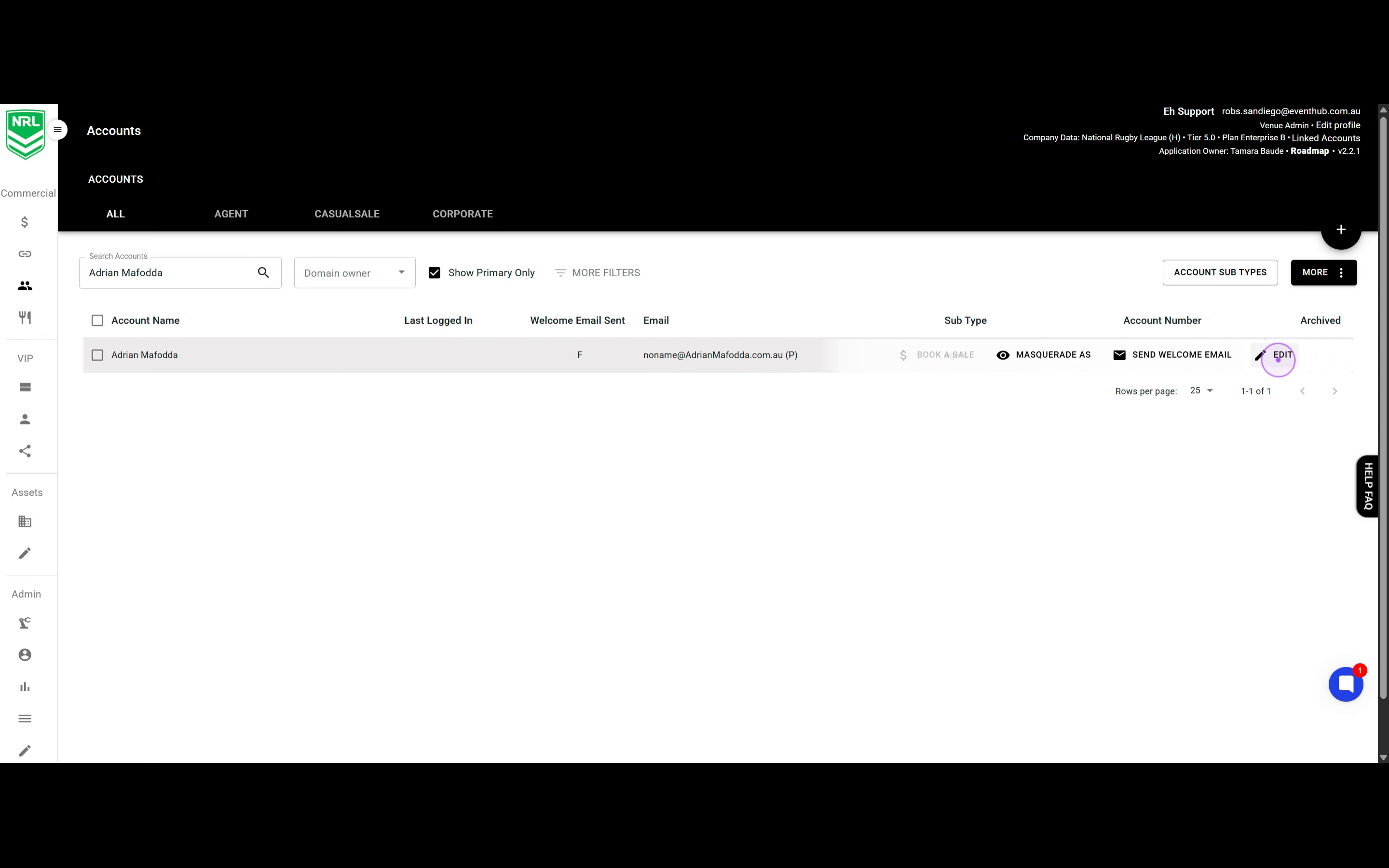
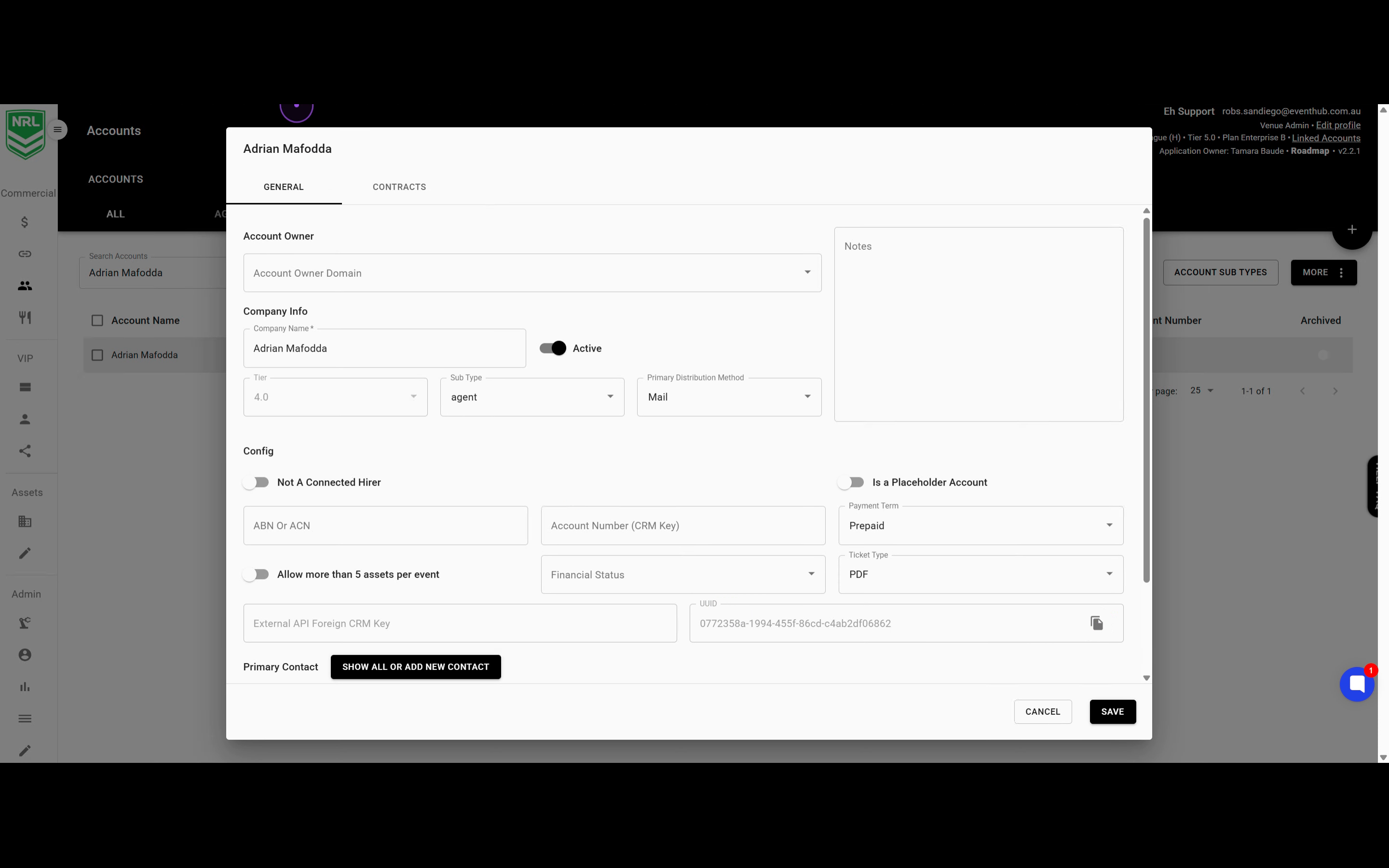
Click the Edit button (pencil icon) on the right side of the account row to open the account details. This will open a modal window displaying the account's detailed information.
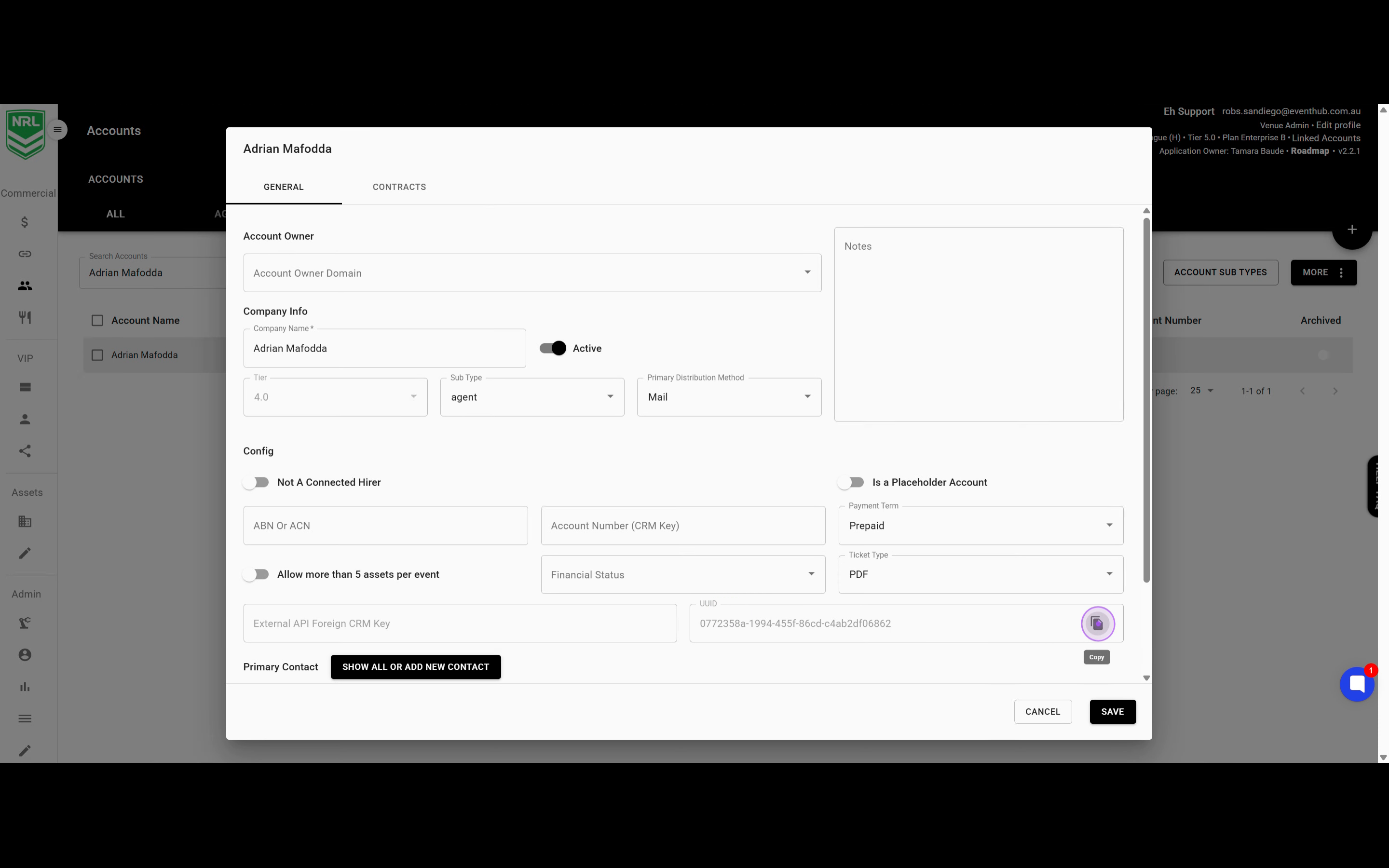
In the account edit modal, locate the UID field in the Config section. Click the copy icon (clipboard symbol) next to it to copy the UUID to your clipboard.
Click the CANCEL button at the bottom right to close the account details modal and return to the accounts list. You can also clear the search field to view all accounts again.
Note: The UUID is a unique identifier for the account and remains constant. You can paste this value into external systems or support tickets as needed.