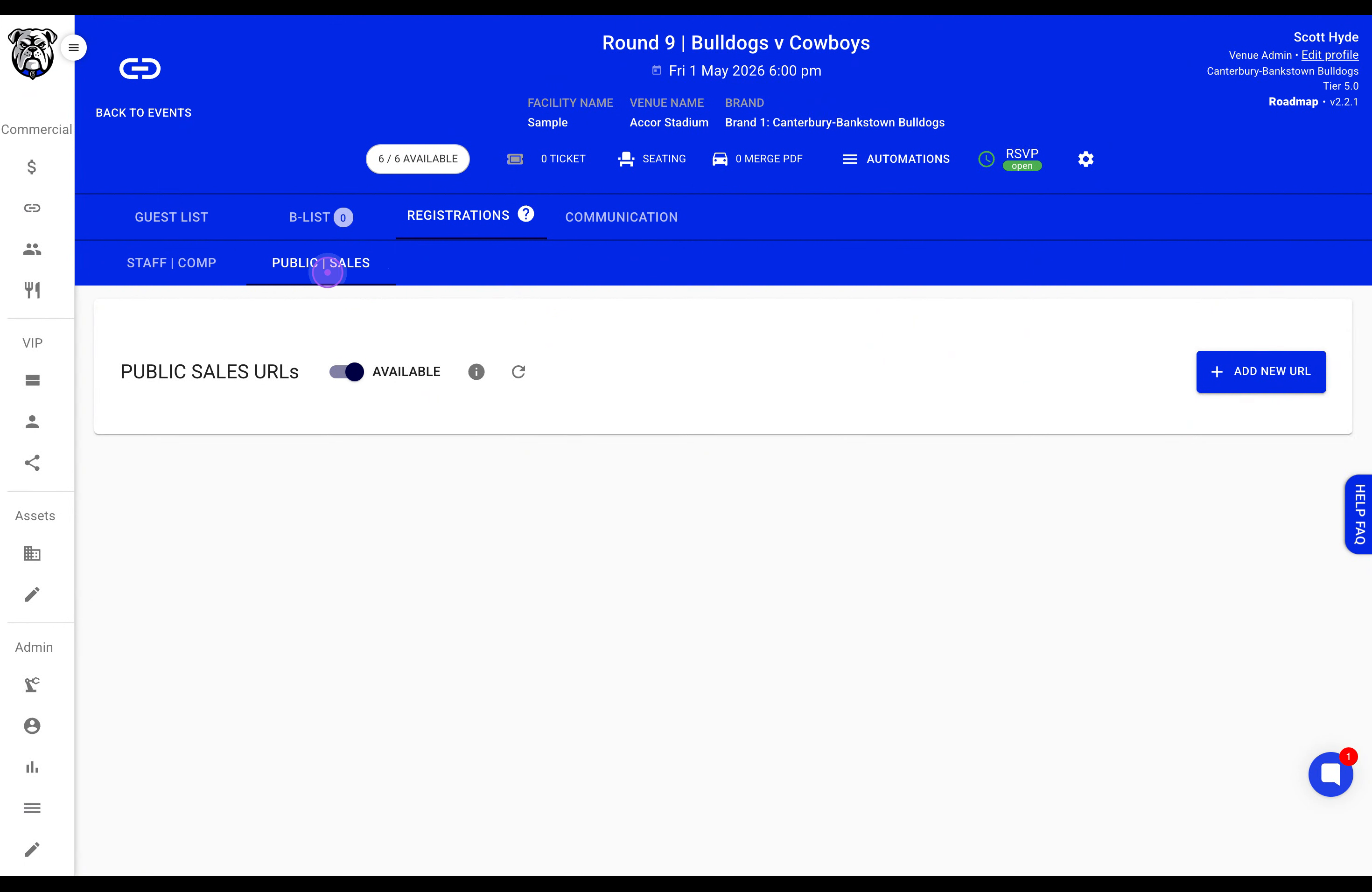
Click on the PUBLIC | SALES tab to access the sales URL management section for your event.
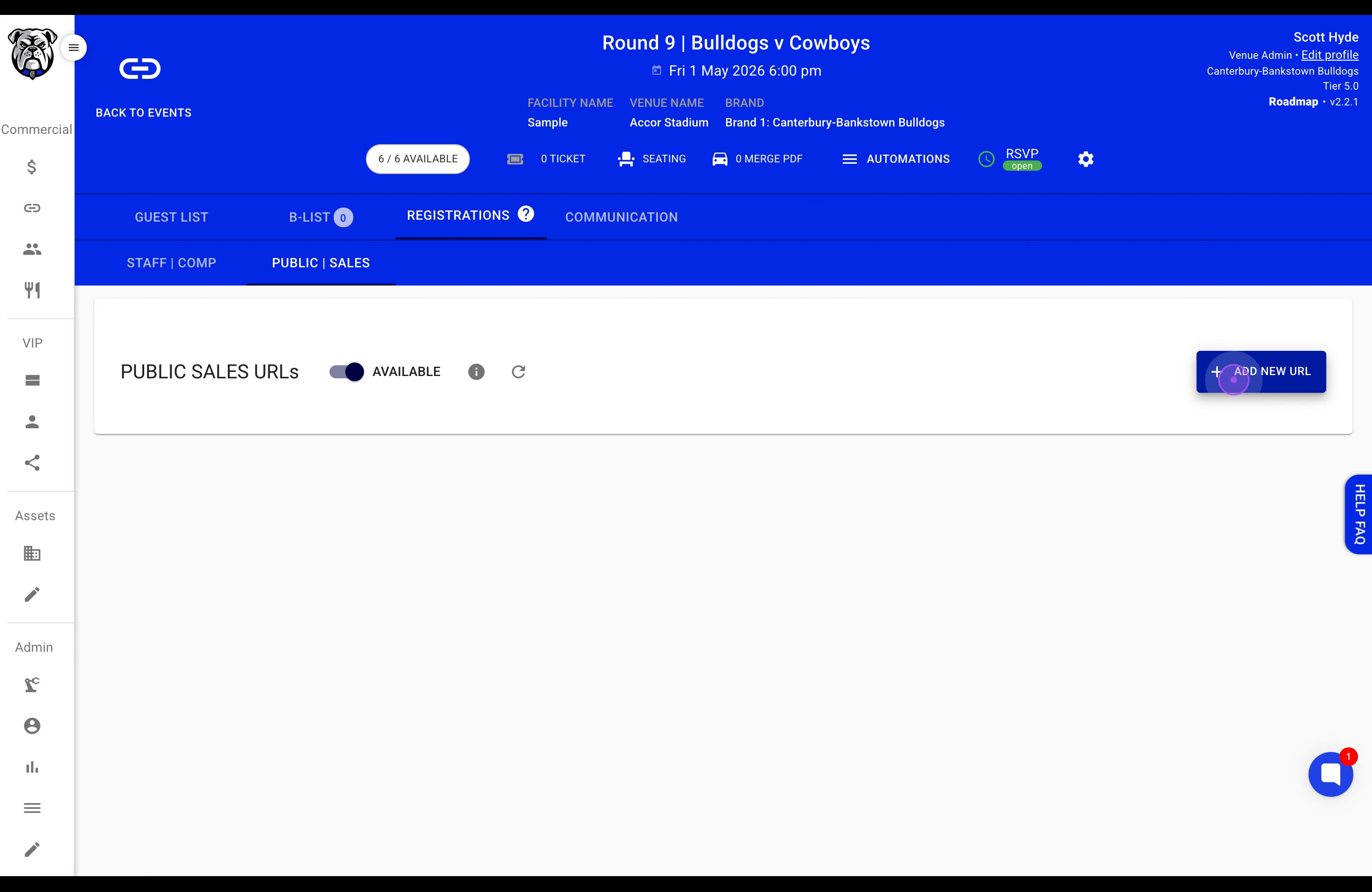
Click the + ADD NEW URL button in the top right corner to open the URL creation modal.
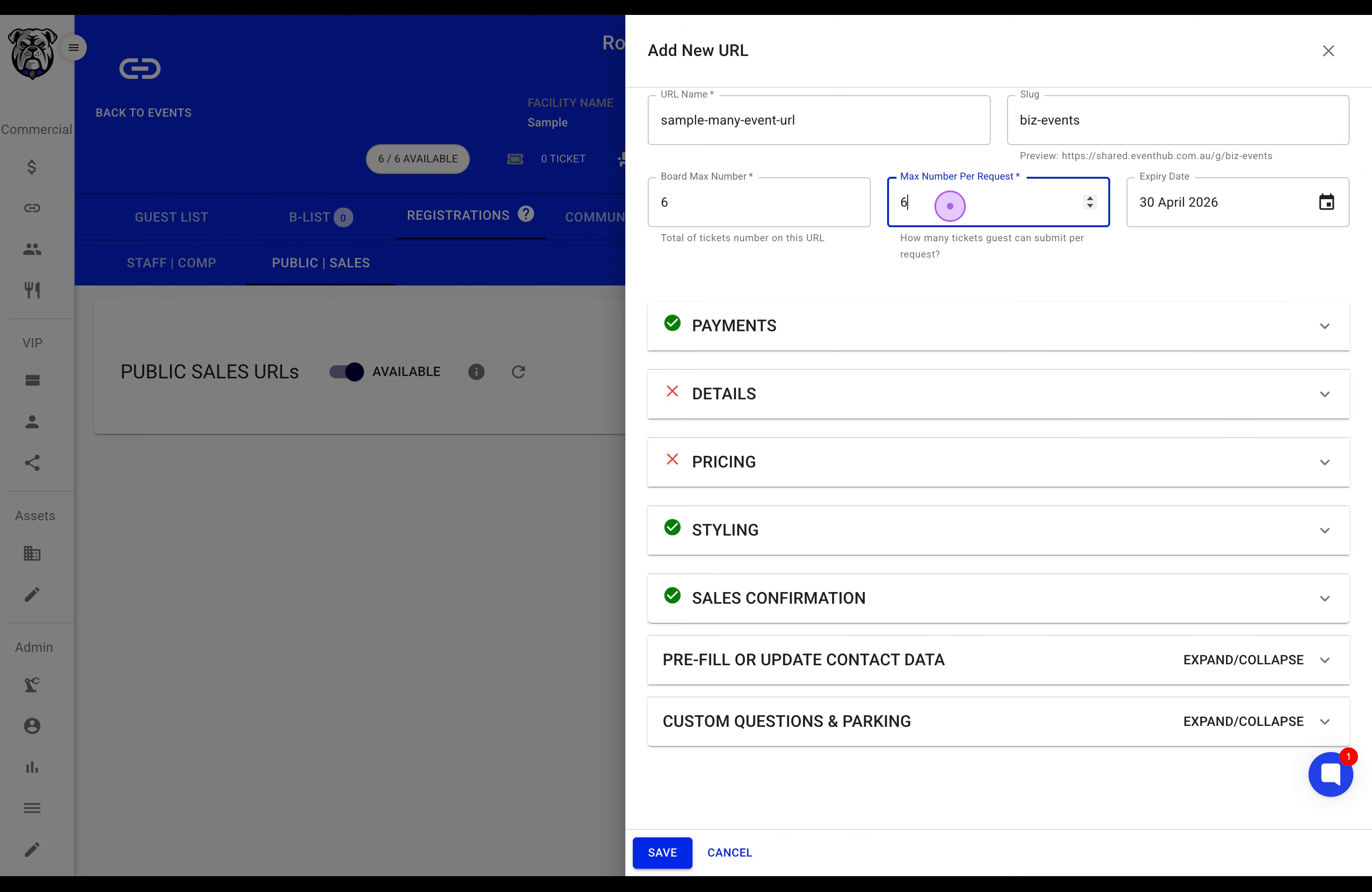
Enter a descriptive URL Name for internal reference, then fill in the Slug field to create the custom URL path that guests will use.
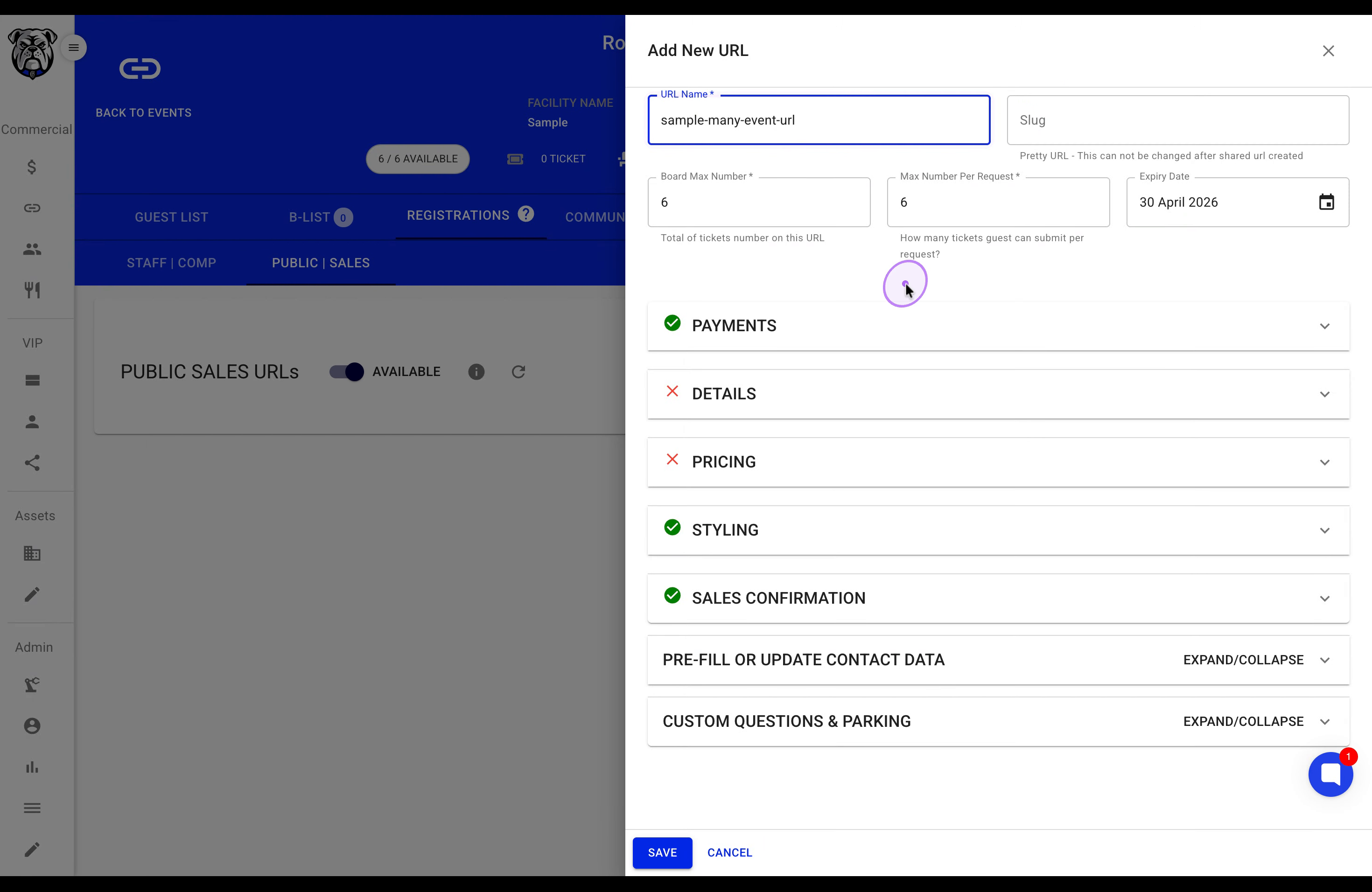
Configure the Board Max Number (total tickets available) and Max Number Per Request (tickets per guest request) to control inventory.
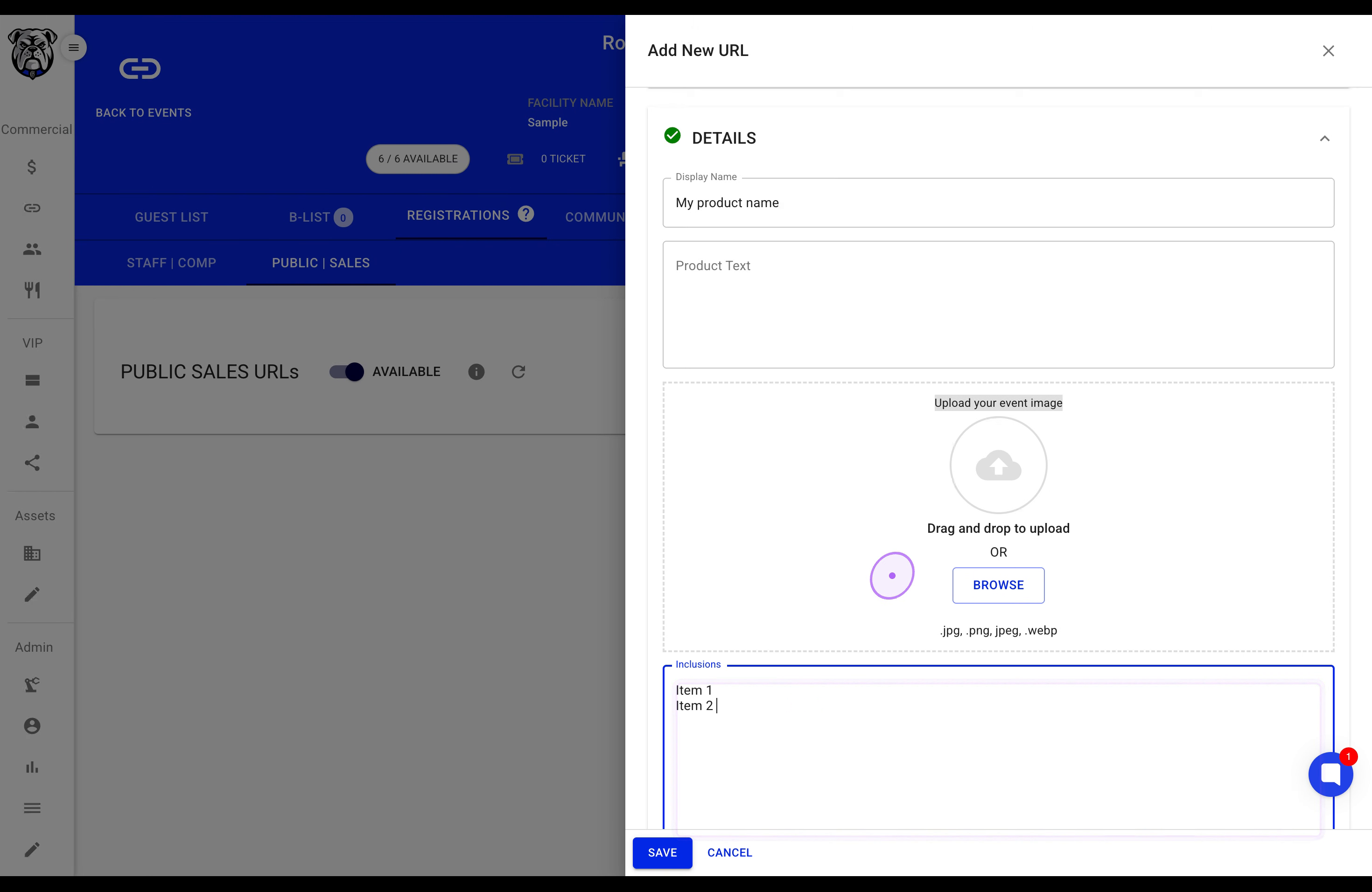
Expand the DETAILS section and enter a Display Name for customers. Add Inclusions to list what customers receive with their purchase.
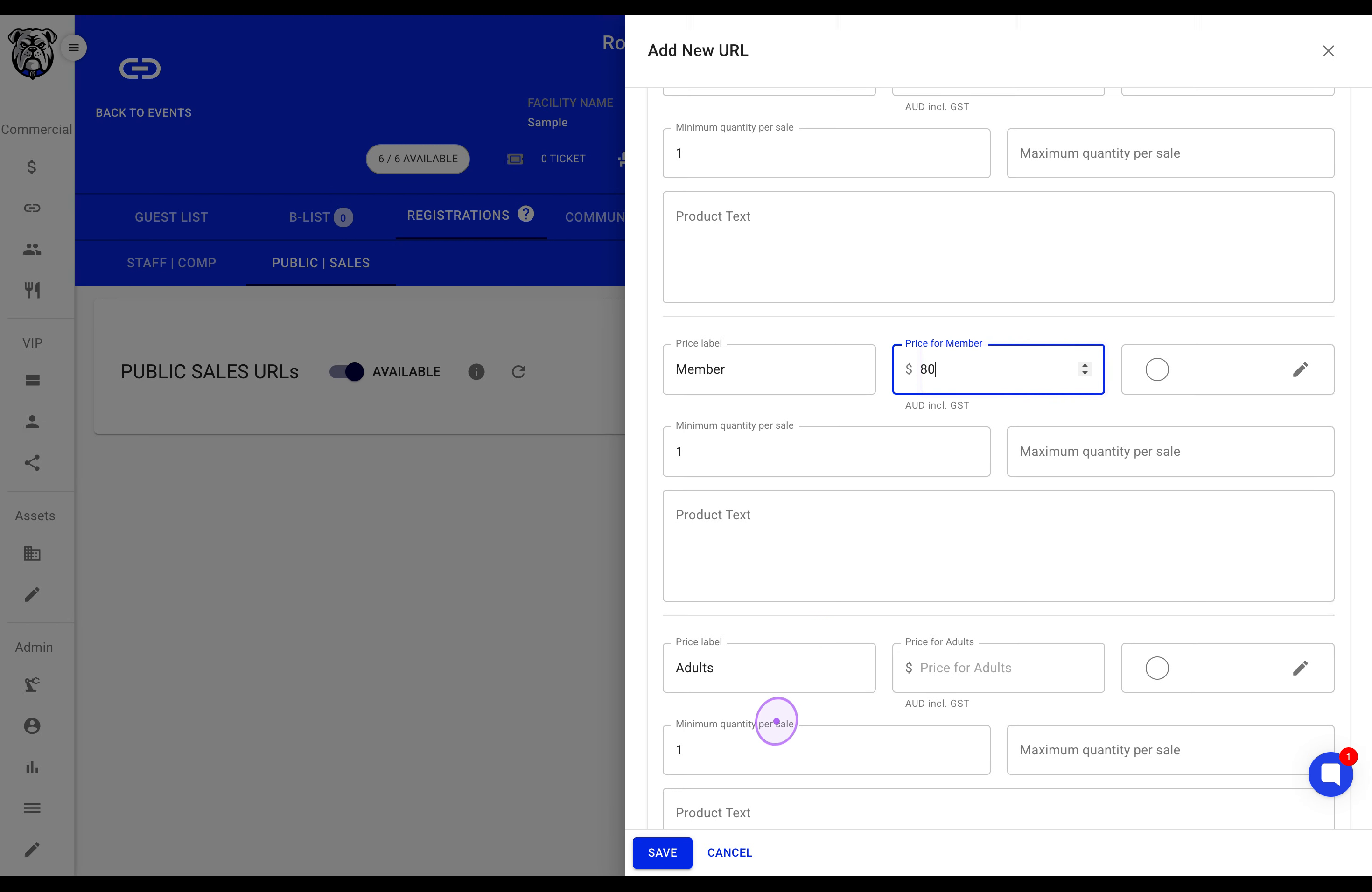
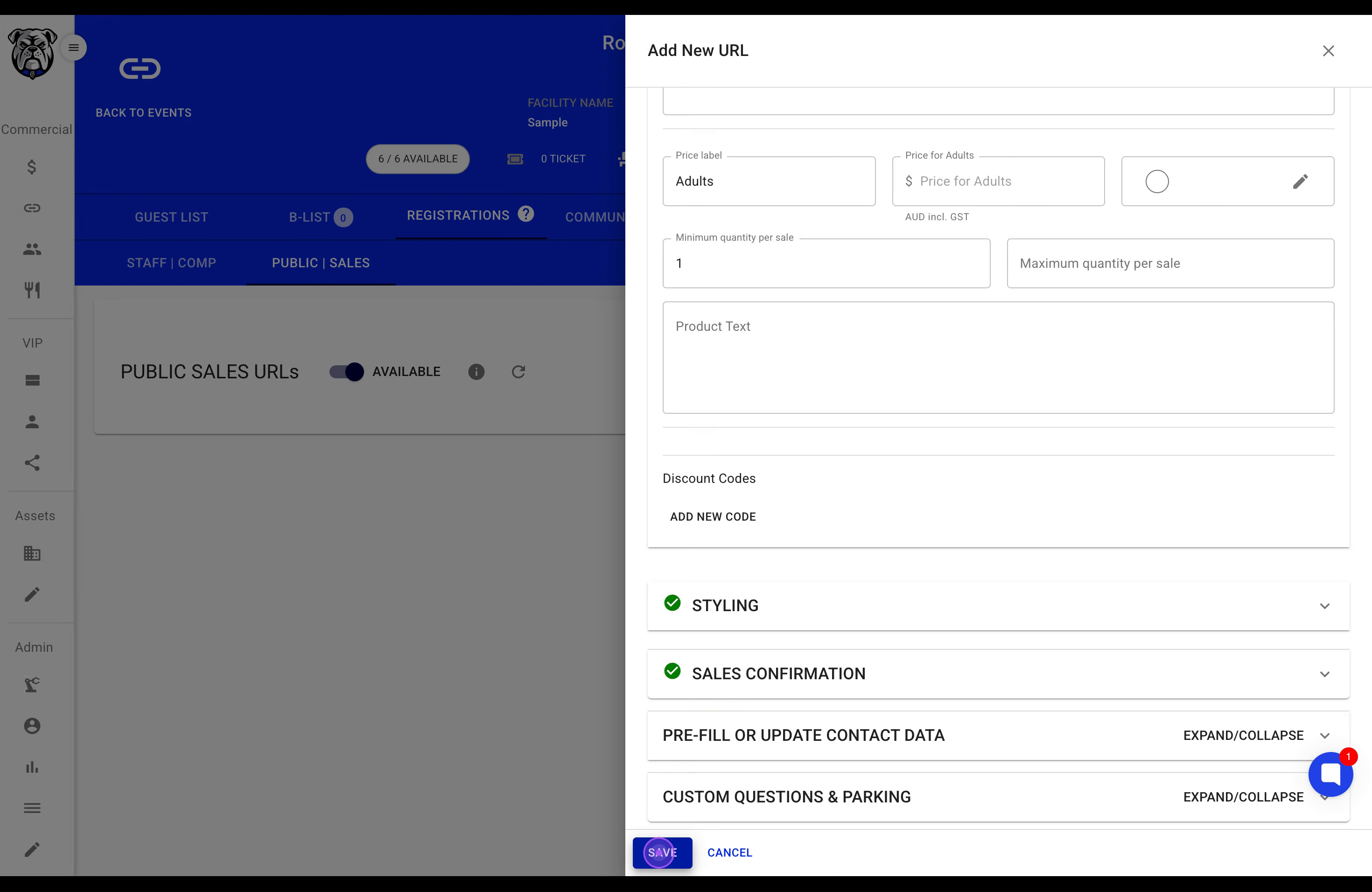
Expand the PRICING section and set prices for each ticket tier (Standard, Member, etc.). Set minimum and maximum quantity limits per sale if needed.
Click the SAVE button at the bottom of the form to create the URL. Wait for the 'Your URL created successfully!' confirmation.
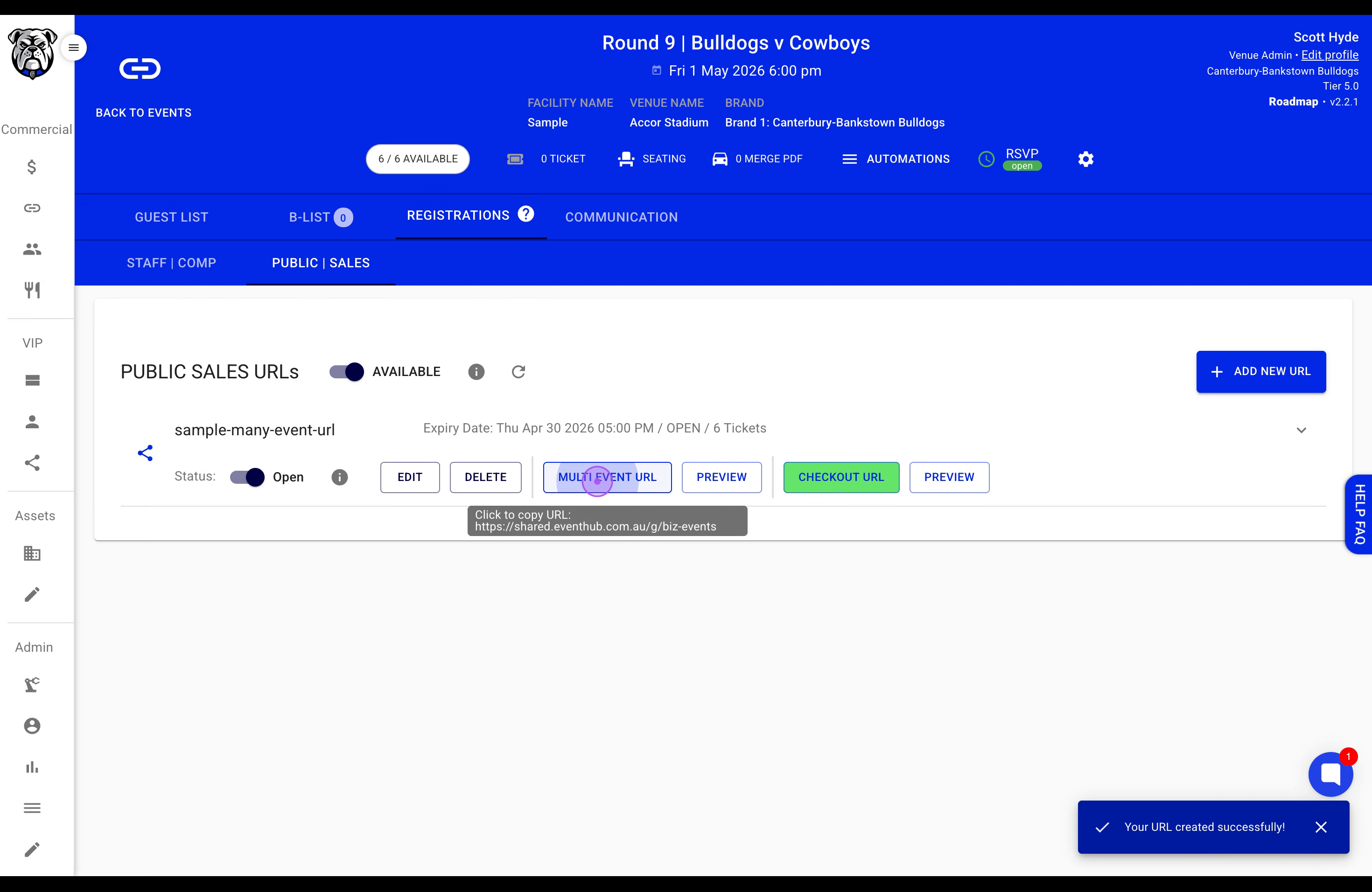
Click the MULTI EVENT URL button to copy the shareable link to your clipboard for distribution to customers.