If a user hasn't received their initial invitation or needs a new welcome email sent, you can easily resend it from the Invite Users section. Follow the steps below:
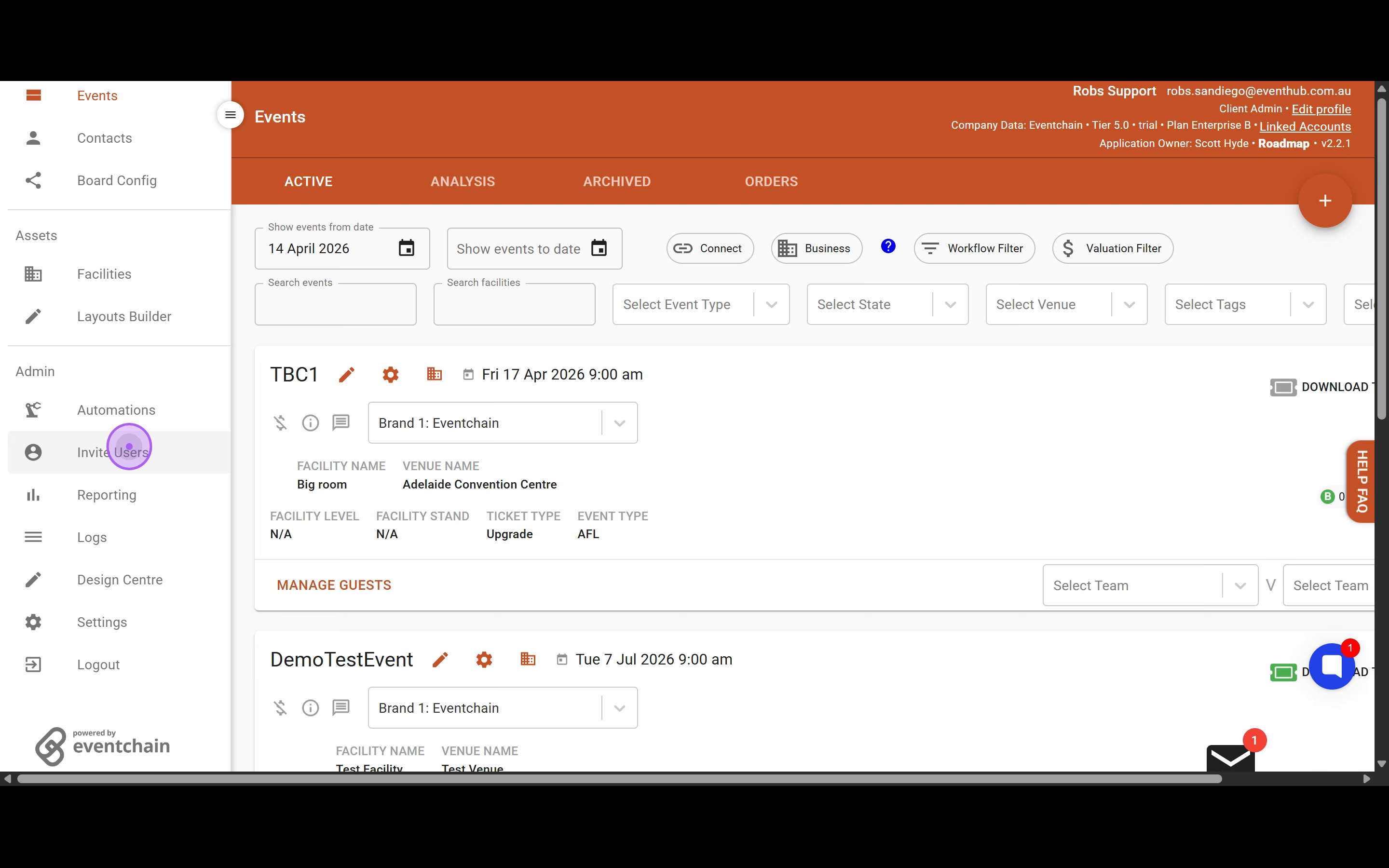
In the left sidebar, scroll down to the Admin section and click on Invite Users to access the user management page.
Once you're on the user management page, you'll need to locate the specific user account.
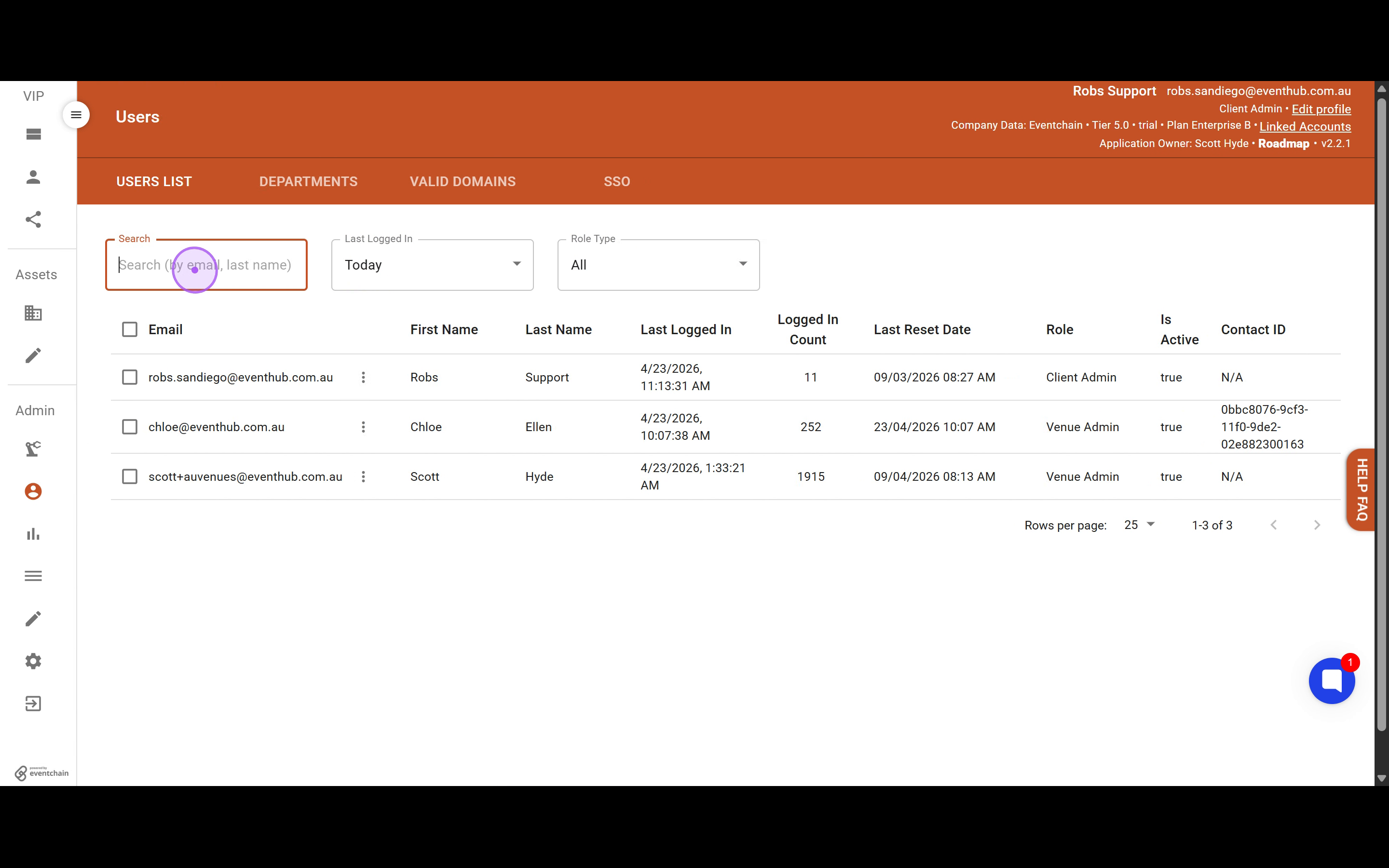
Click on the search input field labeled "Search (by email, last name)" at the top of the users list to activate it.
Type the user's first name, last name, or email address to filter the list and locate the specific user account.
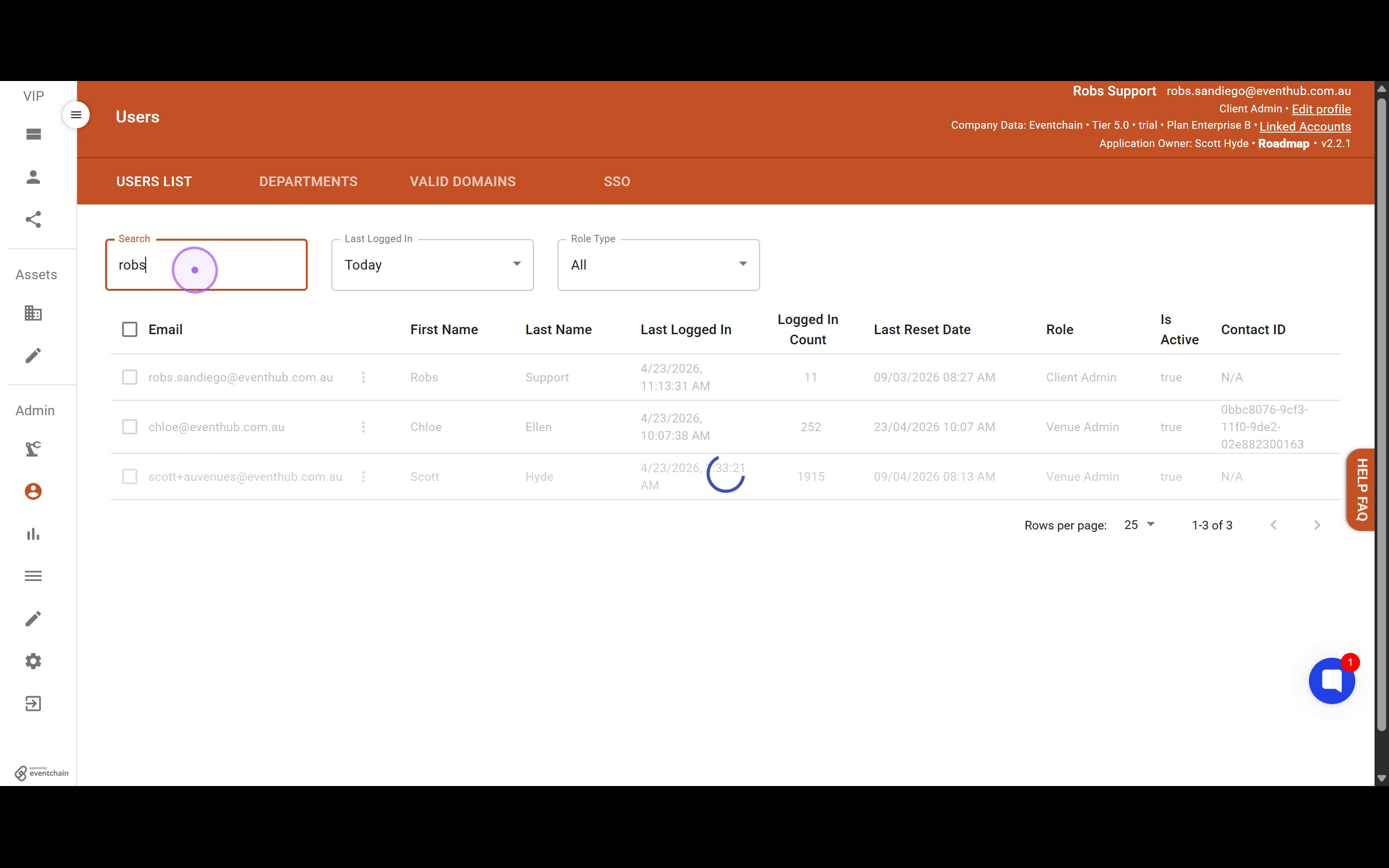
After locating the user in the filtered results, you can access the available actions for that account.
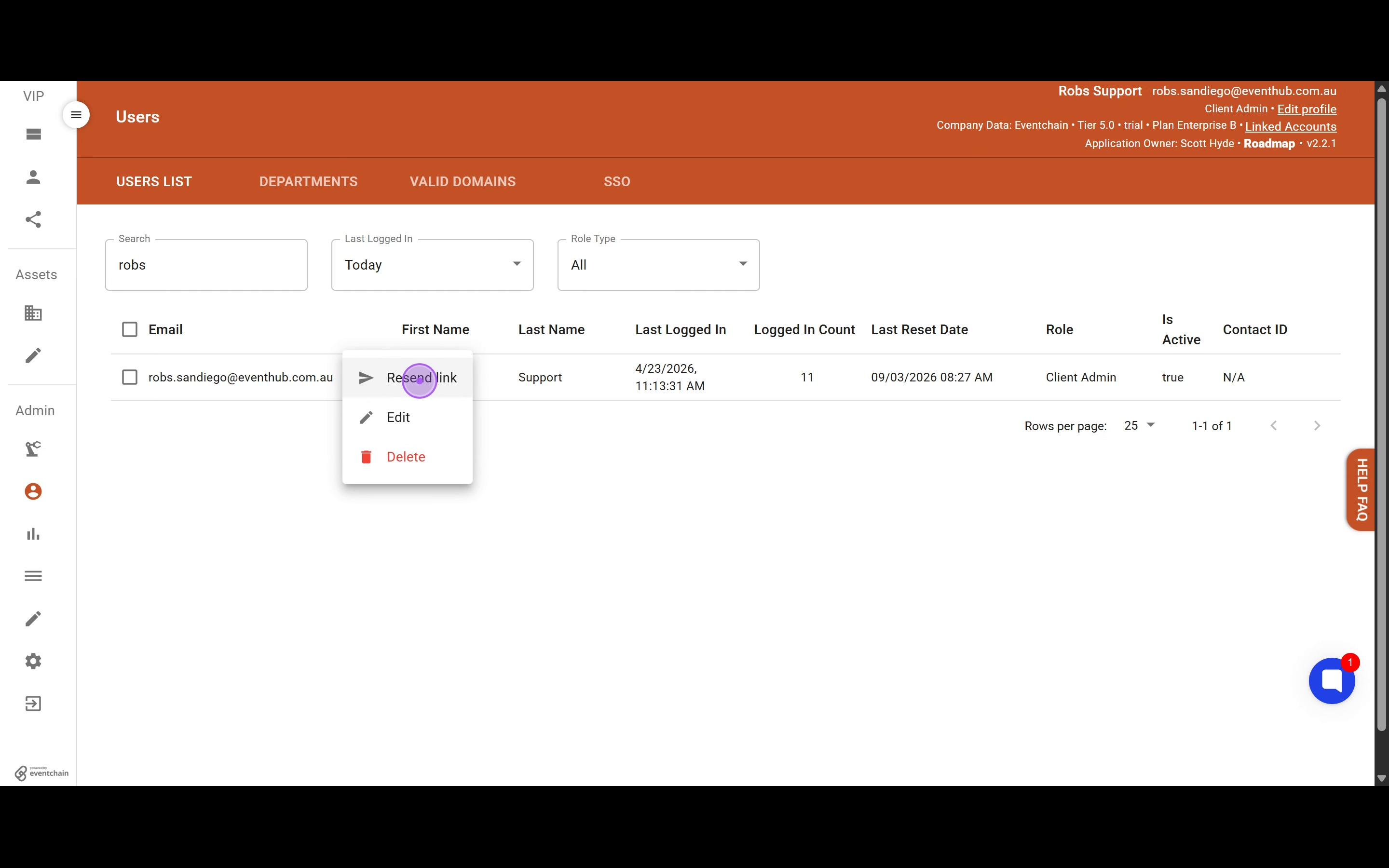
Click the three-dot menu icon (⋮) located to the right of the user's email address to reveal available action options.
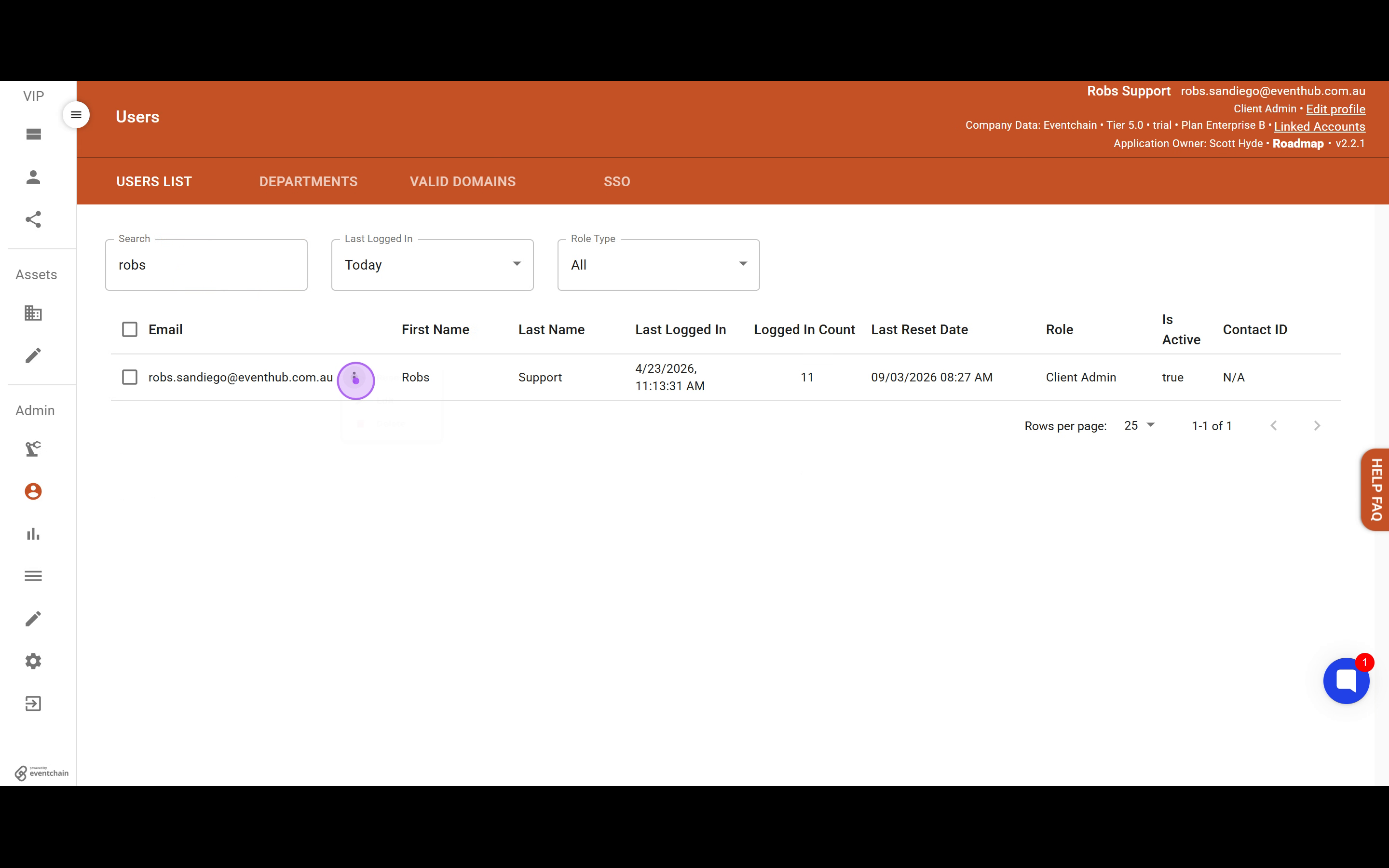
Click Resend link from the dropdown menu. A success notification will appear confirming that the welcome email has been sent again.
Note: This action sends a new welcome email containing a fresh invitation link. The user will receive this email at their registered email address. You can only resend welcome emails to users who are already active in your system.