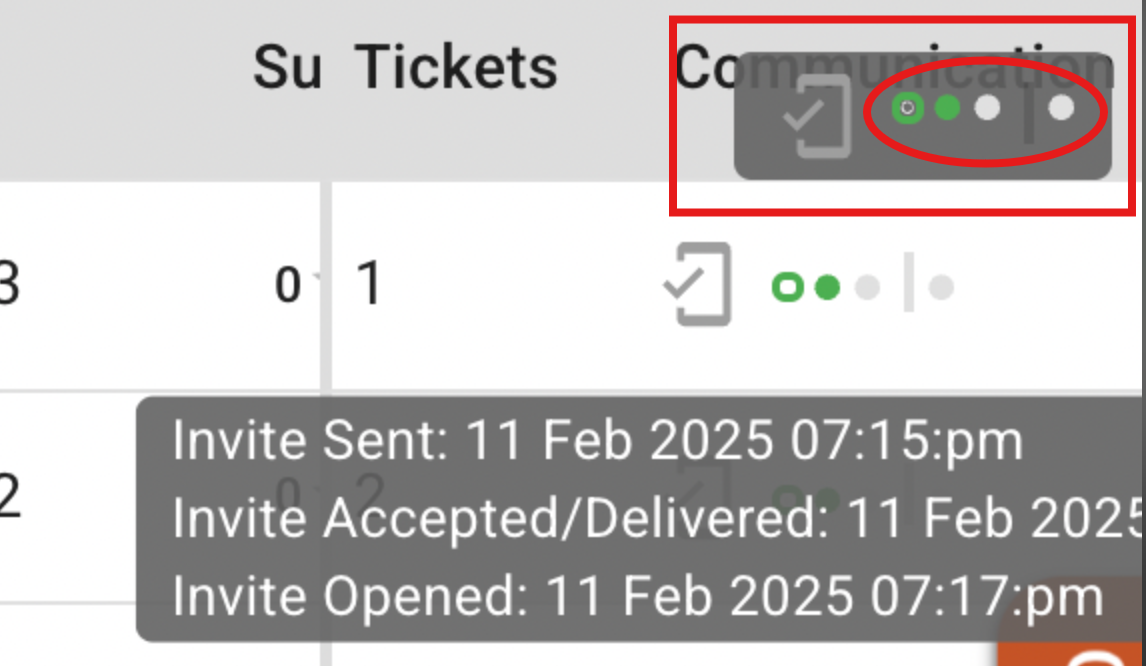
These dots represent the specific types of messages sent to that guest.
Position | Message Type | Purpose |
1st Dot | Invite | Initial invitation to the event or platform. |
2nd Dot | Confirm | Registration confirmation and receipt. |
3rd Dot | Details | Critical event info (Tickets, QR codes, entry instructions). |
4th Dot | Other | Reminders, updates, or custom follow-up messages. |
Each dot changes color and style based on the guest’s interaction.
Gray/White Dot: Not Sent. This communication type has not been triggered yet.
Hollow Green Dot: Delivered (Unread). The email successfully reached the guest's mailbox (Google, Outlook, etc.) but has not been opened.
Solid Green Circle: Opened/Read. The guest has successfully opened the email to read the content.
Follow this three-step lifecycle for every email:
Sent: The Admin selects a template and clicks "Send."
Accepted/Delivered: The guest's mailbox provider (Gmail, Outlook) accepts the file. The icon becomes a Hollow Green Dot.
Opened: The guest opens the message. The icon becomes a Solid Green Circle.
If a message remains as a Hollow Green Dot for an extended period:
Verify the email address for typos.
Identify if the email was filtered into "Promotions" or "Junk" folders.
Action: If a guest claims they haven't seen the "Details" (3rd dot), you can hover over the icon to verify the exact delivery timestamp before re-sending.
"Open" tracking relies on a tiny, invisible tracking pixel. This status may not update to a Green Circle in the following cases:
Blocked Images: If the guest’s email app (Outlook, Apple Mail) blocks external images, the pixel won't load.
Privacy Protections: Some systems (like Apple Mail Privacy Protection) may block tracking or trigger "false" opens.
Offline Access: Reading the email while offline prevents the system from verifying the "Open."
Rule of Thumb: If a guest confirms they have their tickets but you still see a Green Dot, trust the guest. The dot proves it was delivered; the guest proves it was read.